Connections
Check which booking channel, point of sale and add-ons each location uses.
Connections shows the outside systems one location works with: its booking channel, its point of sale, and its add-ons. Sadie sets up booking channels and add-ons, and you see each location's status here. Contact support to add, change or remove one.
Open Connections
Go to Settings, then click Connections under Set up. Company admins and group managers see this row. Location managers do not.
Connections shows one location at a time. If the location picker is on All locations or a group with several locations, the page says Choose a location to review its connections. with a list of locations; click one. The picker is explained in Get around the web portal. Check the location named under the page title before you read a status.
Connections has up to four views in the sidebar, in this order: Booking, Point of sale, Add-ons and Chat channels. Booking opens first. Chat channels appears once texting is turned on for the location.
Booking
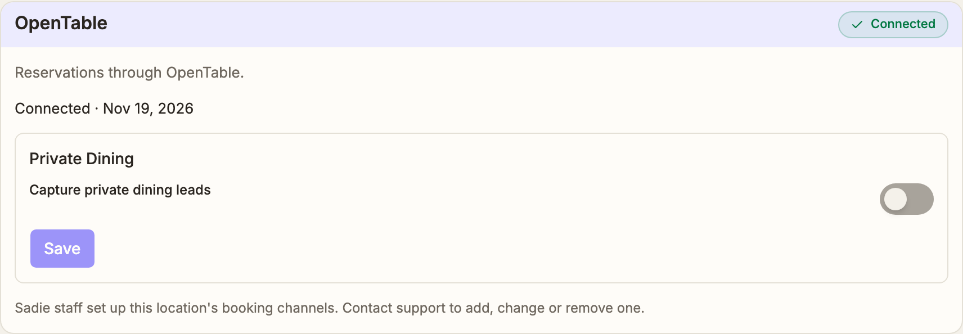
Booking shows how this location takes reservations. Sadie staff set up the channel itself. Two booking channels add settings you can change here:
- An OpenTable location has Private Dining, where Sadie captures private dining enquiries as OpenTable leads. See Capture private dining leads.
- A SevenRooms location has Tags Sadie may use, the tag categories Sadie may put on a booking. See Choose the tags Sadie may use.
Staff, location managers, group managers and company admins can change them. Everyone else sees them read-only.
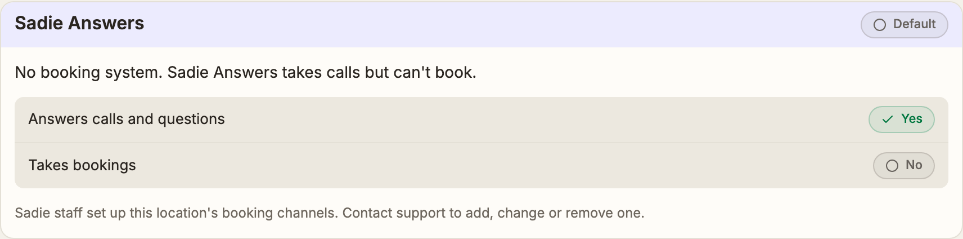
A location with no booking system shows the Sadie Answers card with a Default badge. The card reads No booking system. Sadie Answers takes calls but can't book. Below it, Answers calls and questions says Yes and Takes bookings says No. See Sadie Answers.
A location with a booking channel shows that provider's card instead, with a status badge. The badge says Connected when the channel works and Reconnect needed when it needs attention. Under the card, the page says Sadie staff set up this location's booking channels. Contact support to add, change or remove one.
Browse the booking guides for what each channel does and what to check.
Point of sale
Point of sale connects the location to the system that receives phone orders. A location can use one point of sale at a time. The summary card at the top reads No point of sale connected or names the provider that is connected, for example Square · Connected.
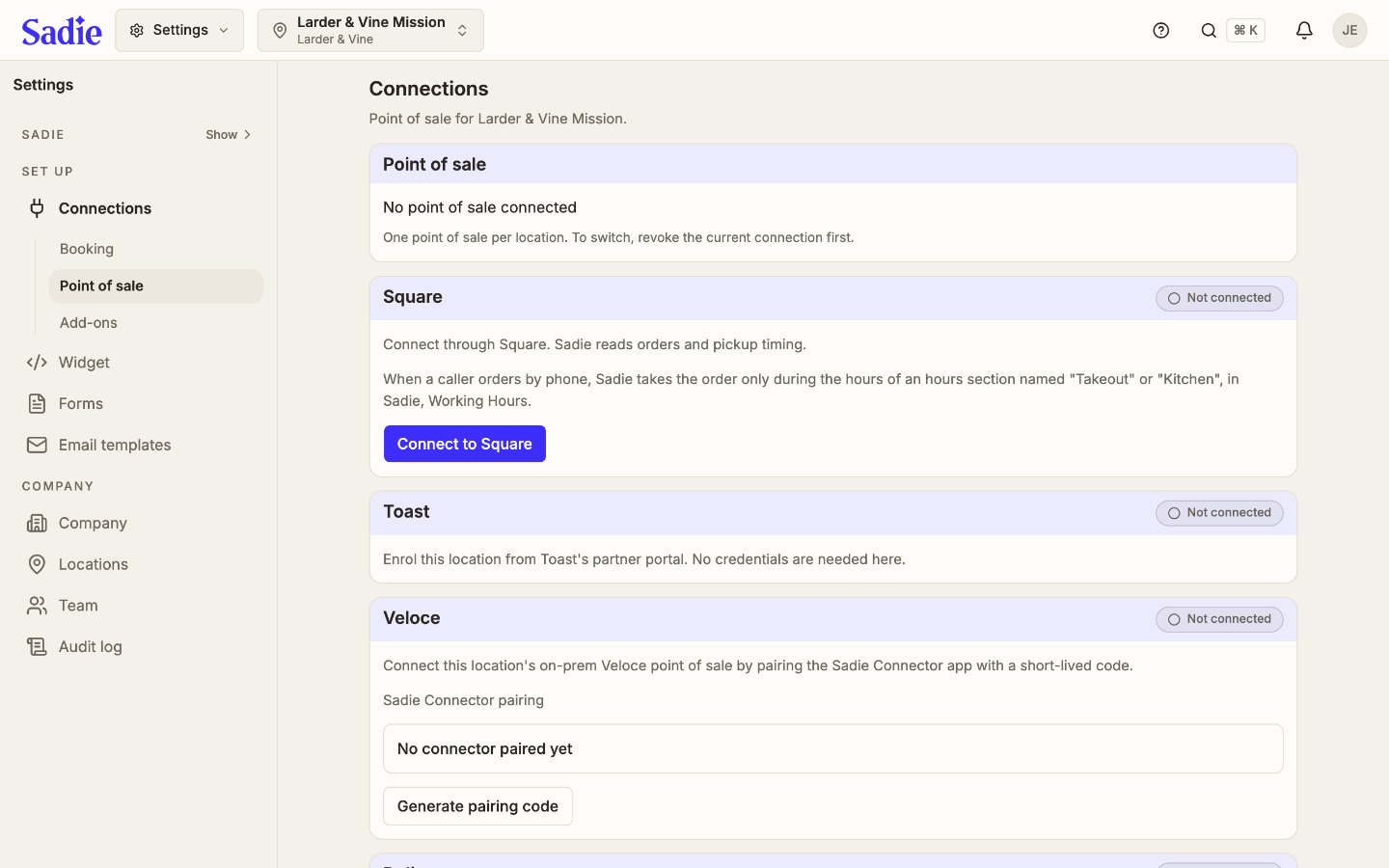
Company admins and group managers can set up and disconnect a point of sale for the locations they manage. Start with Sadie support when you plan a change. Each guide says what to prepare.
| Provider | How it connects | Guide |
|---|---|---|
| Square | Click Connect to Square and approve it in a Square window | Square |
| Toast | You enrol the location in Toast's partner portal | Toast |
| Veloce | You enter a pairing code in the Sadie Connector app | Veloce |
| Deliverect | Deliverect registers the channel ID Sadie shows, then you switch it on | Deliverect |
When one provider is connected, the others fold under Other point of sale options, because only one can be connected at once. Before switching, follow the connected provider's guide above to disconnect it; each one disconnects differently. Deliverect stays in view.
A connected Square, Toast or Veloce card also has a switch such as Enable Square integration. Switching it off keeps the connection saved but Sadie stops taking orders through it.
Location add-ons
Add-ons shows the extra services a location has. It is read-only.
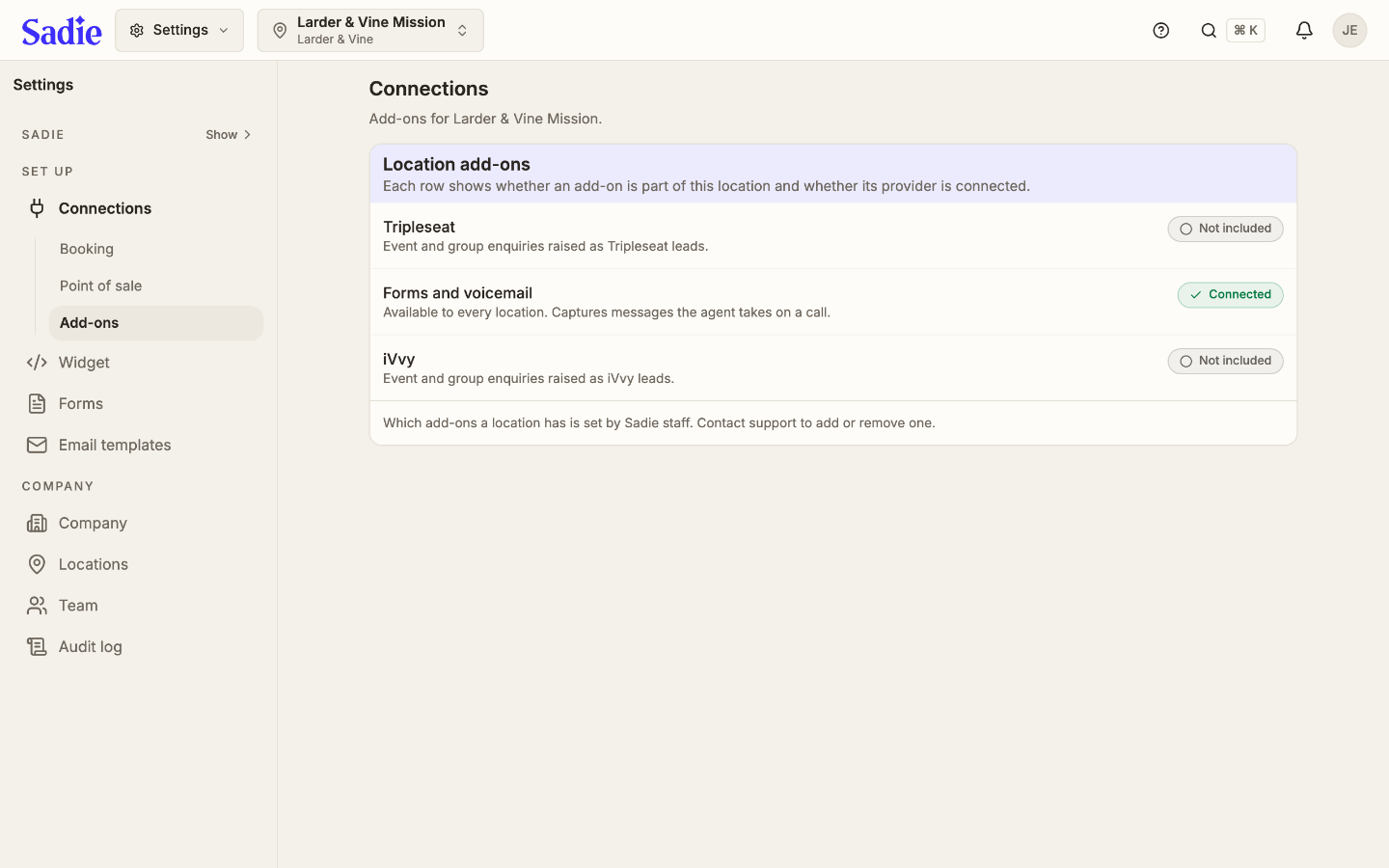
Each row names an add-on and shows one status:
| Status | Meaning |
|---|---|
| Connected | The add-on is part of this location and its provider is connected. |
| Not connected | The add-on is part of this location but its setup is not finished. |
| Not included | The add-on is not part of this location. |
| Reconnect needed | The provider no longer accepts the connection. |
| Can't confirm | Sadie could not match the add-on, so the list may be incomplete. |
The card ends with Which add-ons a location has is set by Sadie staff. Contact support to add or remove one. See Tripleseat, iVvy and Forms and voicemail.
Chat channels
Chat channels holds every way a guest can start a written conversation with Sadie, and what Sadie says in them. The switches and greetings here are yours to change. It appears once texting is turned on for your location.
Text conversations has one switch, Reply to text messages. On, Sadie answers texts sent to your location's number.
WhatsApp puts your number on WhatsApp. Click Connect WhatsApp and finish signing up with Meta in the tab that opens. You need a Meta business account for the location. The card shows each step and updates on its own. Once your number is live, switch on WhatsApp replies.
Web chat shows whether visitors can write to Sadie from your website widget. Click Manage in Widget to turn chat on or off.
Text greeting and goodbye sets what Sadie sends first and last in a text, WhatsApp or web chat conversation. Leave a field empty to use your call greeting or goodbye. Click Save.
Who to contact
Contact Sadie support for an unexpected status, a missing connection, or a booking, order or enquiry that did not arrive after a call. Contact the provider for access to its own account or a problem inside its service. Include the location, the provider and the exact text of any message you see.