Set up your forms
Build and edit the forms Sadie fills in on calls, turn them on or off, and choose where each one sends its responses.
Before you start
Form setup works on one location. If the location picker in the top bar says All locations or a group with several locations, the sidebar shows Sadie and Set up pages belong to one location. with a Pick a location link, and the page says Choose a location to see its forms. Pick a location first. See Pick what you are looking at. Staff, location managers, group managers and company admins can add and change forms. Anyone else who opens a form sees You can view this form. Ask an admin to change it. and no buttons to change it.
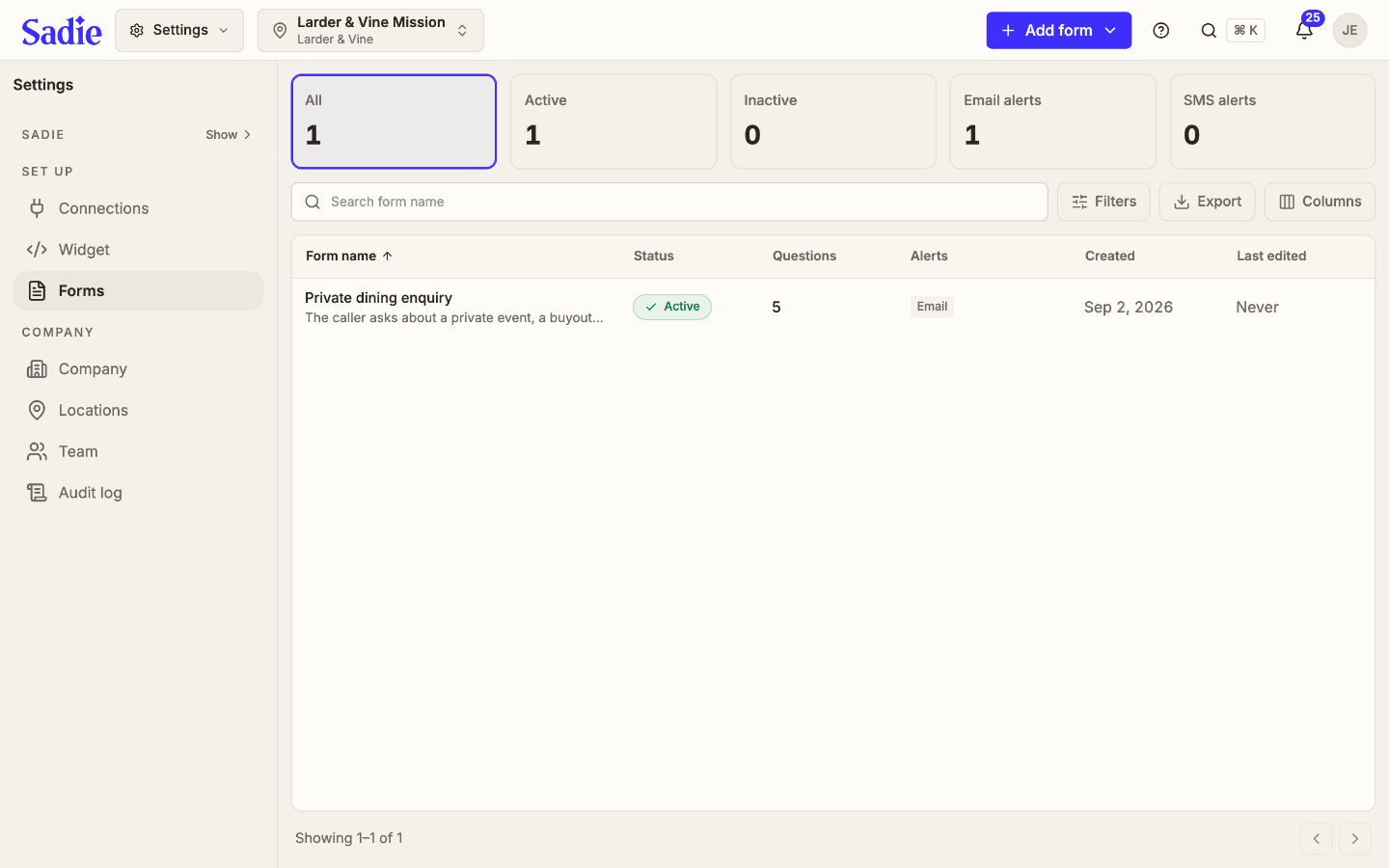
A form is a short set of questions Sadie asks a caller, for example for a catering or private dining enquiry. Settings, Forms lists every form the location has, one row per form with its name, status, questions, alerts, and when it was created and last edited. To read what callers submitted, see Read form submissions.
Open form setup
Click the page menu at the top left, then click Settings. Click Forms under Set up in the sidebar. The tiles across the top count All, Active, Inactive, Email alerts and SMS alerts. Click a tile to show only those forms.
If the page says Set up an agent for this location before creating forms., the location has no Sadie set up yet. See Set up Sadie.
Find a form
Type into Search form name to narrow the list. Click Filters to narrow further by Alerts or by Type, which is Custom or System. Columns chooses which columns show: Form name, Status, Questions, Alerts, Created and Last edited.
Export the list
Click Export, at the top right, to download the forms that match your current filters as a file.
Add a form
Click Add form, at the top right. On a phone or tablet, tap the plus button instead. A menu opens. Choose Blank form for an empty form, or pick one under From template: Running late, Private event inquiry, Lost item inquiry, Large group reservation or Job application. A panel opens over the list with the form. A template arrives with its trigger, opening line and questions already written, and you can change any of it. If a form with that name exists, the new one is given a number after its name, such as Running Late (2). A template has no recipient, so add one before you save.
Name the form and say when to use it
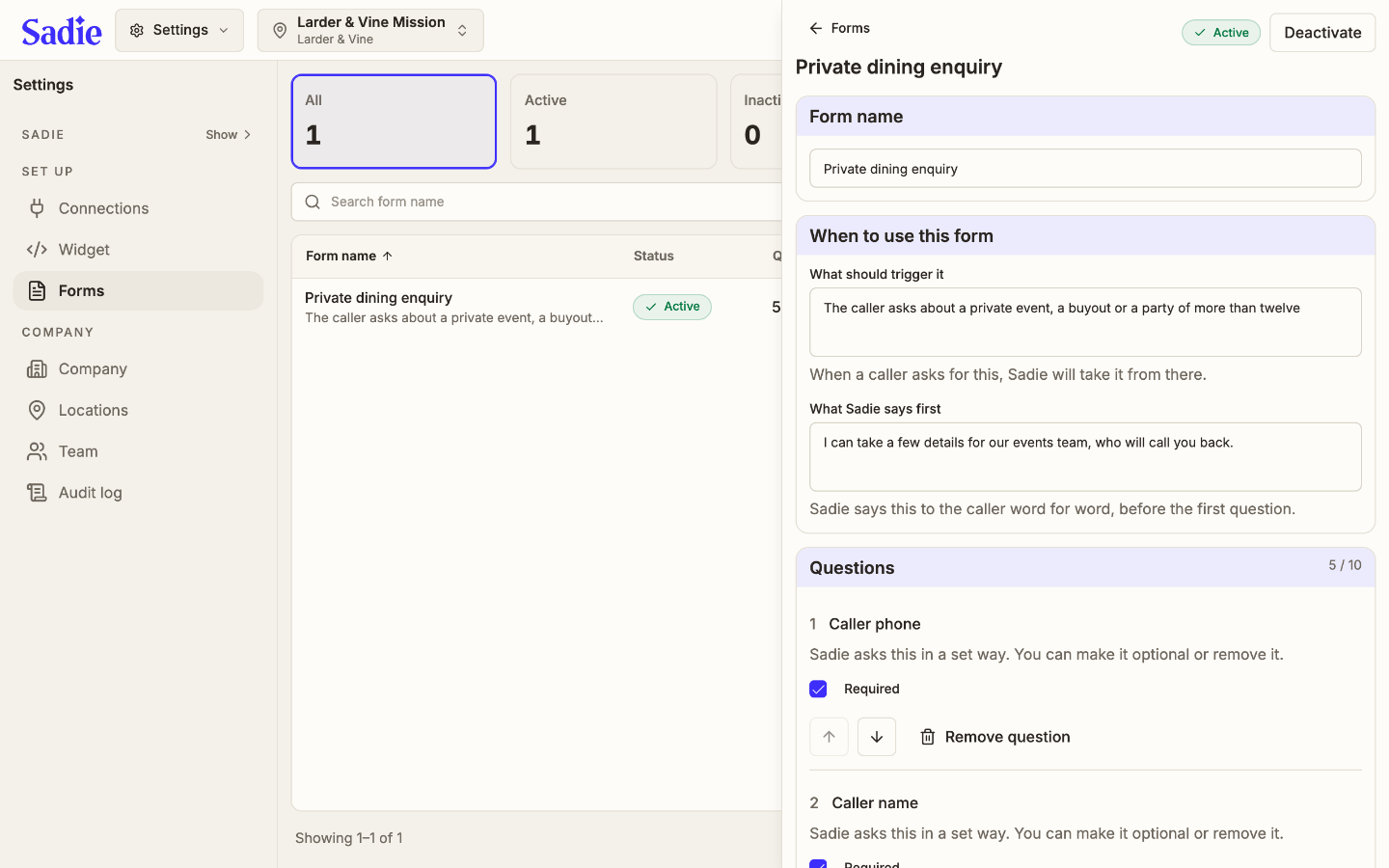
Type the Form name. The name Voicemail Form is kept for the voicemail form; if you type it, the page says This name is kept for the voicemail form. Pick another name. and you cannot save. Under When to use this form, fill in What should trigger it, for example catering or events: when a caller asks for this, Sadie takes it from there. Then fill in What Sadie says first. Sadie says this to the caller word for word, before the first question.
Write the questions
Under Questions, click a question to open it. Type the Question, then choose its Answer type, Text or Number. Check Required if the caller must answer, and Wait for an answer if Sadie should pause for the reply. The arrow buttons move a question up or down, and Remove question deletes it. Click Add question for another.
A form holds up to 10 questions. The counter beside Questions shows how many you have used, and a note suggests keeping the conversation short once you reach six.
A new form starts with Caller name, Caller phone and Caller email. Sadie asks these in a set way, so you cannot change their wording. You can move them, uncheck Required to make one optional, or remove it. A removed one comes back with Add caller name, Add caller phone or Add caller email, next to Add question.
Choose where responses go
Under Send responses to, add at least one email address or phone number with Add email or Add phone. Each response is sent to everyone listed. For a phone number, choose the Country first.
Responses go to a phone number as a text, so it must be a mobile. A landline or another number that cannot receive texts shows a note under it, such as This is a landline and can't receive texts. Enter a mobile instead. Save changes stays off until you fix or remove that number. If a number only turns out to be unable to take texts when you save, the page says Not saved. A phone number can't receive texts. Fix the number marked below, then save again.
Save the form
Click Save changes. The button stays off until the form has a name, both When to use this form boxes are filled, and at least one valid recipient is listed. The text beside it reads Unsaved changes while edits are waiting and No unsaved changes once they are saved.
To close the form without saving, click Cancel. If you have unsaved changes, it asks Leave this editor? first.
Change, turn off or archive a form
Click a row to open the form in the same panel. Edit it, then click Save changes.
Above the form, its status shows as Active or Inactive, with a button to change it. Click Deactivate to stop Sadie using the form, or Activate to turn it back on. The button is off while you have unsaved changes, so save first.
Archive, at the bottom, asks Archive this form? and explains that the agent will stop using it. Click Archive to confirm. It is also off while you have unsaved changes. To go back to the list, click Forms at the top of the panel. If you have unsaved changes, it asks Leave this editor? first.
Change the voicemail form
The voicemail form is marked System. Voicemail hours switch it on and off, so it has no Activate, Deactivate or Archive button, and its name and trigger say Set by Voicemail hours. It can't be changed here. Set the hours on the Assistant Settings tab; see Assistant Settings.
You can change everything else: What Sadie says first, the questions and Send responses to. Its recipients started as the location's email and backup number. Caller name and Caller phone stay on the voicemail form and stay required; you can still move them.
What's next
Read what callers submitted: Read form submissions.