Set up Sadie, your phone assistant
Give Sadie a phone number, then set what it says, knows, books and transfers for one location.
Sadie answers the phone, takes bookings, and texts callers when you are busy. This page covers the first-time setup and every section under Sadie in the Settings sidebar. Sadie is set up for one location at a time.
Before you start
Sadie needs a plan that includes it. If the location's plan does not, Settings, Sadie shows a screen headed Let Sadie answer every call in place of the setup.
Company admins, group managers and location managers can change these settings for the locations they manage. Buying or releasing the phone number is for company admins only.
Open the Sadie settings
Go to Settings. The Sadie group sits at the top of the sidebar. Click Show beside its name to list the sections, or Hide to fold them away. They are open while you are on a Sadie page.
Sadie works on one location. If the location picker is on All locations or a group with several locations, the sidebar asks you to pick a location first. See Get around the web portal.
While a location is still in setup, or after its number has been released, the section rows are not offered and the Sadie page shows the setup or the number screen. Once Sadie is live, the sidebar lists these sections: Greetings & Messages, Bookings, Knowledge Base, Transfers, SMS Reasons, Special Messages, Working Hours, Availability Rules and Assistant Settings. A Sadie Answers location has no Bookings row. Availability Rules shows only for a location that books through OpenTable.
Getting Sadie set up
A location that has not finished setup sees a guided flow in place of the sections. The list on the left shows five steps: Get a phone number, How Sadie sounds, How you take bookings, What Sadie knows, and Call Sadie & go live. A Sadie Answers location has no booking step, so it shows four. The top of the page counts the steps as Step 1 of 4, or 3 for Sadie Answers, then Almost done on the last screen. Click Back or Continue to move between them, or a finished step in the list to return to it.
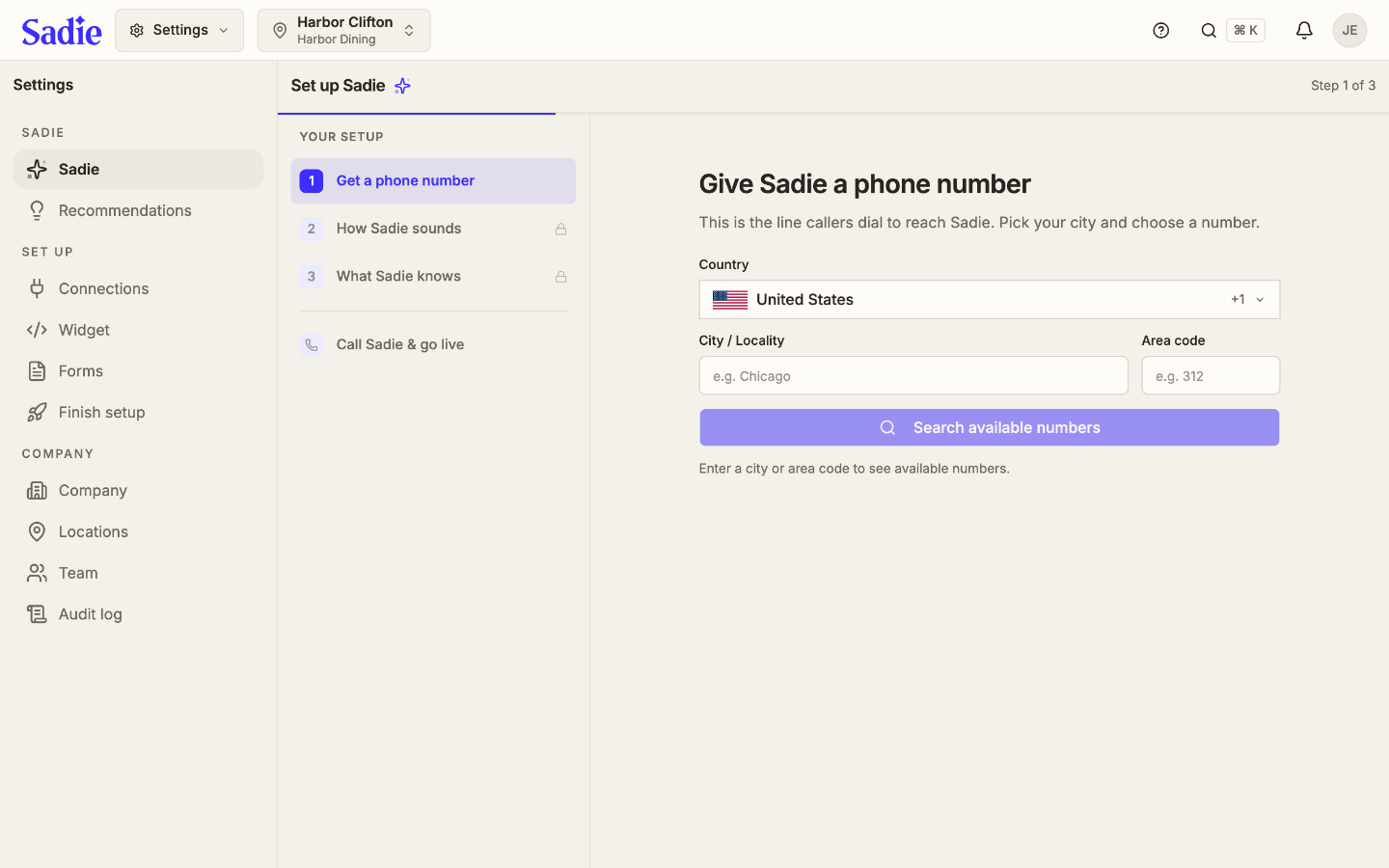
Give Sadie a phone number
Only a company admin can do this step. Choose a Country, then type a City / Locality or an Area code, and click Search available numbers. Pick a number from the list under Choose a number; Sadie picks one for you ahead of time. Keep or change the Label, a name that identifies the number, then click Get this number. A message says Your number is ready.
If a location already has a number, this step shows it and you continue.
Choose how Sadie sounds
Pick a voice and the greeting callers hear first. These are the same settings as Greetings & Messages below. Click Save & continue.
Set how you take bookings
Set the rules Sadie follows to book. These are the settings under Bookings below. This step is not shown for Sadie Answers.
Tell Sadie what it knows
Sadie asks one question at a time, such as your parking or your allergy policy. Type an answer and click Save & continue, or click Skip this question to come back to it in Knowledge Base. When every question has an answer, the step says Every question has an answer.
Go live
The last screen shows the new number and asks you to call it and hear Sadie answer. Click Sadie is answering, go live when you are happy. The sections open.
If Sadie's number is released later, the location goes back to a screen headed Sadie has no phone number, which says Callers can't get through until you attach a new number. Everything else you set up stays in place. Only the phone number is missing.
Greetings & Messages
Greetings & Messages sets how Sadie sounds when it answers.
Voice picks the voice Sadie uses on calls. Click Save. A change applies from the next call, and a call in progress keeps the voice it started with.
Greeting sets what callers hear first. Type it in the box, up to 700 characters, using letters, numbers, spaces and the marks . , ' " ! ? -. Click Listen to hear it in the chosen voice, then click Save. Cancel drops your unsaved edits.
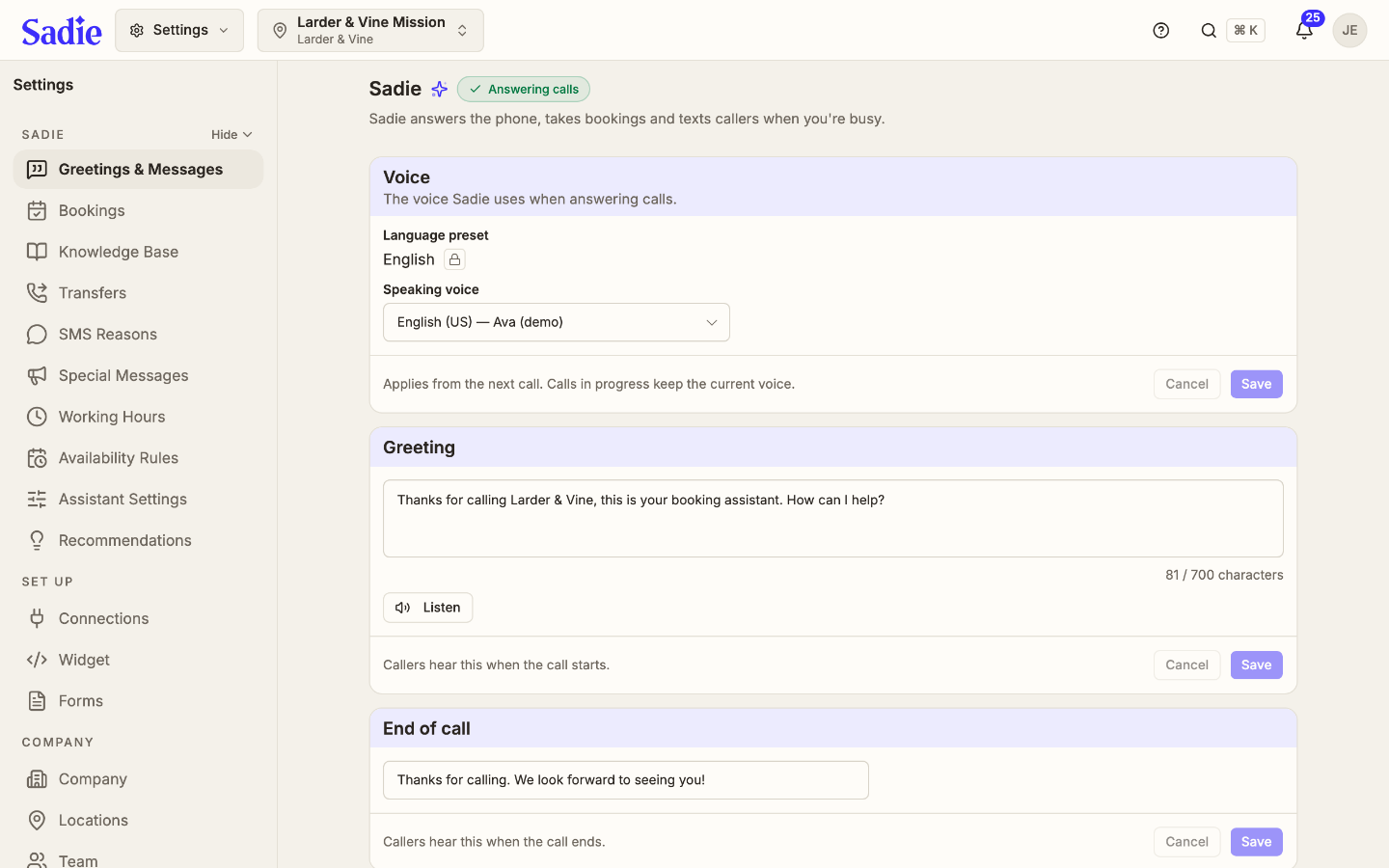
Below that, End of call sets what callers hear when the call ends.
Bookings
Bookings sets how Sadie offers times and what it asks callers for. A Sadie Answers location has no Bookings section, because Sadie Answers does not take bookings. Neither does a location booking through Yelp.
Each location sees only the settings its booking system uses. NBI locations see all of them. An OpenTable location, for example, sees Experience presentation, Use caller phone, Excluded phone numbers, Minimum notice and Closing question.
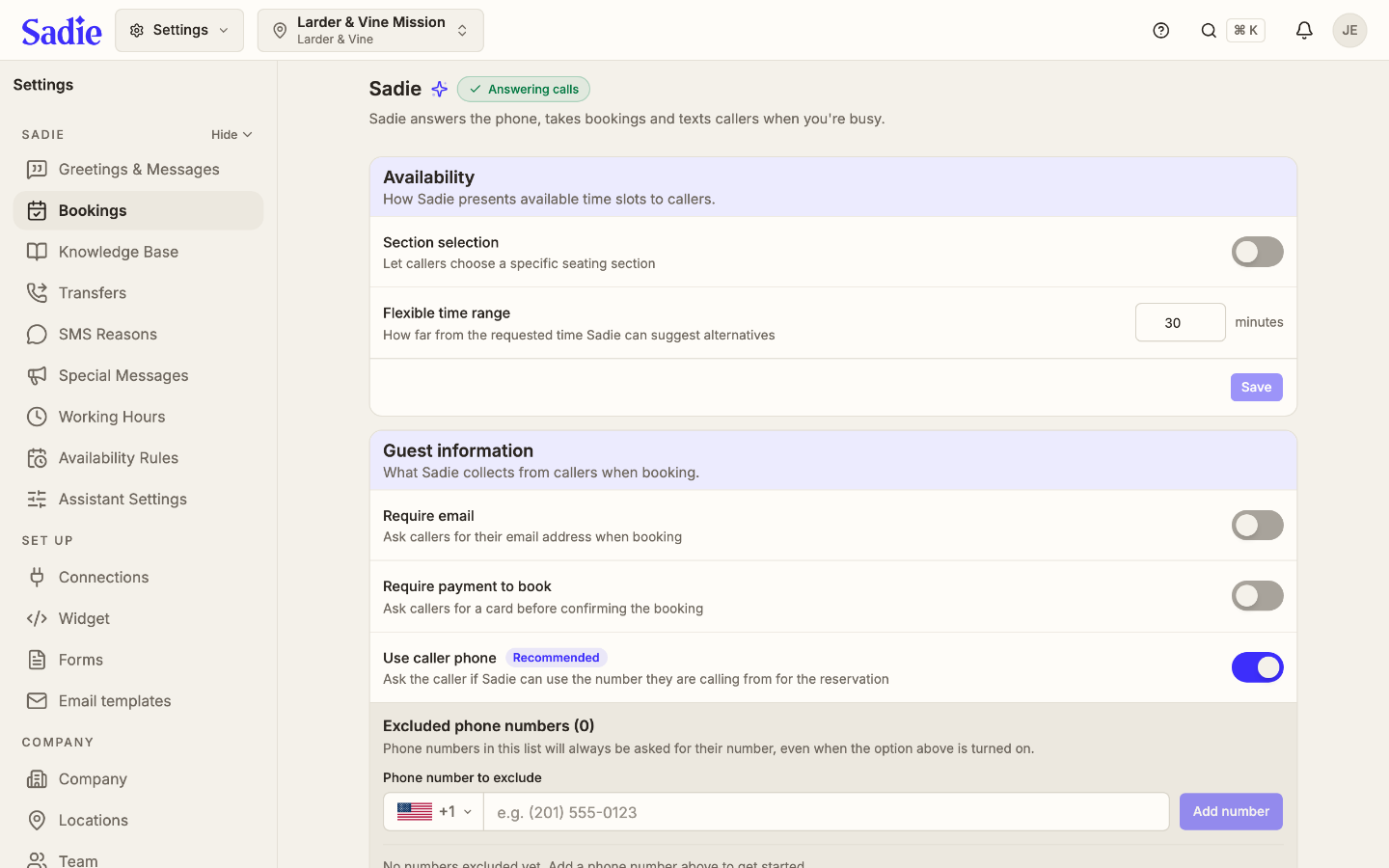
Availability sets how Sadie offers times. Section selection lets callers choose a seating section. Flexible time range sets, in minutes, how far from the requested time Sadie may suggest another slot. On NBI locations, Include diary-only tables lets Sadie book tables set to diary only in NBI. On OpenTable locations, Experience presentation sets how Sadie offers OpenTable's optional experiences when a standard booking is free: Standard only never offers them, Standard first offers them after the standard booking, and Experiences first offers them before it. Each applies to new calls at once.
Closing question adds one last question before Sadie confirms a booking. Switch on Ask a closing question, then choose a question under Use a preset, or choose Custom and write your own.
Guest information sets what Sadie collects. Require email asks for an email address. Require payment to book asks for a card before confirming. Use caller phone, marked Recommended, asks the caller whether Sadie may use the number they are calling from.
Excluded phone numbers lists lines that call on someone else's behalf, such as a hotel concierge or a booking agency. Sadie does not offer callers from these numbers the number they call from, and asks for a phone number for the booking instead, even with Use caller phone on. The list shows only while Use caller phone is on. Choose a country, type the number and click Add number. Adding and removing save at once.
To cap the party size Sadie books, add the Large reservation transfer reason under Transfers and set its Max reservation capacity. Sadie transfers larger parties to your team.
Cut-off stops Sadie taking bookings close to service. Switch on Enable cut-off, set the Cut-off window, and write the Cut-off message Sadie says to a caller past it.
An OpenTable location sees Minimum notice here instead. OpenTable does not close the whole service: it refuses only times closer than the notice you set, and later times in the same service stay open. Set it to more than 15 minutes.
Revenue tracking takes your Average price per cover, which Sadie uses to estimate the revenue from bookings it makes.
Knowledge Base
Knowledge Base holds what Sadie can say on a call. Sadie answers from it, so keep it current.
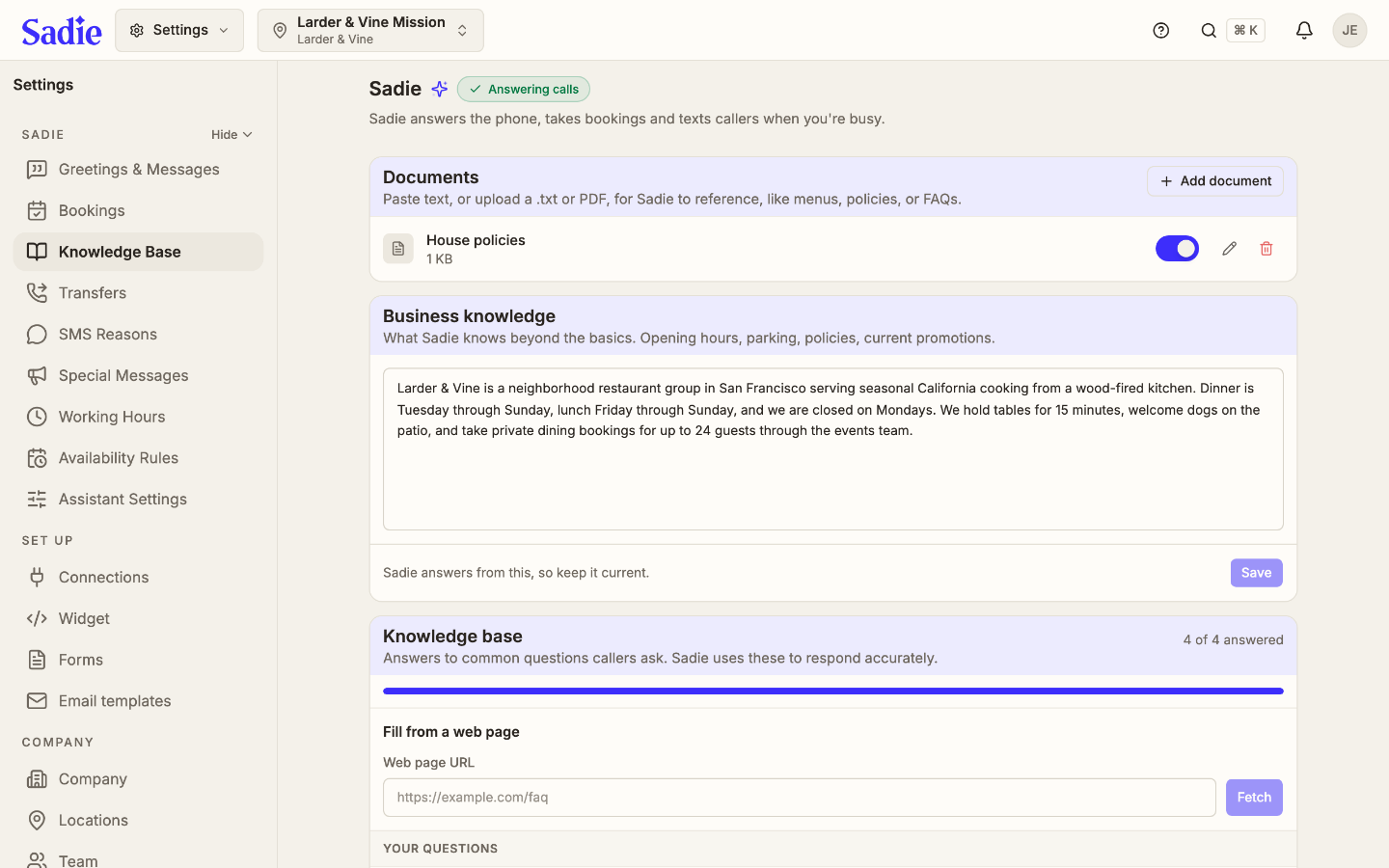
Documents stores text such as menus, policies and FAQs. Click Add document, then paste text or upload a .txt or PDF file. For a PDF, check the text against the page before you save, because only the text is kept. A document's switch keeps it without using it: when it is off, Sadie stops reading it on calls. The pencil edits it and the bin removes it.
Business knowledge holds what Sadie knows beyond the basics, such as opening hours, parking, policies and current promotions. Click Save after you edit it.
Knowledge base lists the questions callers ask often, with a count such as 4 of 4 answered. Type an answer under a question marked Needs answer and click Save. Click Add your own question for one that is not on the list. Questions you leave unanswered are politely deflected, and Sadie offers to have your team follow up.
To fill answers from your website, paste a page address under Fill from a web page and click Fetch. Sadie marks the answers it finds Suggested. Check each one before you save it, because nothing already saved changes until you do.
Transfers
Transfers sets how Sadie hands a call to your team.
Transfer & failover has Transfer mode, Dial timeout and Backup number. Click Save after changing them. Transfer mode has three choices:
- Cold transfer connects the caller right away.
- Warm transfer briefs the person who picks up first.
- Warm return brings the caller back to Sadie if nobody answers.
Dial timeout is how many seconds Sadie rings before giving up, from 1 to 60. Calls ring the backup number while Sadie is paused or unavailable. A new location often starts with its own phone number there, so check it. You cannot pause Sadie without a backup number, because calls would have nowhere to go.
With Warm return chosen, two more settings appear. Return message shows what Sadie says when nobody answered and the caller comes back: "Sorry, I couldn't reach the team just now. I'll let them know you called so they can get back to you." It is the same for every venue and cannot be changed, and your team still hears about the call afterwards. Unanswered transfer alerts lists the emails and phone numbers that get a message when a transferred call goes unanswered.
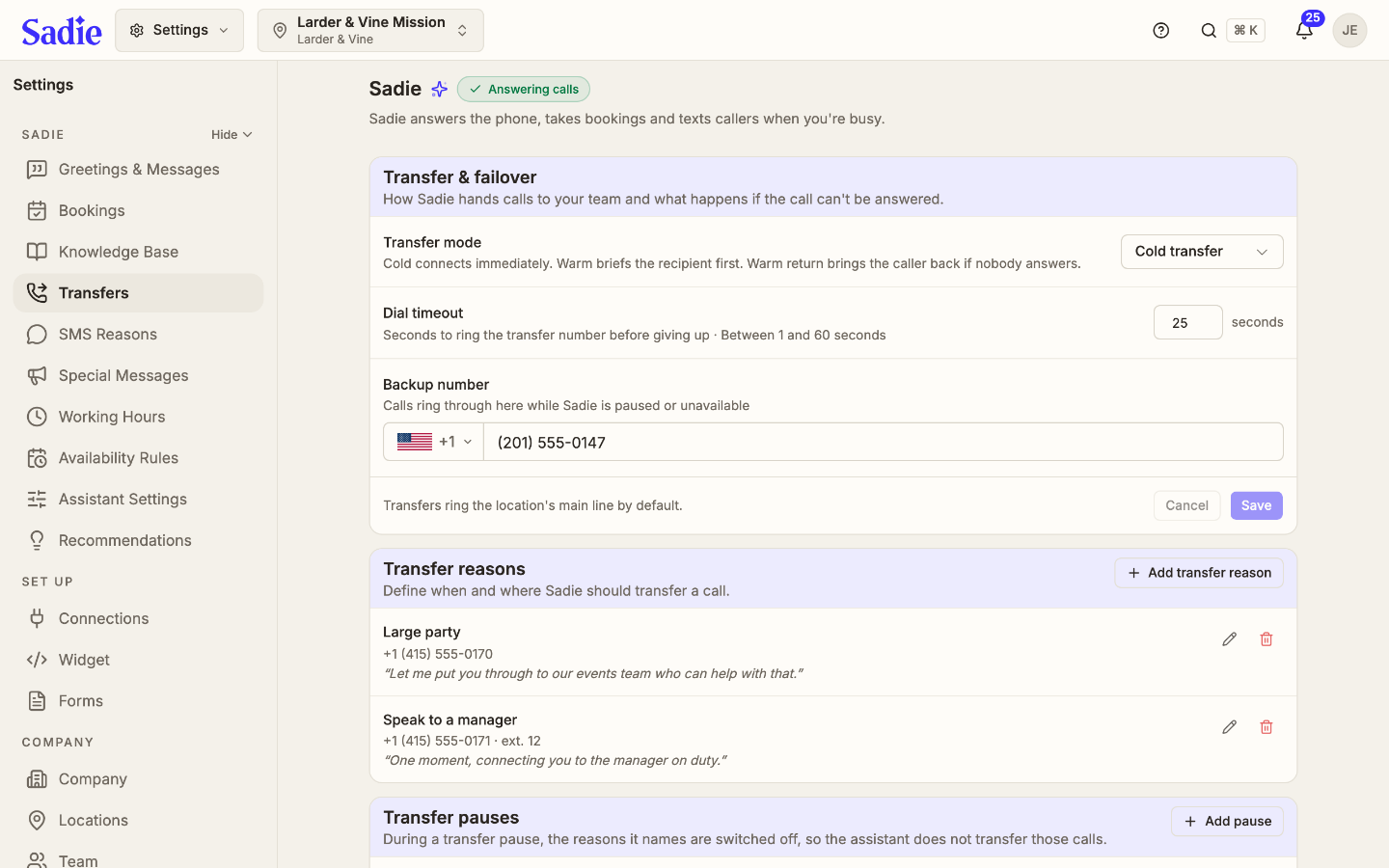
Transfer reasons says when Sadie transfers a call and to which number. Each row shows its name, its trigger, its number and what Sadie says, so you can read them all by scrolling. To change a reason, click the line you want to change. The reason opens where it is, with that field ready to type in. Click Save reason when you are done. To add one, click Add transfer reason, and fill in the form:
- Open Reason and choose one: a fixed reason such as Large reservation, Speak to a person, Lost item, Table decorations, Reservation payment, No availability, API error, Person is very angry, Takeaway, pick up, orders or General inquiry, or Custom. A fixed reason has fixed wording that Sadie listens for, and its name is the reason itself. A reason already in use is not offered again.
- For Custom, give it a Name and write when it applies under When a caller…. The name is how the reason shows in the list, on schedules and in call reports, so no two reasons can share one.
- Write what Sadie says, then enter the Phone number to transfer to and, if needed, an Extension.
- Click Save reason.
Large reservation also asks for Max reservation capacity, a whole number of 1 or more. API error, No availability and General inquiry are built in: you can change their number and wording but not delete them.
Transfer pauses stops transfers for some reasons at set times. Each row shows its name, its days and hours, the reasons it pauses and an Active or Inactive badge. Click Add pause to add one, then name it, set when it runs and tick the reasons to pause. Click Edit on a row to change or delete it. While a pause is running, each reason it covers shows Paused by with the pause's name. This is the only place to change a transfer pause. Schedule shows them but cannot change them.

SMS Reasons
SMS Reasons sets the texts Sadie sends during and after calls.
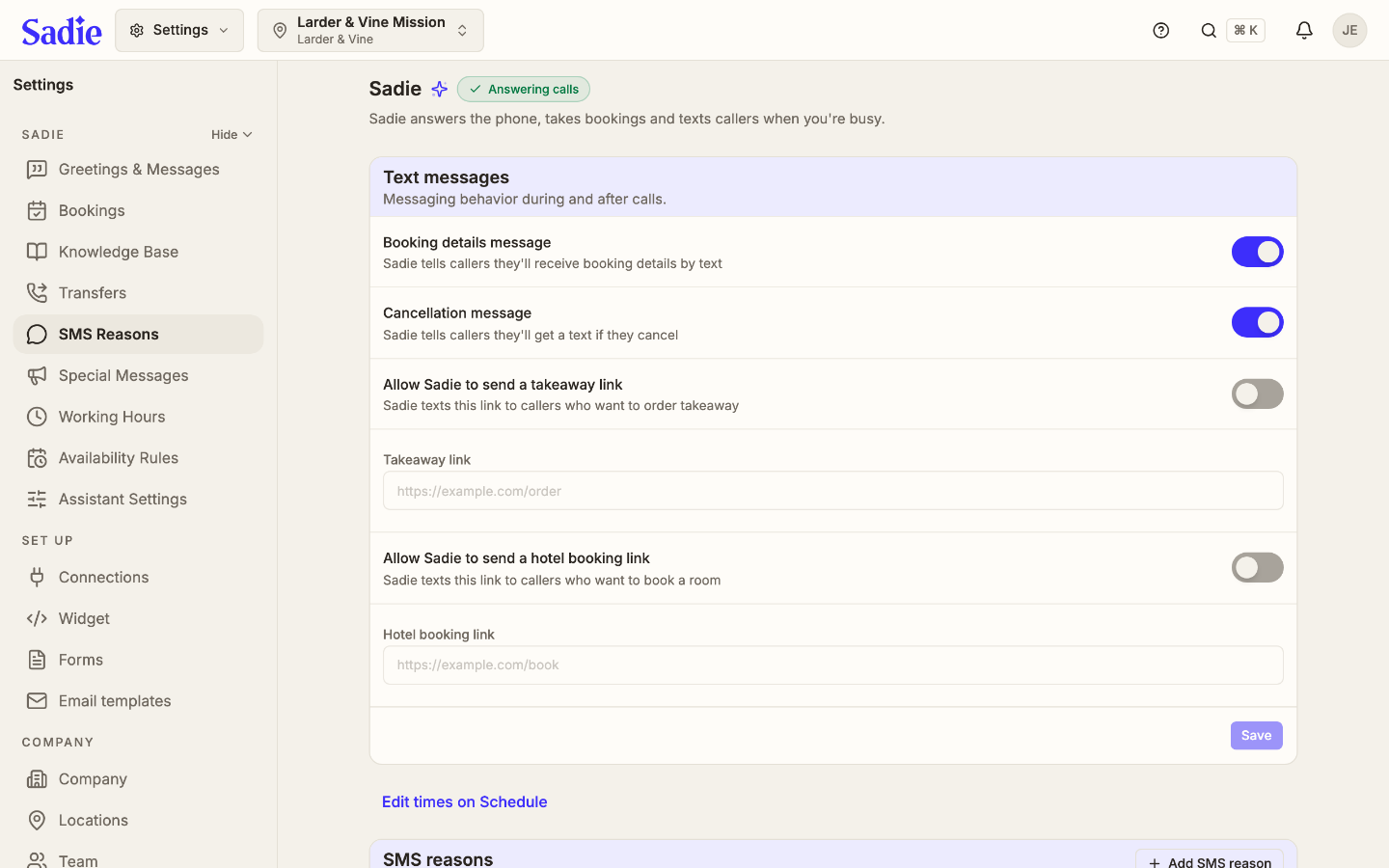
Text messages has up to four switches. Booking details message and Cancellation message tell callers they will get a text with those details. The takeaway link and the hotel booking link show only for locations that book through Now Book It. The hotel booking link appears once Sadie staff turn it on for your location; ask your Sadie contact if you need it. Allow Sadie to send a takeaway link and Allow Sadie to send a hotel booking link each open a link field once switched on. The links need a full web address of up to 70 characters. Click Save.
SMS reasons holds your own texts for specific situations, such as a deposit link or directions. Each row shows all three parts, so you can read them by scrolling. Click a line to change it in place, then click Save. To add one, click Add SMS reason, then fill in the Trigger condition, the AI message Sadie says on the call, and the SMS content it texts.
Special Messages
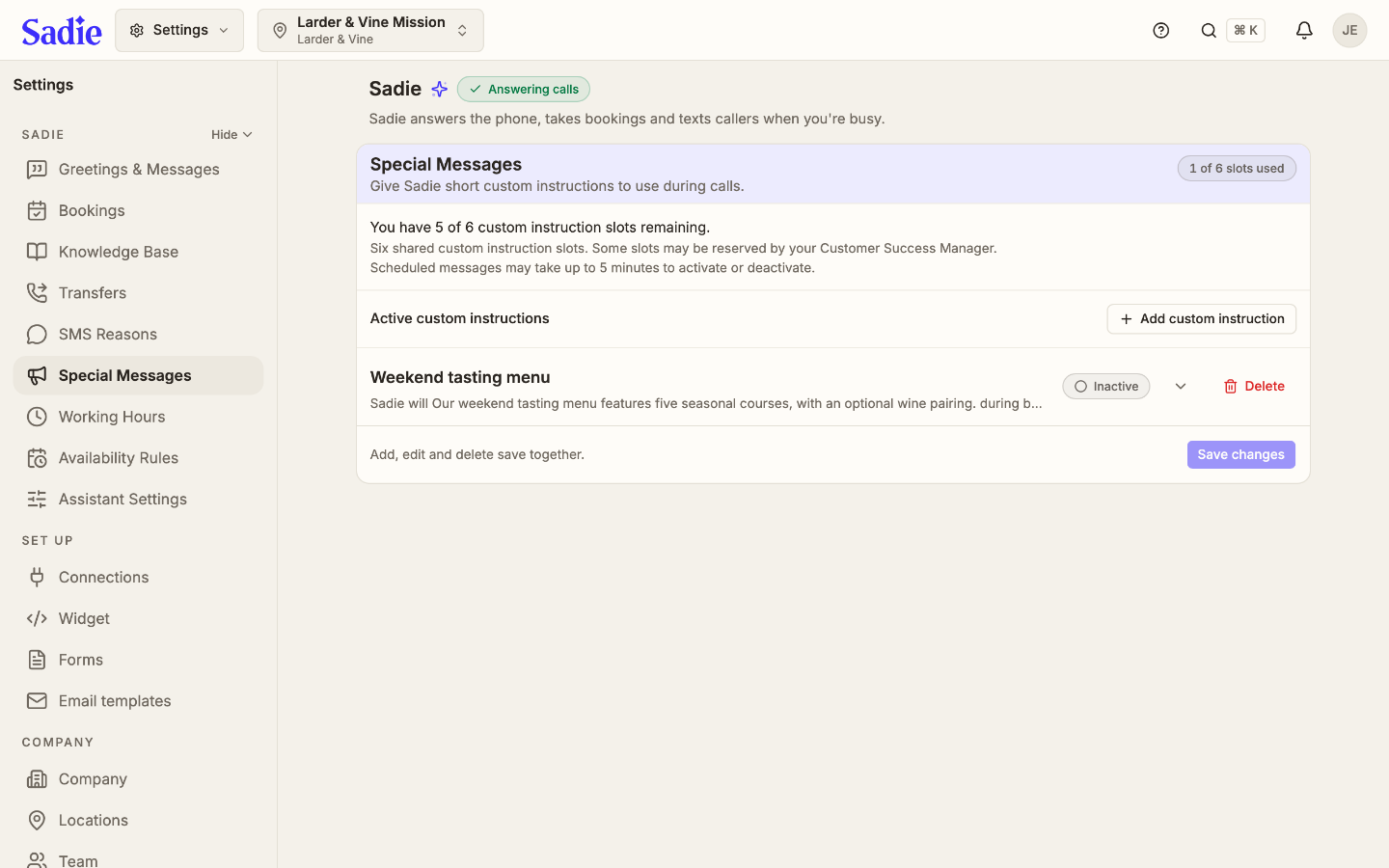
Special Messages gives Sadie short instructions to use during calls. The corner badge shows how many of the six slots are used, such as 1 of 6 slots used. Some slots may be reserved by your Customer Success Manager.
Click Add custom instruction, then open it with the arrow to set it up:
- Category: Upsell, Event promotion, Seasonal offer, Announcement or Custom.
- Message: 2 to 200 characters, starting with an action verb: Ask, Tell, Inform, Remind, Notify or Mention.
- Flow placement: During booking or After confirmation.
- Scheduling: Always active, Recurring weekly with the days, or Date range with a start and an end date.
Click Save changes. Adding, editing and deleting all save together. A scheduled message can take up to 5 minutes to switch on or off.
Working Hours
Working Hours is where you set the location's opening hours. Pausing Sadie and voicemail hours are on Assistant Settings.
In the Working hours card, each day is a line on one time scale, so you can compare days at a glance. Turn a day's switch off to close it. Each open period is a bar: drag it to move it, or drag either end to change the opening or closing time, in 15-minute steps. Click a bar to type exact times, or to Remove that period. Click an empty part of a day's line to add a period there, such as a dinner service after lunch. A period that closes after midnight shows Runs past midnight. The ⋯ menu on each day has Add hours and Copy to all days, which gives every day the same hours. Click Save when you are done, or Cancel to put back the saved hours. If you leave the page with changes that are not saved, Sadie asks first.
With a keyboard, Tab to a bar and use the arrow keys to move it 15 minutes at a time, or hold Shift to change only its closing time. Press Enter to type exact times.
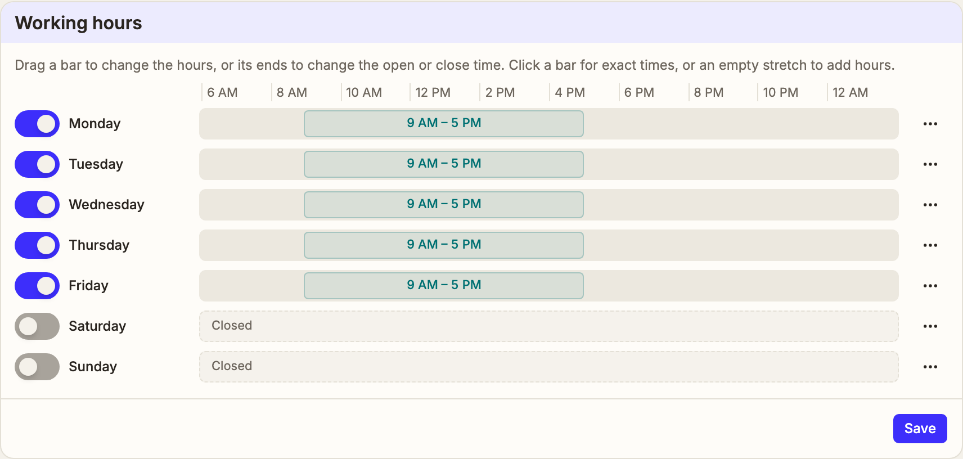
If the hours were not brought over from your old account, the card says so and every day shows closed. Set the week and click Save; until then, no hours are saved for the location.
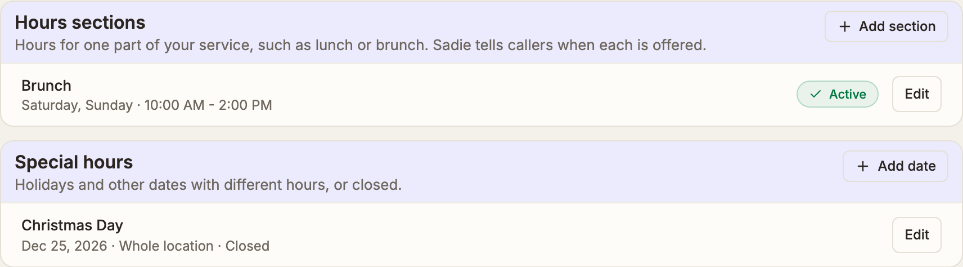
Hours sections lists the named parts of your service, such as lunch or brunch, each with its days, its hours and an Active or Inactive badge. Click Add section to add one, or Edit on a row to change or delete it. A section's week is edited the same way as the working hours, with one more choice: Open all day, in a day's ⋯ menu.
Special hours lists holidays and other dates with different hours, earliest first. Each row says its dates, whether it covers the whole location or one section, and its hours, or Closed. A closed section reads Not offered. Click Add date to add one, or Edit on a row to change or delete it.
This is the only place to change sections and special hours. Schedule shows them but cannot change them. To close for one day, add special hours for that date and set them to closed.
Fill in the hours from Google
The Google hours sync card reads this location's opening hours from its Google listing. A badge at the top says Linked to Google, or Not linked with a Set the address link to Location details. Below it are two tiles. Daily sync has the switch, a badge that reads On or Off, and Synced with a date and time, or Never synced.
When the switch is on, once a day, Sadie fills in hours from Google only if this location has no saved hours. The daily sync never changes saved hours. When it is off, Sadie does not read hours from Google for this location unless you click Resync from Google.
Turn the switch off if Google shows the wrong hours. A message confirms Google hours sync is off. Saved hours stay as entered.
Resync from Google replaces this location's saved hours with Google's current hours now. It does not turn the daily sync on. The message Hours updated from Google. confirms it. If Google lists no hours for the place, the card says Google lists no hours for this place. The saved hours were kept.
Staff, location managers, group managers and company admins can use the switch and the button for the locations they manage. A viewer sees the card but cannot change the switch, and has no Resync from Google button.
The card can also show one of these messages:
- This location is not linked to a Google listing. Choose its address in Location details first. The switch and the button stay off until you do. In Location details, click Change next to the address, search for the location and click the matching result. Then click Save on the Location details card and wait for Location details saved.
- Google could not find this place. Check the address in Location details. Pick the address again the same way and click Save, then click Resync from Google.
- Too many resyncs. Wait a minute and try again.
- Could not reach Google. Nothing was changed. Try again.
- Hours updated from Google and saved. Sending them to the voice service failed. Click Resync from Google to try again. The new hours are saved, but Sadie may still answer with the old ones until a resync goes through.
Availability Rules
Availability Rules shows only for a location that books through OpenTable. It lists the rules that change what Sadie offers a caller at set times, with the Caller defaults under them. Click Add rule to add one, Edit to change or delete one, and Test rules to see which rule Sadie would use at a date and time. Each caller default saves as soon as you pick it. This is the only place to change the rules and the caller defaults. Schedule shows the rules but cannot change them. Set availability rules for OpenTable bookings walks through adding a rule and setting the defaults.
Assistant Settings
Assistant Settings holds pausing Sadie, voicemail hours, how Sadie handles calls and the phone number.
The top banner says Sadie is active and answering calls, with a Pause button. Click it and confirm in the Pause Sadie? window to send calls to your backup number until you click Resume. If no backup number is set, the page says Add a backup number before pausing. Calls would otherwise reach no one. and links to Transfers.
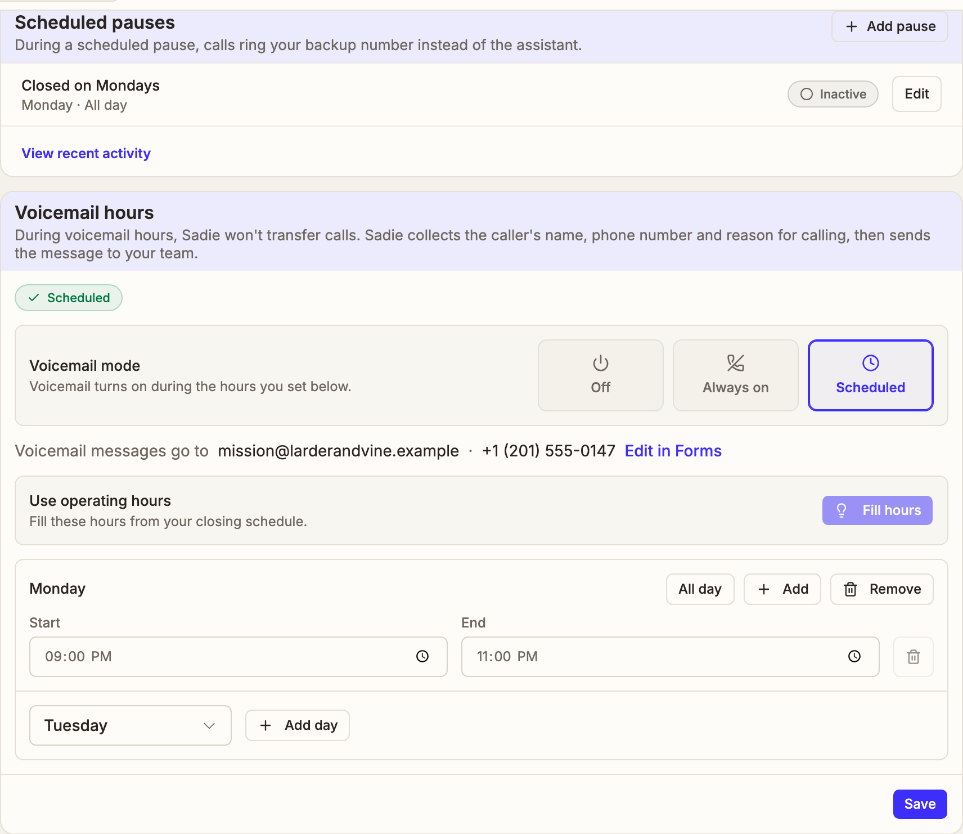
Scheduled pauses lists the times Sadie pauses on its own, each with its days, its hours and an Active or Inactive badge. Click Add pause to add one, or Edit on a row to change or delete it. A pause needs a backup number too. To close on one weekday every week, add a pause that covers the whole day and repeats weekly. Scheduled pauses also show on the Schedule page, which cannot change them.
Under the scheduled pauses, View recent activity opens the latest 20 pauses and resumes in a side panel: status, name, type, who changed it and when.
Voicemail hours sets when Sadie takes a message in place of transferring. Under Voicemail mode, choose Off, Scheduled or Always on. With Scheduled, add days and times, or click Fill hours to copy them from your closing hours, then click Save. If some of the hours fall inside your opening hours, a note under them says Sadie will not transfer calls during them.
While voicemail is on, Sadie does not transfer calls to your team. So when you save with Scheduled or Always on, a window titled Important: call transfers will be disabled asks you to confirm. It lists any voicemail hours that fall inside your opening hours. Click Enable voicemail anyway to save, or Go back to change the hours.
Voicemail messages go to lists the email addresses and phone numbers that receive each message. To change them, click Edit in Forms; it opens the voicemail form, where you edit its recipients. See Change the voicemail form. A number that cannot receive texts is marked, for example Landline, can't text.
Messages go to a phone as a text, so they need a mobile number. If the number voicemail would text is a landline, saving opens Voicemail texts need a mobile number. Type a number under Mobile for voicemail texts and click Enable with this mobile. If the location has an email address, you can click Enable, email only instead. The mobile is used for voicemail texts only; your backup number for transfers stays as it is.
Call settings has three switches: Call recording, Background sound and Caller ID forwarding, which passes the caller's number on so Sadie can recognize a guest. Click Save. Recordings are kept for 30 days.
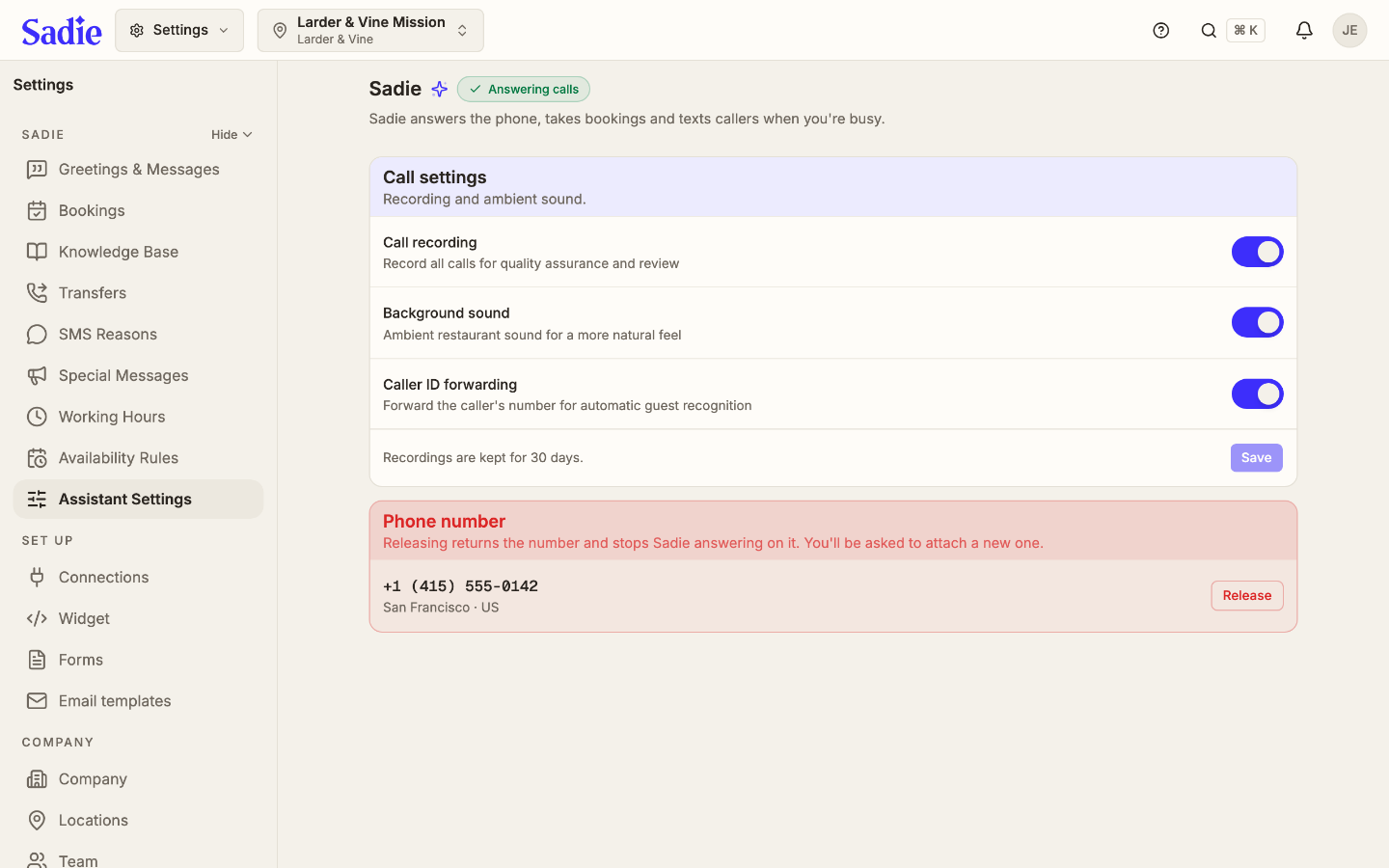
Phone number shows the location's number and a Release button. Releasing returns the number and stops Sadie answering on it. Only a company admin can release it. Click Release, wait for the Release number button to unlock, and click it. The location then asks you to attach a new number.
What's next
With Sadie set up, open the Inbox to see the calls it answers and the bookings it takes. See the Inbox. To check which booking system, point of sale and add-ons the location uses, see Connections.