Invite and manage your team
Invite people to your company, choose their role and where it applies, change roles, and manage pending invitations.
Before you start
A company admin, a group manager or a location manager can open Team. Each of them invites, changes and removes people at their own level and below. Staff and viewers have no Settings, so they do not see Team.
Team lists the people who can reach your company, the invitations still waiting, and what each person can do. You invite someone by choosing a role and, for most roles, a group or a location where it applies.
Open Team
Click the page menu at the top left, then click Settings. Click Team in the sidebar. It sits under Company for a company admin, Your group for a group manager and Your location for a location manager.
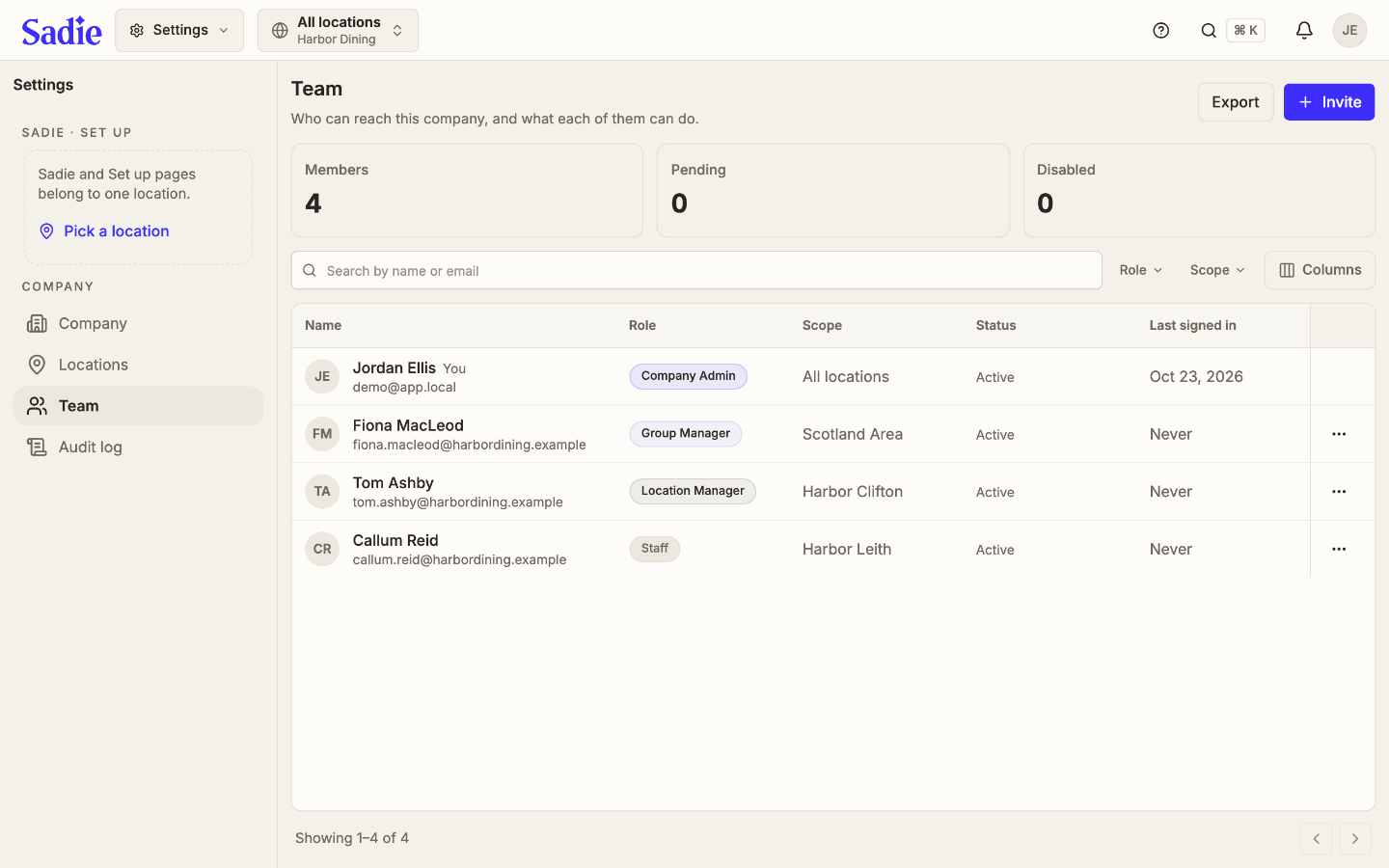
The Members, Pending and Disabled tiles at the top count each group. Click a tile to show only that group, and click it again to show everyone. Team works at any setting of the location picker; it does not ask you to choose a location first.
Find someone in the list
Type a name or an email into Search by name or email. The Role and Scope lists narrow the table further. Scope offers All locations, A group and One location. Click Columns to choose what shows: Email and Joined are hidden until you switch them on. Export, at the top right, downloads the rows your filters leave.
A pending invitation shows Expires and a date under the email address. A person on the Sadie team can appear with a Sadie staff badge next to their name.
Invite a teammate
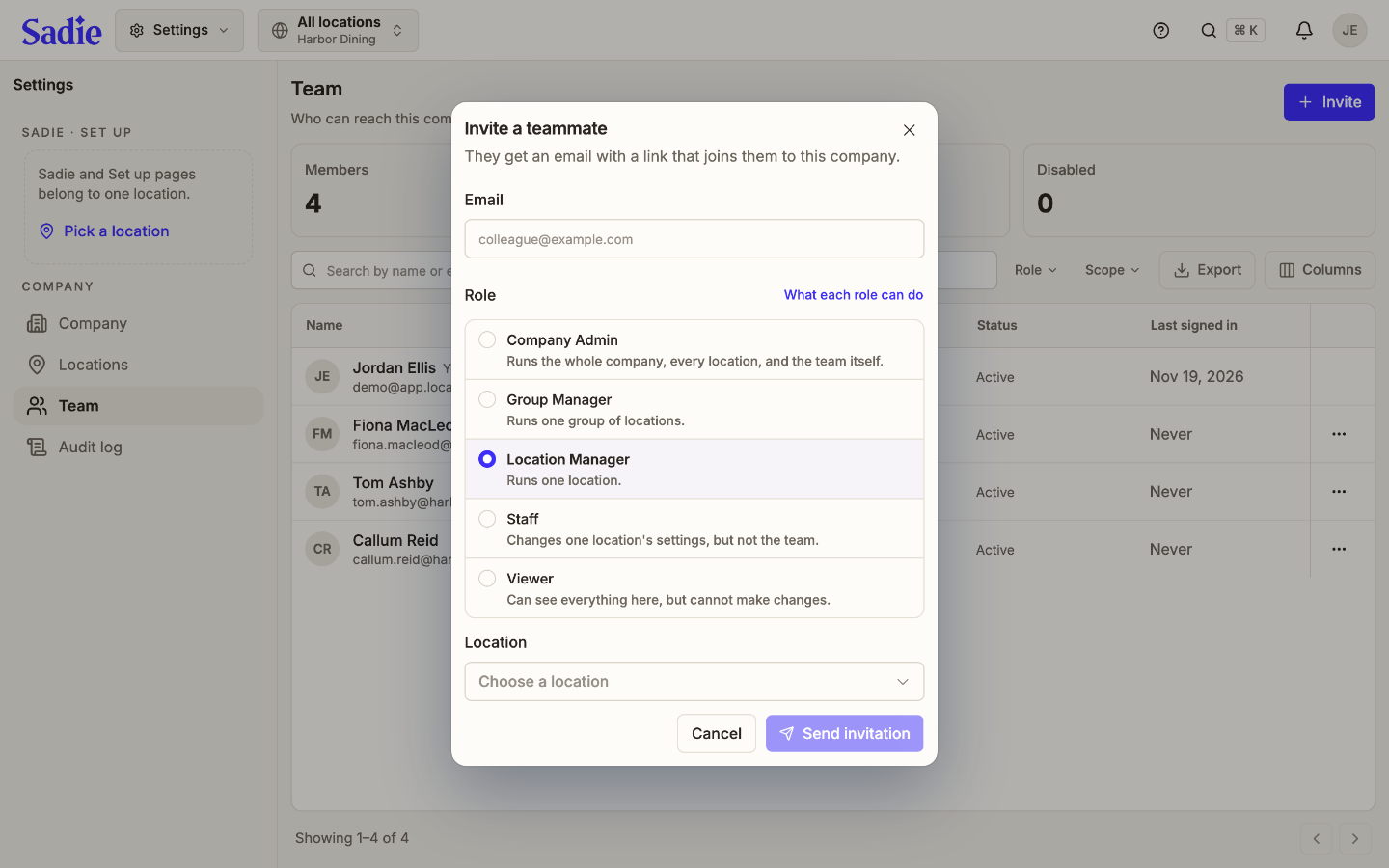
Click Invite, at the top right. A window titled Invite a teammate opens.
Enter the email
Type the person's address under Email.
Choose a role
Pick one under Role. Each row says what the role can do:
| Role | What it can do |
|---|---|
| Company Admin | Runs the whole company, every location, and the team itself. |
| Group Manager | Runs one group of locations. |
| Location Manager | Runs one location. |
| Staff | Changes one location's settings, but not the team. |
| Viewer | Can see everything here, but cannot make changes. |
For more detail, click What each role can do, beside Role. It lists each role you can offer and what it adds over the role below it: for example, a location manager can also invite teammates, and a company admin can also buy phone numbers.
You are offered your own role and the ones below it. A group manager cannot invite a company admin, and a location manager cannot invite a company admin or a group manager. A company with only one group has no Group Manager role.
Choose where it applies
Some roles ask for a place. Under the role list, a Group or Location list appears:
| Role | You choose |
|---|---|
| Company Admin | Nothing. The whole company. |
| Group Manager | A group, under Group. |
| Location Manager and Staff | A location, under Location. Locations are listed under the name of their group. |
| Viewer | Nothing. |
The list opens on the group or location you have picked in the top bar, when there is one. At All locations, with several to choose from, it opens empty and reads Choose a group or Choose a location. Send invitation stays off until you pick one. If a role has nothing to pick yet, it is greyed out and says No group to choose from or No location to choose from.
A line beside the window title says where the person will join: Joins with access to every location, Joins the group with the group's name, or Joins with the location's name. See Pick what you are looking at for the top bar picker.
Send the invitation
Click Send invitation. Invitation sent appears, and the person gets an email with a link that joins them to your company. They show in the table as Pending until they accept.
On the Locations page, a company admin sees Assign a Location Manager or Assign a Group Manager where a location has no manager. Clicking it opens this same window with the role and the place already filled in.
Change or remove someone
Click the ··· button, named Member actions, at the end of a person's row. You see it only on people at your level or below, and never on your own row, so you cannot change your own role or remove yourself.
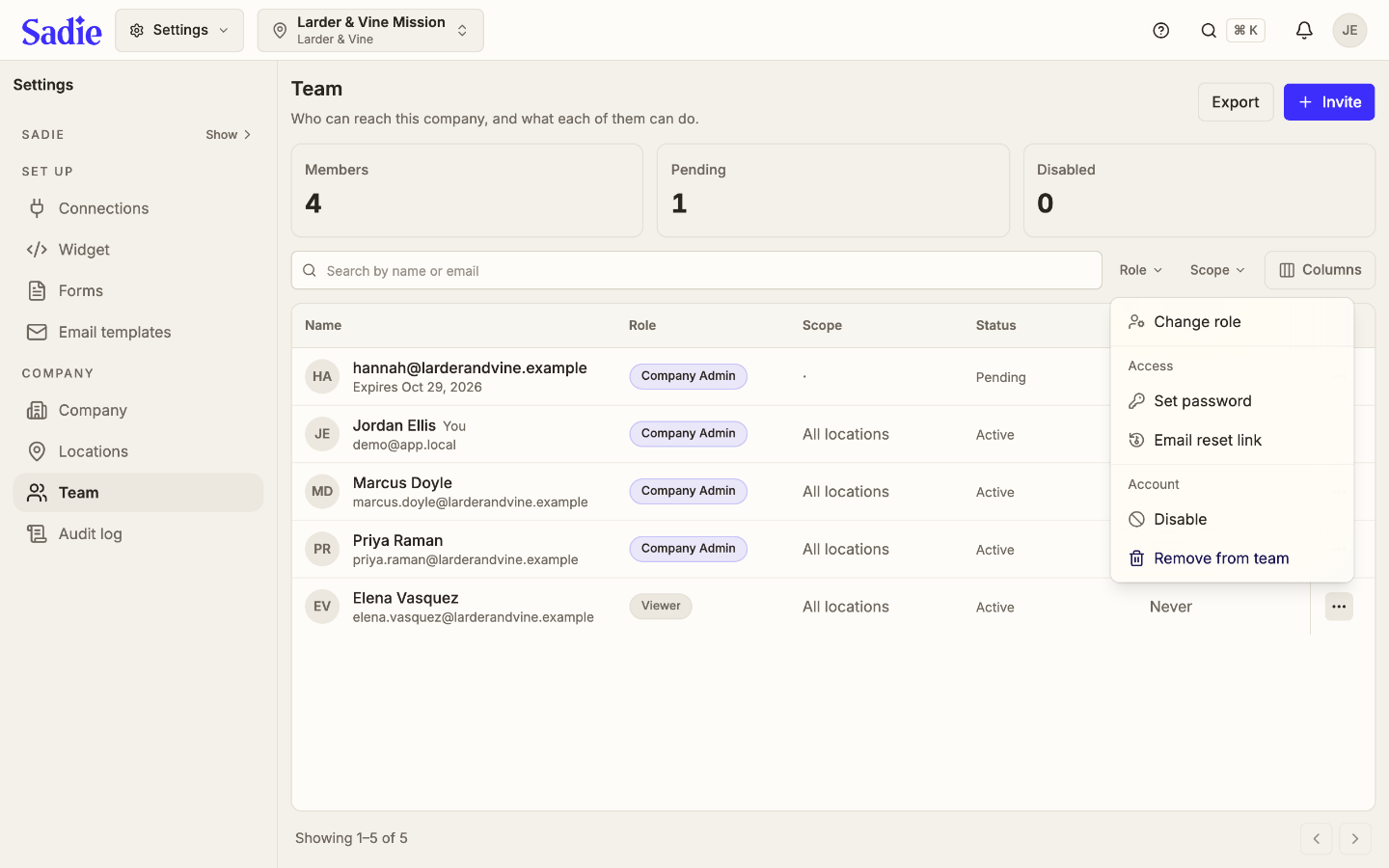
- Change role opens a window where you pick a new role and, when the role needs one, a group or location. A line at the bottom states the result, for example that the person becomes a Group Manager of a named group. Click Save. If their old location or group no longer exists, the list opens empty and you must pick a new one first.
- Access holds Set password, Email reset link and, when the person has an authenticator, Reset authenticator. Set password sets their password directly; the new password is shown once, so copy it. Email reset link sends them a reset email instead. Reset authenticator removes their authenticator and signs them out everywhere. Only a company admin sees Access, and only for a member who belongs to no other company.
- Account holds Disable and Enable, and Remove from team. Disable turns off the person's access to this company without deleting them; their login still works elsewhere. Remove from team takes their access away now, and their account itself is untouched.
Manage a pending invitation
An invitation that has not been accepted shows Pending under Status. Open its Member actions menu to click Resend invitation, which sends the email again, or Cancel invitation. Cancelling stops that link from working; the person needs a new invitation to join.
What's next
To see which person manages each location, open Manage your locations. To finish the checklist for a location, go to Finish setting up a location.