Read the Home dashboard
Read the Performance board, switch views and periods, and compare your groups and locations.
Home opens on Performance: your calls, how many of them Sadie handled on her own, your bookings, and your estimated revenue. What the numbers cover follows the location picker in the top bar. You choose a view and a period on the page itself.
What the numbers cover
Home has no picker of its own. It follows the one in the top bar, so check that before you read a number. The picker is explained in Get around the web portal.
| Picker shows | Home shows |
|---|---|
| All locations | Every location you can see, added together, with a Comparison table of your groups. |
| A group | That group's locations, added together, with a Comparison table of them. A group with a single location shows that location's board. |
| One location | That location alone, with a Comparison table next to the others in its group. |
Pick a view
Three tabs sit next to Performance: Summary, Bookings, and Calls. Each shows its own tiles and its own chart underneath. A single location on Sadie Answers does not take bookings, so it has no Bookings tab.
| Tab | Tiles |
|---|---|
| Summary | Calls answered, Calls Sadie handled, Bookings placed, Estimated revenue |
| Bookings | Bookings placed, Avg booking value, After-hours bookings, Covers, Avg party size, After-hours estimated revenue |
| Calls | Calls answered, Calls Sadie handled, Avg call duration, Transfers |
Calls Sadie handled is the share of answered calls Sadie finished without passing the caller to your team. Summary opens on Calls answered, Bookings on Bookings placed, and Calls on Calls Sadie handled.
A location with no opening hours set has no after-hours tiles, because Sadie cannot tell which bookings came in after hours.
Pick a period
The board opens on Last 30 days. Choose Today, Last 7 days, Last 30 days, or This month. To set your own range, click Custom dates and pick a start and an end day. A custom range can be up to 120 days. If you pick a longer one, the page asks for a range of up to 120 days and keeps the board you had. The tiles, the chart, and the comparison table all update to the period.
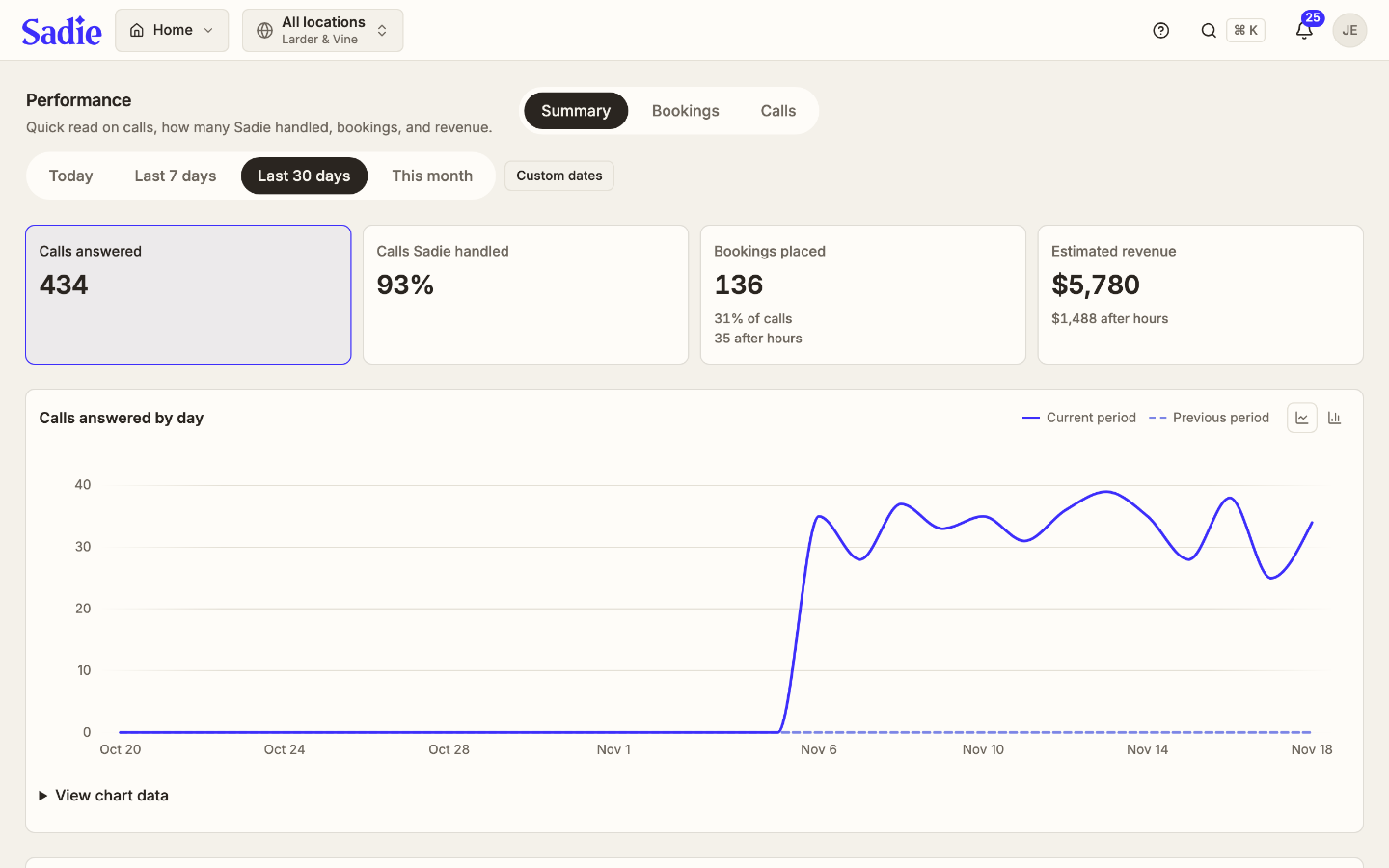
Read a stat tile
Each tile shows a number for the period and how it changed against the period before, as a whole percent, for example -6% vs previous 7 days. Bookings placed shows its share of answered calls instead, such as 37% of calls. Transfers shows both: its share of answered calls and the change against the period before. Some tiles, such as Calls Sadie handled, explain how their number is worked out when you hover over them.
On Summary, Bookings placed and Estimated revenue have a second line with the part that came in after hours, for example 12 after hours. The line is missing when the location has no opening hours set.
Click a tile to select it; the chart below switches to that tile's number.
On a single location, click Bookings placed to list Calls that booked under the chart: the date and time of each call in the period that ended in a booking. A call that came in after hours is marked After hours. On the Calls tab, click Transfers to show Top transfer reasons, which says why calls went to your staff.
Read the chart
The chart plots the selected tile by day. The solid line is the current period; the dashed line is the period before it, for the same number of days. Click View chart data to open the same numbers as a table, useful when you want exact values rather than the shape of the line. If neither period has data, the chart says No data for this period. Try another date range.
Compare groups and locations
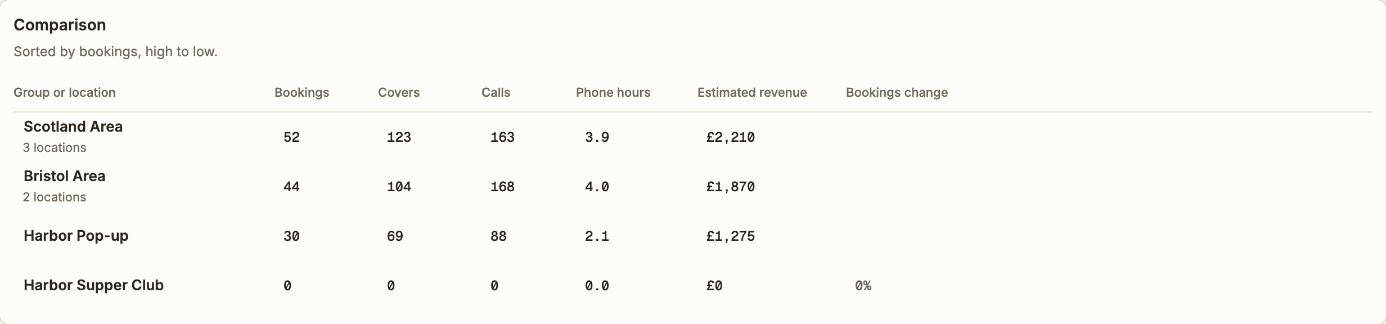
Below the chart, Comparison lists the parts of what you chose, sorted by bookings from high to low. The columns are Bookings, Covers, Calls, Phone hours, Estimated revenue, and Bookings change. Covers is the number of guests on those bookings. Bookings change is how bookings changed against the period before, in the same whole percent as the tiles:
- At All locations, it lists each group, plus any location that is not in a group. A group shows how many locations it holds under its name.
- For a group, it lists that group's locations.
- For one location, it lists that location next to the other locations in its group, with yours highlighted.
The first column says which kind of row you are reading: Group, Location, or Group or location. Click a group or location name to narrow the whole app to it. The location picker changes to match, and the browser's Back button returns you to where you were. On a phone, tap the row.
A location that is not connected to reporting yet shows Not connected yet instead of numbers. A row that could not be read shows Not available. Those rows are left out of the table, not out of the tiles above it, so the table may not add up to the totals in the tiles; a note under the table says so.
Review Sadie's suggestions
When Sadie has suggestions for the location you are on, a To do section under the numbers lists the top three, highest impact first, each with its impact. Click Review on one to open it on Recommendations, or click See all recommendations for the full list.
At All locations or a group, To do lists each location that has suggestions, with how many. Click Review on a location to open its Recommendations. A note under the list says when more locations have suggestions than the list shows, or when some locations could not be checked.

Follow up on calls and forms
The To do section also lists the three newest calls and form submissions that still need someone, for example an event enquiry to call back. Click Open on a call to open it in the Inbox, or on a form to open the response. See Read form submissions. The link under the list says how many need follow-up and opens the Inbox on Needs attention.
At All locations or a group, the To do section lists each location with something to follow up and how many. Click Open to see that location's Inbox on Needs attention.
With no suggestions and nothing to follow up, there is no To do section.
When Home shows a message instead of numbers
| Message | What it means |
|---|---|
| Dashboard could not load | The request did not finish. Click Retry. |
| The numbers are not available right now | Reporting is having a problem; calls are not affected. Click Retry in a moment. |
| Nothing is reporting yet | Calls and bookings still work. Nothing in this view is connected to reporting yet. |
| No locations to report on | Add a location to see its numbers. |
| Analytics is not set up for this workspace | No reporting service is connected. Contact support. |
What's next
Handle a conversation: Work the Inbox.