Review recommendations
See what Sadie noticed in recent calls, apply the change she suggests, and open the calls it came from.
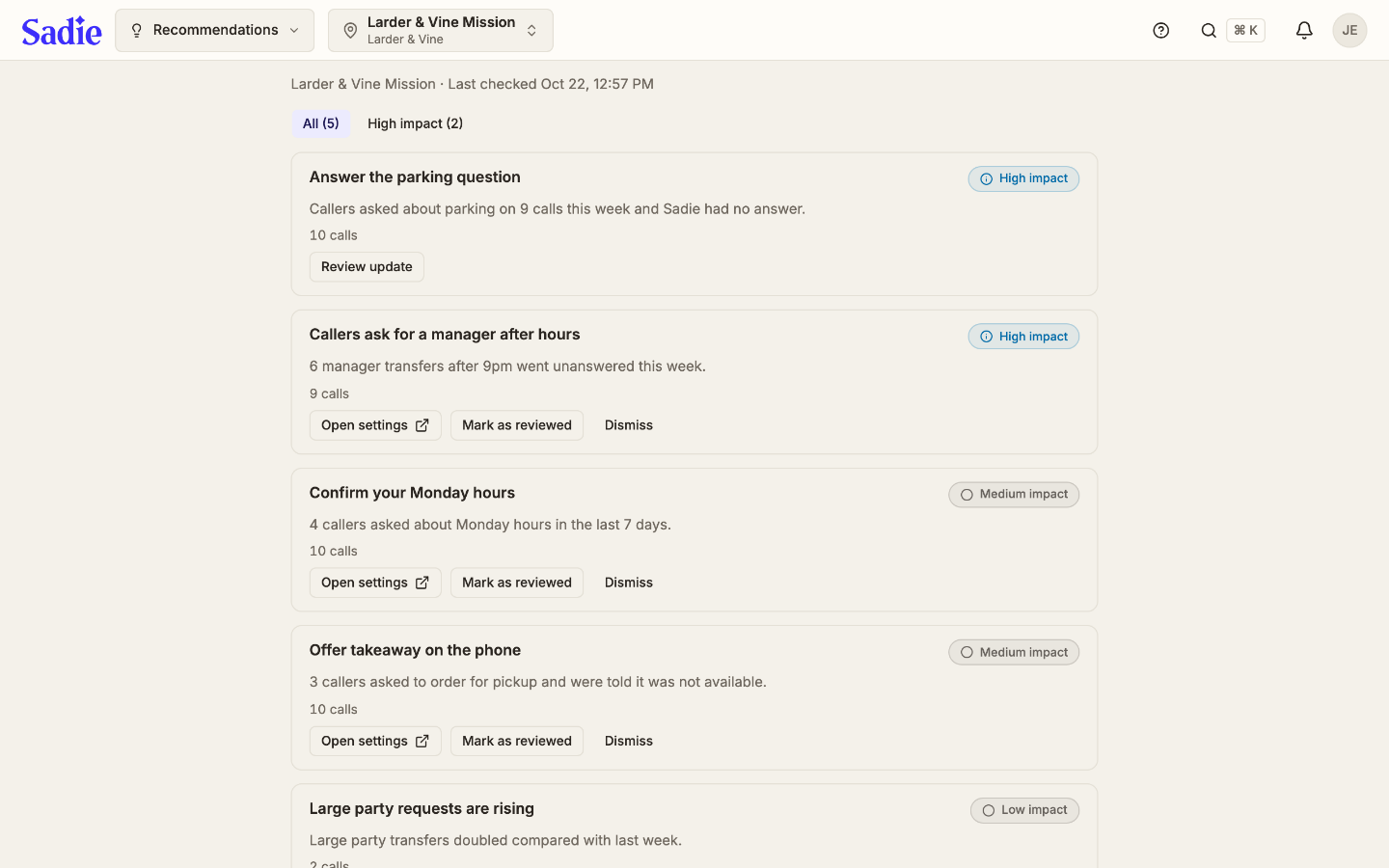
Recommendations lists what Sadie noticed in recent calls for one location, with the change she suggests. High impact items come first. For three kinds of suggestion you can make the change right on this page. For the rest, you open the setting yourself and then mark the item reviewed.
Recommendations works on one location at a time, so it follows the location picker in the top bar. See Get around the web portal. When the picker covers more than one location (All locations, or a group with several locations), the page says Choose a location to see its recommendations. and lists the locations in view. Click one and the page opens on it. A group or company with a single location opens that location straight away.
Open Recommendations
Click the page menu at the top left and choose Settings, then click Recommendations under Sadie. If the group is folded, click Show beside it first. On Home, you can also click See all recommendations in the To do section. If Settings is not in your page menu, open Recommendations from Home. Under the heading, the page says which location it covers and when Sadie last checked.
Narrow the list
When some items are high impact, two buttons appear: All and High impact, each with its count. Choose High impact to see only those, and All to see every open item again.
Open a recommendation
Click a row. A Recommendation panel opens with What Sadie noticed, the Suggested change, and Calls it came from. Under that heading, click a call to go to it in the Inbox. A call that is no longer stored shows Call no longer available, and the count above the list still includes it.
Apply a suggested change
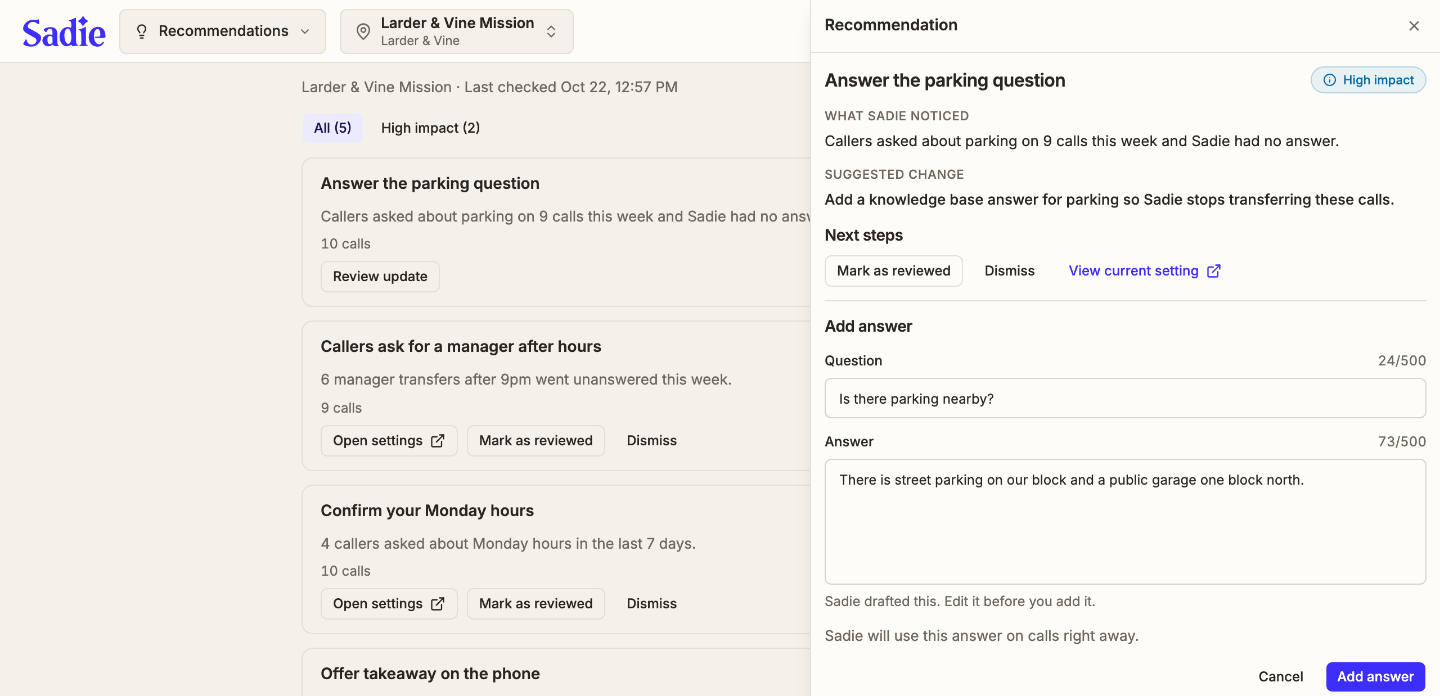
Three kinds of suggestion have a Review update button on the row. Click it to open the panel with the change filled in. Sadie drafted the wording, so read it and edit what you want before you save.
- Add answer. Edit the Question and the Answer, then click Add answer.
- Update answer. The question and Current answer are shown for reference. Edit Updated answer, then click Update answer.
For both answer changes, a save does not always reach Sadie at once. If the page says Answer saved. Sadie has not picked it up yet, so calls still use the old answers., the answer is stored but calls keep using the old one for now. Contact support if that message stays.
- Update transfer reason. Edit Name, When to transfer, and What Sadie says, then click Update transfer reason. The page shows the current wording under each field. If Sadie also suggests a different phone number, the page names it and links to your Routing settings; the number is not changed here.
After the save, the recommendation is marked as applied. If the change saved but the recommendation could not be marked, the panel says so and offers Try again, which marks it without saving a second time.
Handle the other suggestions
Other suggestions have Open settings on the row, or View current setting inside the panel. Either goes to the page where that setting lives. Make the change there, come back, and click Mark as reviewed. If you do not want to act on a suggestion, click Dismiss. Both remove it from the list.
Who can act on a recommendation
Only a company admin sees Review update, Mark as reviewed, and Dismiss. Everyone else can read the list and open each item, and the page says Only a company admin can dismiss or review recommendations.
When the page shows a message
| Message | What it means |
|---|---|
| Nothing to review right now | Sadie has no suggestions. A new location may have none yet, because they come from recent calls. |
| Recommendations could not load | Check your connection, then click Retry. |
| Recommendations are not available right now | Reporting is having a problem; calls are not affected. Try again in a moment. |
| Recommendations are off for this workspace | Contact support to turn them on. |
What's next
Read the calls themselves: Work the Inbox.