Square
Send phone orders to Square.
Connect a location to Square so Sadie can take phone orders and send them to Square. You approve the connection in a Square window, then choose which Square location this one matches. Start with Sadie support if you are changing a connection that already works.
Set up
Company admins and group managers can connect Square for the locations they manage. You need three things:
- A Sadie phone number on the location. Only a company admin can add one, in Settings, Sadie.
- A Square account you can sign in to, with access to the Square location you want.
- No other point of sale connected. A location can use one at a time.
Open the Square card
Open Settings, Connections, then Point of sale. Check the location named under the page title.
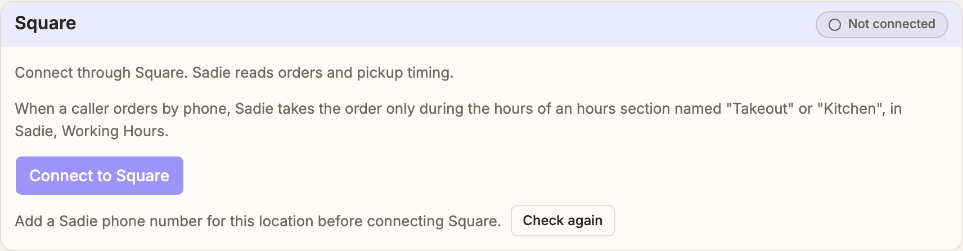
If the card says Add a Sadie phone number for this location before connecting Square., have a company admin add the number first. Then click Check again.
Approve Square
Click Connect to Square. A Square window opens. Sign in to the account you want, review the request, and approve it. Keep the window open until it closes by itself. The card then says Connected.
Choose the Square location
Under Which Square location is this one?, open Choose a Square location and pick the Square location that matches the location named under the page title. Click Save.
Orders go to the Square location you save here, so check that it is the right one first.
Set the pickup time
Under Pickup timing, switch on Use timing from the point of sale to take the time from Square. To give callers a set time instead, switch it off and enter Fixed pickup time (minutes), from 1 to 120. Click Save. Save stays unavailable until you change something.
Check the hours Sadie takes orders
The Square card says that Sadie takes phone orders only during the hours of an hours section named "Takeout" or "Kitchen". Check that section under Hours sections on Working Hours.
Check the menu and the switch
Once Square is connected, Menu Sadie offers lists the categories from your Square Online Menu, each with its item count and the date of the last sync. You cannot edit it here.
Under the menu, the switch Enable Square integration is on. Switch it off to keep the connection saved while Sadie stops taking orders through Square. Switching it on again needs a saved Square location.
Reconnect or disconnect
If the card says Reconnect needed, click Reconnect to Square and approve in the Square window again. Check the saved Square location afterward.
To disconnect, click Revoke and confirm in the Revoke Square? window. This clears the stored credentials and the location stops using Square. You can connect again later.
Troubleshoot
| What you see | What to do |
|---|---|
| Your browser blocked the Square window | Allow pop-ups for Sadie, then click Connect to Square again. |
| You chose not to connect Square, or the window closed before the connection finished | Nothing changed. Click Connect to Square when you are ready to approve. |
| Square could not be connected | Try again. Contact Sadie support if it keeps failing. |
| Square locations could not be loaded right now | Check whether the card now says Reconnect needed. Reconnect if it does. Otherwise reload, and contact Sadie support if the list still fails. |
| This Square account has no locations to map | You may have signed in to the wrong Square account. Contact Sadie support before you change a connection that works. |
| The location choice couldn't be saved | Click Save again, then reload and check the location is still selected. |
| Saved, but the phone agent was not updated | Click Try again. If the card says the phone agent needs a support check, contact Sadie support. |
| The menu couldn't be loaded right now | Click Try again. Contact Sadie support if it still does not load. |
| No menu here yet | Sadie has not synced your Square menu. It shows up after the sync. |
| Your Online Menu is empty | Add items to the Online Menu category in Square. Sadie offers them after the next sync. |
For Square account or app-access problems, see Square's third-party application help.
Who to contact
| Issue | Start with |
|---|---|
| Setup in Sadie, connection status, or the linked location | Sadie support |
| Square account access and problems inside Square | Square support |
| Missing orders after a Sadie call | Sadie support, who can check the handoff to Square |
If you are unsure where the problem starts, contact Sadie support. Include the location, the call time if relevant, and the exact text of any message. Never include passwords or secret keys.