Work the Inbox
See what needs your team, check what Sadie handled, find one guest, and reply.
The Inbox holds every phone call and text conversation for the locations you are looking at. Start with what you want to do, then use the matching part below.
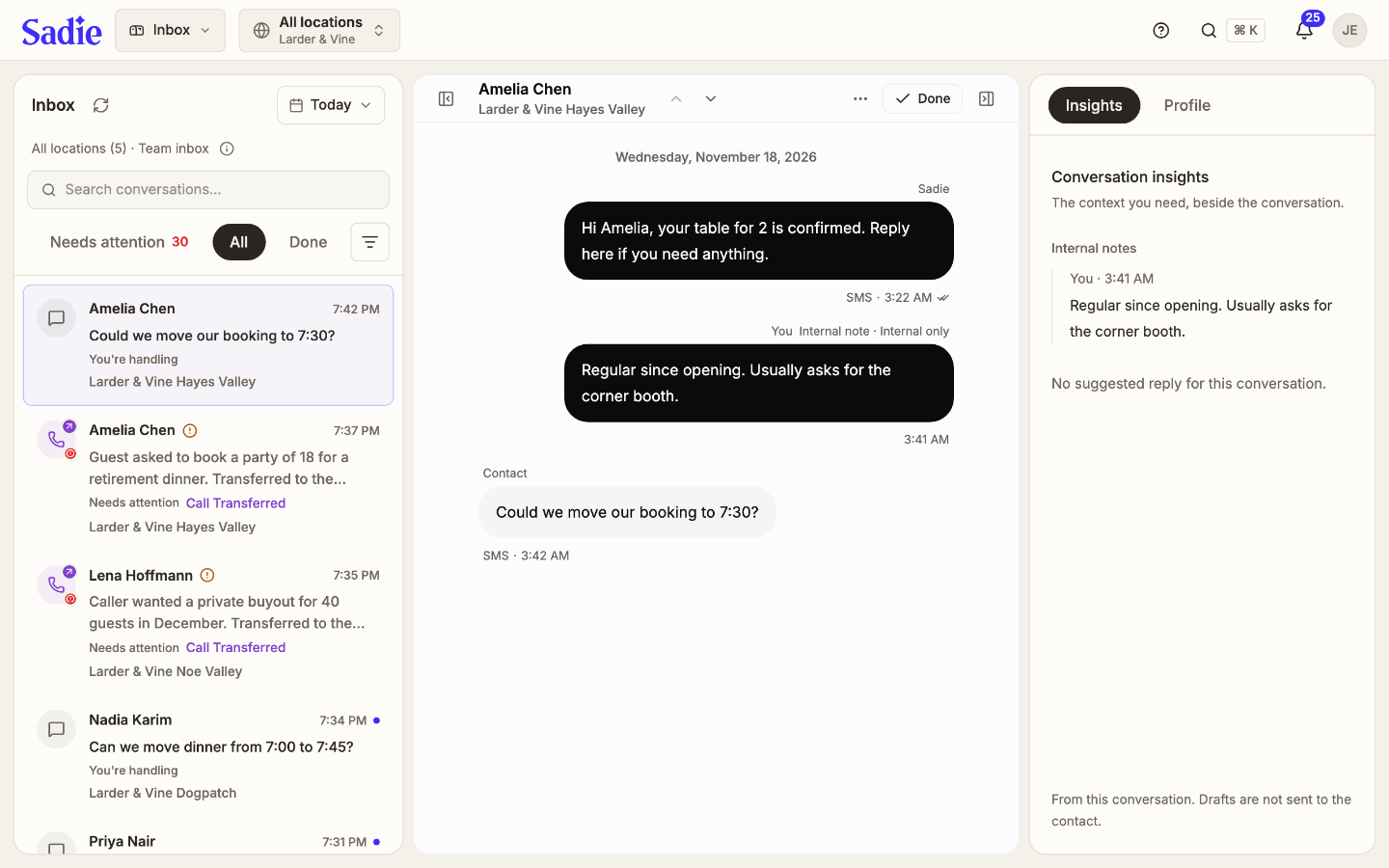
How the team inbox works
The location picker in the top bar sets what the Inbox shows. The picker is explained in Get around the web portal.
| Picker shows | The Inbox lists |
|---|---|
| All locations | Calls and conversations from every location you can see. Each row names its location. |
| A group | Calls and conversations from that group's locations. Each row names its location. |
| One location | That location only. Rows do not repeat its name. |
The line under the Inbox heading names what is in view, followed by Team inbox. Everyone who can see these locations sees the same list. When someone opens a conversation, it stops showing as unread for the whole team, and when someone marks it done, it is done for everyone. A blue dot marks a conversation nobody has opened yet.
See what needs your team now
Click Needs attention. It lists the calls and messages waiting on someone from your team: a call Sadie flagged for follow-up, a conversation Sadie handed to staff, or one a teammate moved here.
This tab ignores the date control, so something flagged yesterday is still here today. The count beside the tab covers every date. When the tab is empty it says Nothing needs attention right now.
See what happened today or yesterday
Click All, then pick Today or Yesterday in the date control next to the heading. This week shows the week so far. All lists every call and message for those days, newest first. The Inbox opens on All and Today.
Find one guest
Type a name in Search conversations.... The search covers the days the date control shows, so if the guest got in touch earlier, widen the dates first.
To pick your own days, open the date control and click a first and a last day on the calendar. A range covers at most 31 days, and days after today cannot be picked. The calendar opens on last month and this month.
Check what Sadie handled
Click Done. It lists what Sadie handled and what your team marked done, for the days in the date control.
If something there needs another look:
- For a phone call, open it and click Reopen.
- For a text conversation, right-click it and click Move to Needs attention.
Narrow the list
Click the filter icon, labelled Filter, to narrow whichever tab you are on:
- Unread only shows only conversations nobody has opened yet.
- Channels picks Email, Phone or Online.
- Follow-up picks Form, Transfer or Dropped call.
Open Filter again and untick your choices to show everything again. When nothing matches your filters, the empty list offers Clear filters.
Choose an action for a text conversation
Right-click a text conversation in the list, or press and hold it on a touch screen. Phone calls have no right-click menu.
| Action | Use it when |
|---|---|
| Take over | You want to reply yourself. The conversation is assigned to you. |
| Return to Sadie | You are finished and Sadie can handle it again. |
| Snooze | It needs you later, not now. Pick 1 hour, 3 hours or Tomorrow at 9:00. A conversation on Needs attention leaves it until then. Snoozing does not put one there, so use Move to Needs attention first if it should come back as work. |
| Unsnooze | You want it back before the snooze ends. |
| Mark done | Nothing more is needed. |
| Mark as unread | You opened it but want the team to see it as new. |
| Move to Needs attention | Someone on your team should follow up. |
After Mark done or Move to Needs attention, click Undo on the message that appears to put it back.
The ... menu at the top of an open conversation has Assign and View full profile. To assign, click Assign, click a teammate, then click the button that reads Assign to and their name. An open phone call's menu has View full profile only.
How a conversation moves between tabs
| What happens | Where it shows |
|---|---|
| A call or message comes in | All, on the day it came in |
| Sadie flags a call for follow-up or hands a text to your team | Needs attention, and All |
| Someone moves it to Needs attention | Needs attention |
| Someone snoozes a conversation that is on Needs attention | Off Needs attention until the snooze ends, then back |
| Someone marks it done | Done, and off Needs attention |
| Someone reopens a call | Back on Needs attention |
Read a phone call
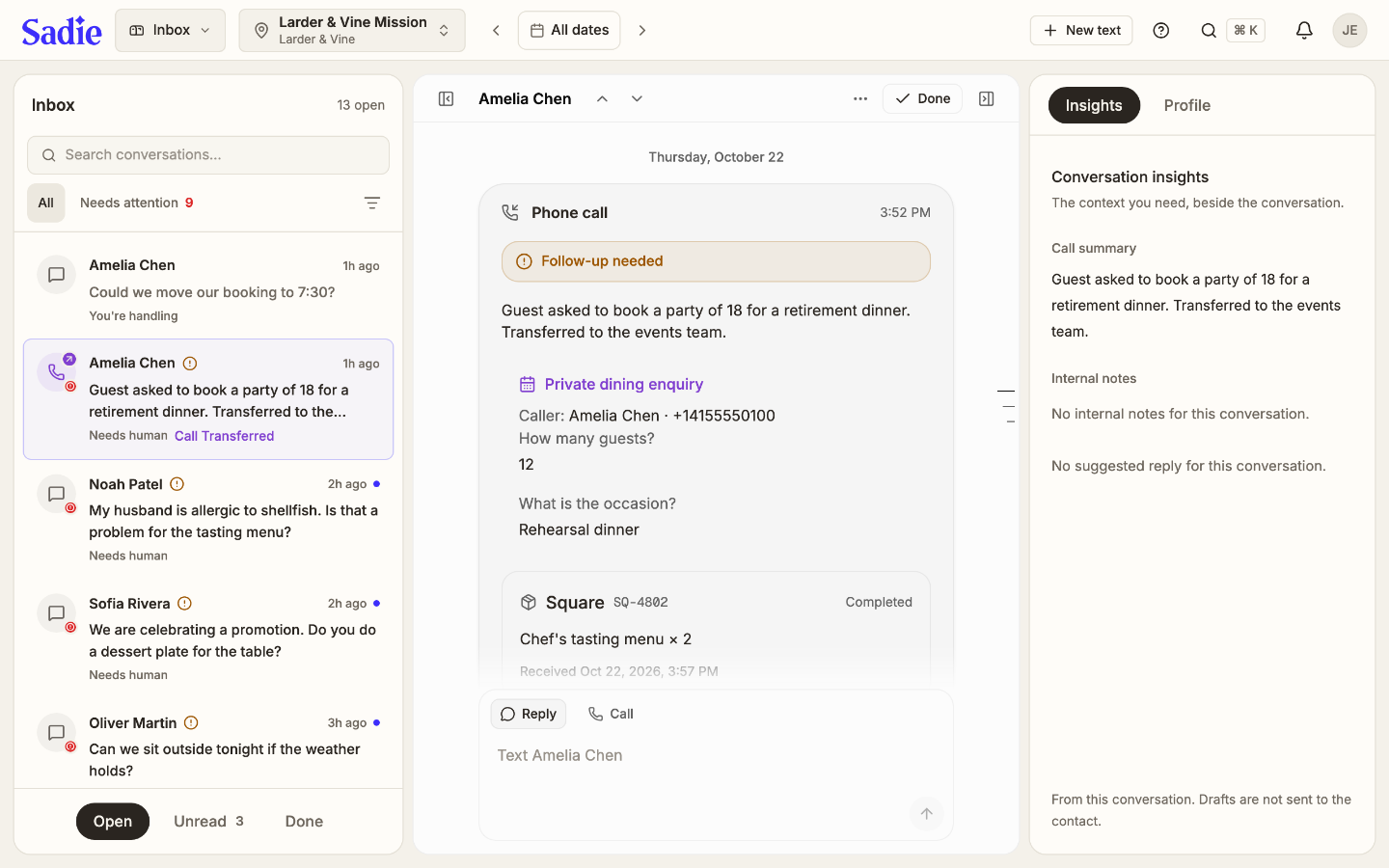
Click a call to open its card. At the top it shows when the call came in and a summary. A Follow-up needed line appears when the call still needs someone. Below that:
- Call ID and a copy button. Click the copy button, labelled Copy call ID, to copy the ID for a support request.
- Good call and Needs a look, two buttons for rating the call. Click one again to take your rating back.
- A row of chips naming what the call was about.
- The recording, when the call has one. Otherwise the card says No recording for this call.
- The transcript, with a time on each line.
A call that took an order or an enquiry also shows it on the card, such as the answers to a private dining form or the order with its reference.
Click Done once the call needs nothing more.
Read a text conversation and reply
Click a text conversation to open it. Messages appear in order, each with the channel it came on and the time it was sent, such as SMS or Email. When Sadie handed a conversation to your team, the thread shows Sadie escalated to staff, and Why Sadie escalated with the reason beneath it.
Type in the box at the bottom and press Enter to send, or click Call to call the contact. While Sadie is handling a conversation, the box reads Sadie is managing this conversation and you cannot type in it. Click Take over to reply yourself.
Sending a reply depends on messaging being available for the location. When it is not, the box says Message not sent. Your text is still here. Try again when messaging is available. and nothing reaches the contact.
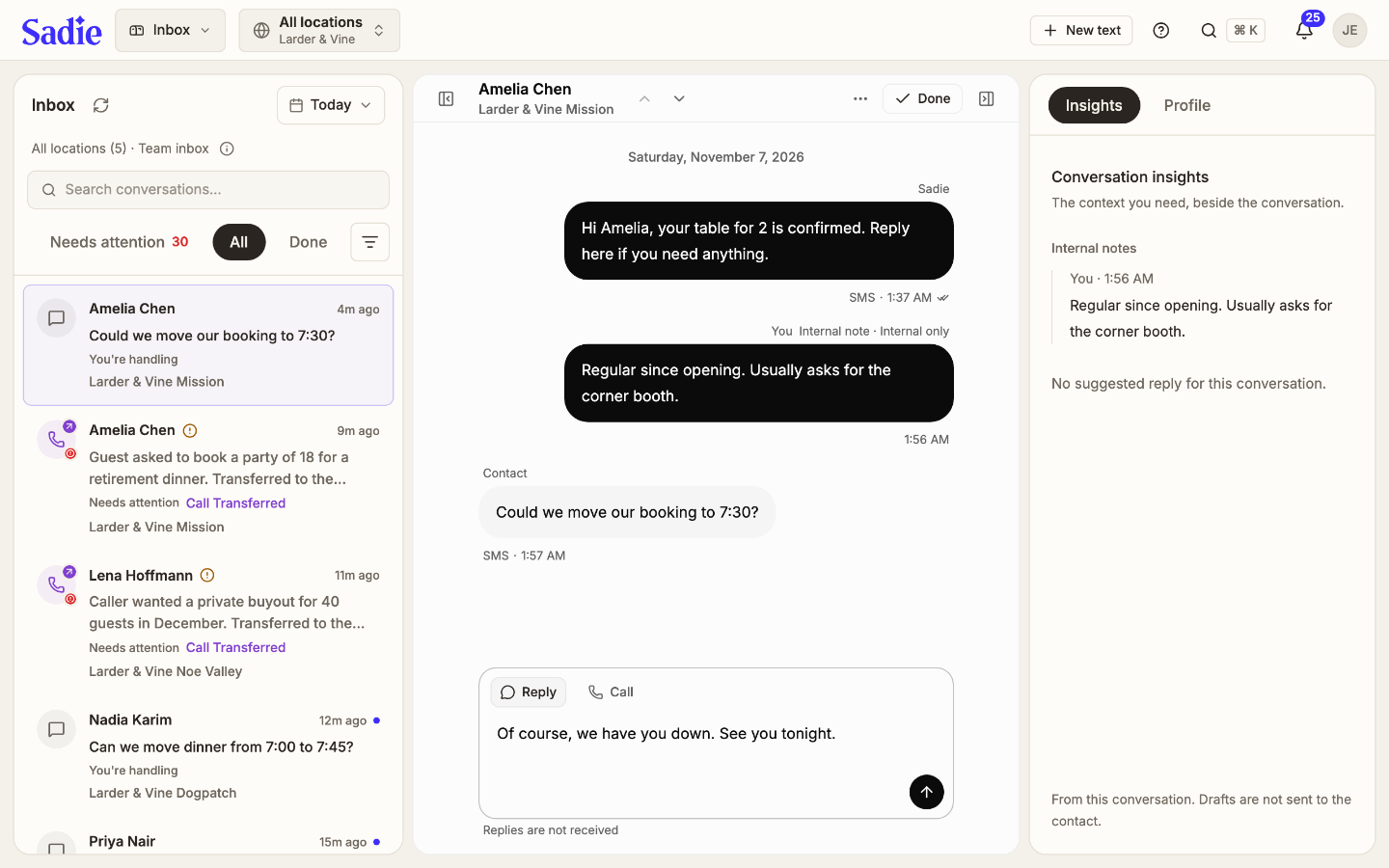
A note in the thread marked Internal only never reaches the contact. It leaves context for whoever picks up the conversation next. The same notes are listed under Internal notes in the side panel.
Check the side panel
On the right, Insights shows the call summary, the internal notes, and a suggested reply when one is available. Click Copy draft to copy the suggestion; nothing is sent to the contact. Click Profile instead to see the contact's guest details without leaving the Inbox.
Start a new conversation
Click New text, at the top right, and search for someone by name or phone. Click Continue to open the thread. It creates the conversation; it does not send a message on its own.
What's next
Read what a guest submitted: Read form submissions.