Set availability rules for OpenTable bookings
Tell Sadie what to offer when a caller asks for a time you cannot book online. For locations that book through OpenTable.
Availability rules tell Sadie what to do when a caller asks for a time you will not take as a booking. Each rule covers the days and hours you choose, and names the next step Sadie offers the caller. The caller defaults set that next step for every case where no rule names its own.
For locations that book through OpenTable
Availability rules work with OpenTable bookings only. Availability Rules shows in Settings, under Sadie, for a location that takes its bookings through OpenTable. If your location books through OpenTable and you cannot see it, contact Sadie support.
What Sadie offers for each situation
A rule triggers on one situation. Sadie tells the caller why it cannot book, then offers the next step you chose. The editor shows the wording under Caller hears.
| Situation | Sadie says | Next steps you can choose | Starts as |
|---|---|---|---|
| Walk-in | We can't take a booking right now. | Welcome walk-ins, Suggest another time, Transfer the call | Welcome walk-ins |
| Bookings paused | We're not taking bookings for that time right now. | Suggest another time, Transfer the call | Suggest another time |
| Special event | We have a special event during that window. | Suggest another time, Transfer the call | Suggest another time |
| Booking within 15 minutes | That's within 15 minutes, so I can't book it online. | Welcome walk-ins, Suggest another time, Transfer the call | Welcome walk-ins |
Booking within 15 minutes has no rule of its own. Sadie does not book a table online for a time less than 15 minutes away, and offers the caller default for Booking within 15 minutes instead. Change it in the caller defaults, below.
Create a rule
You need a role that can change settings. A teammate with the viewer role sees the rules but cannot change them.
Open Availability Rules for one location
Pick one location in the top bar picker. Go to Settings, then Sadie, then Availability Rules.
Add a rule
Click Add rule. The rule form opens at the side of the page.
Name the rule and set its times
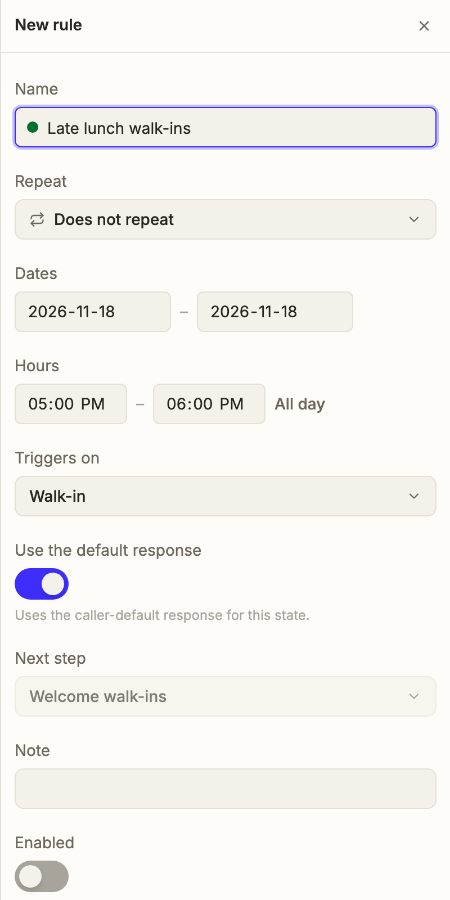
Type a Name your team will recognize, such as Friday walk-ins. Set the days and hours, or click All day. Times use the location's timezone. An evening rule can end after midnight.
Under Repeat, choose Weekly for a rule that comes back every week, or Does not repeat for one date or a run of dates.
Choose the situation
Open Triggers on and choose Walk-in, Bookings paused or Special event.
Choose the next step
Use the default response is on for a new rule. The rule then follows the caller default for its situation, and Next step shows that default.
To give this rule its own next step, switch off Use the default response and choose from Next step. The change applies to this rule only.
Switch the rule on and create it
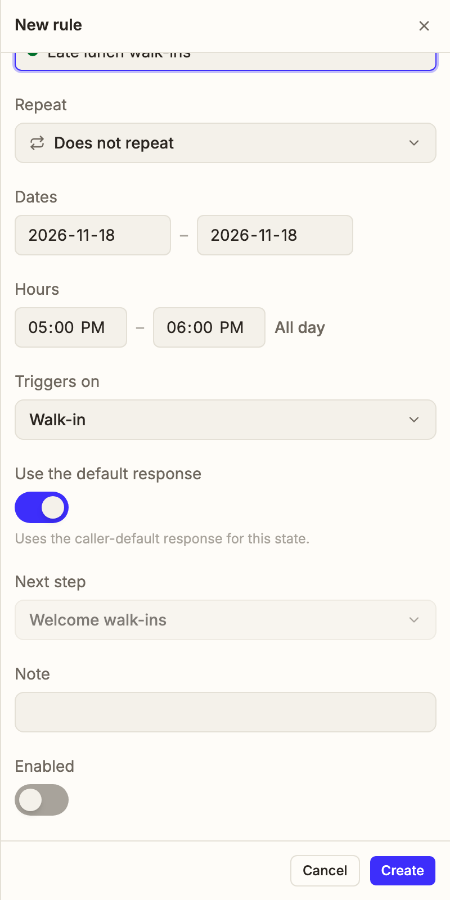
A new rule starts switched off. Switch on Enabled, then click Create. The rule appears in the list on Availability Rules. Schedule shows it too, on the calendar and in the Availability rules card on Services.
You can add a Note for your team. Sadie never reads it to callers.
Check which rule Sadie is using
Each rule on Availability Rules shows its days and hours, its situation and its next step. uses default means the rule follows the caller default, and custom means it has its own next step. A rule in effect right now carries a Working now badge.
On Schedule, the Availability rules card on Services draws each rule on the time line, so you can see when it runs next to your opening hours. The link in its header brings you back here.

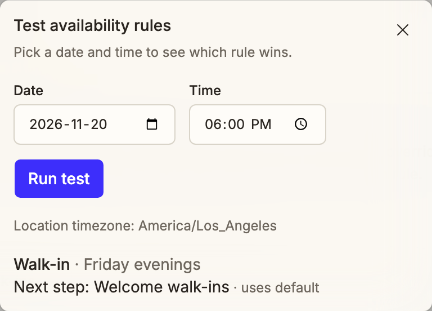
To check a moment in the future, click Test rules. Pick a Date and a Time, then click Run test. The result names the rule that wins for each situation. No rule matched means OpenTable's own availability decides what Sadie offers.
Set the caller defaults
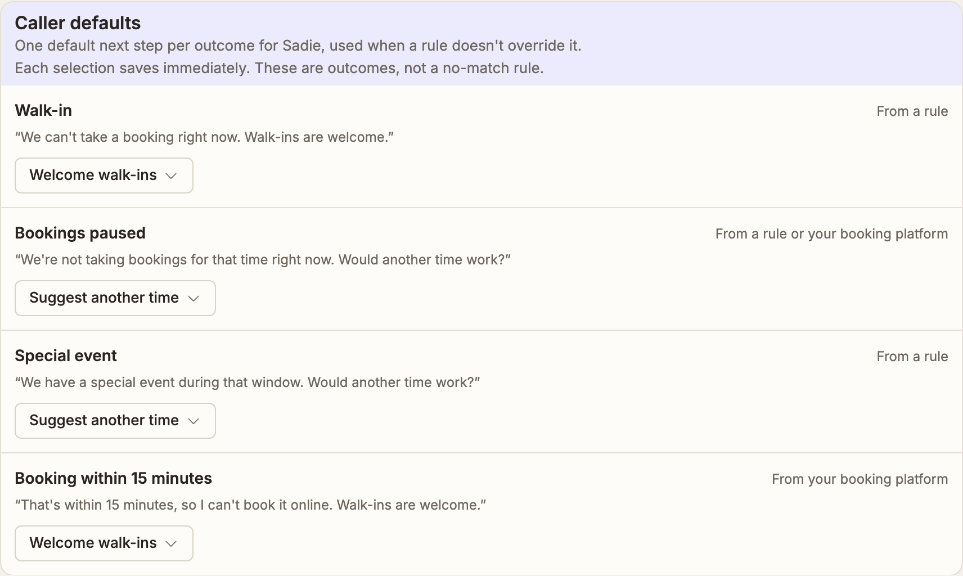
The Caller defaults card sits under the rules on Availability Rules. It holds one next step for each situation, including Booking within 15 minutes. Sadie uses it for every rule that follows the default.
Pick a next step from a row's menu. Each choice saves at once, with no Save button.
Change, pause or delete a rule
Click Edit on a rule on Availability Rules. Change what you need, then click Save. This is the only place to change a rule. On Schedule, click the rule on the calendar, then the button under it, to come back here.
To stop a rule for a while without losing it, switch off Enabled. Switch it back on when you need it again.
To remove a rule for good, click Delete, then Delete rule. Sadie stops using it at once, and it cannot be brought back. Keep rule closes the question without deleting.
Common questions
See your hours on one calendar
Open Schedule to see opening hours, pauses, and the other timed windows for the active location, and find the page that changes each one.
Read form submissions
See what callers submitted through your forms, find one by name, phone, form or date, and open the call it came from.