See your hours on one calendar
Open Schedule to see opening hours, pauses, and the other timed windows for the active location, and find the page that changes each one.
Schedule shows the timed windows for one location in one place: opening hours, pauses, transfer pauses, voicemail hours, and more. You can look at them here but not change them. Each window links to the Settings page that changes it.
Schedule works on one location at a time, so it follows the location picker in the top bar. See Get around the web portal.
Open Schedule
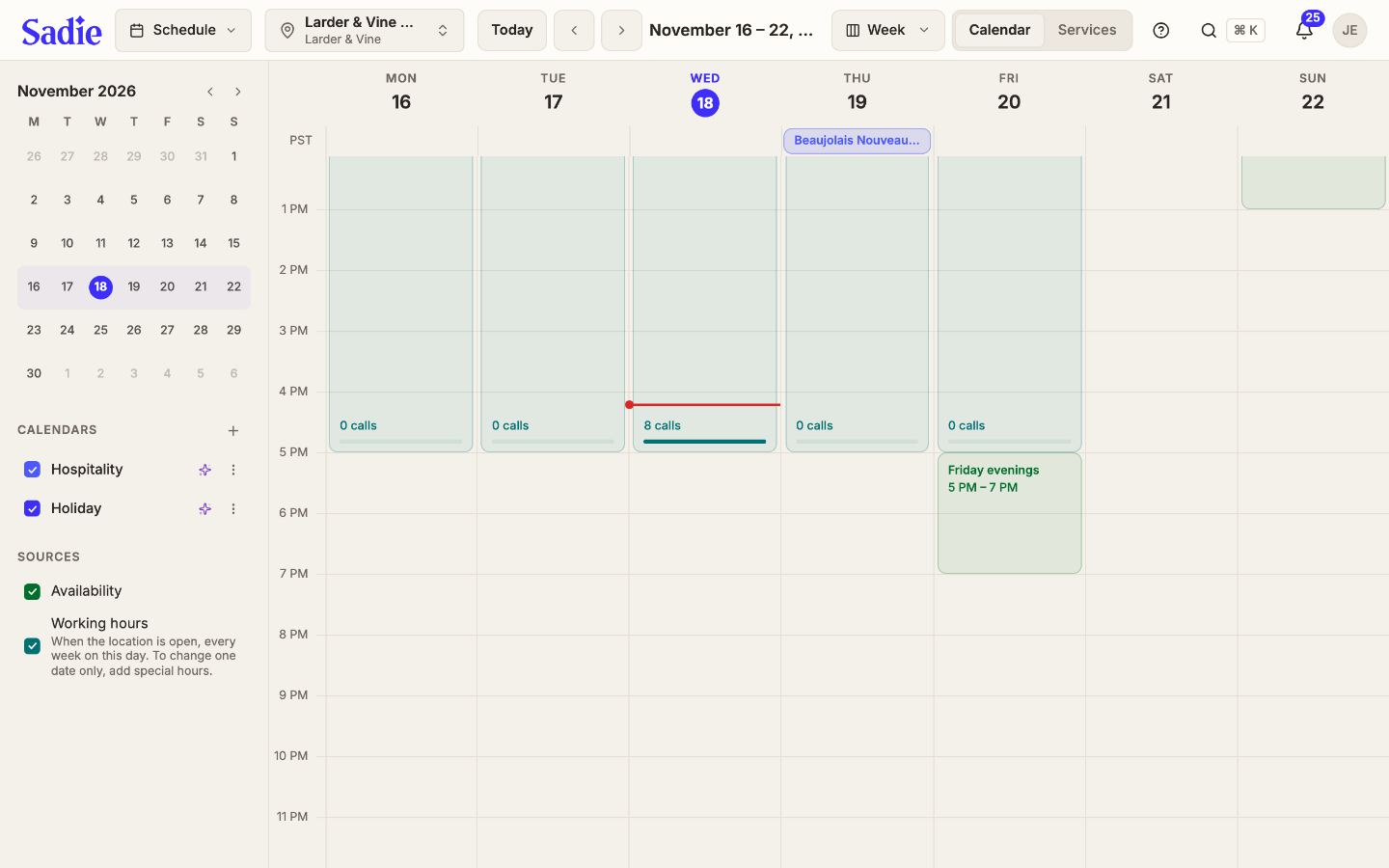
Click the page menu at the top left and choose Schedule. The week grid opens for the location the picker shows.
When the picker covers more than one location (All locations, or a group with several locations), the page shows only Choose a location to see its schedule. Pick one location in the top bar picker and the grid opens. A group or company with a single location opens that location straight away.
Change the view
The buttons at the top of the page control the calendar. Today jumps back to the current day, and the arrows beside it move back or forward by a day, a week, or a month, to match the view. Hover a button to see its name. The view menu switches between Day, Week, and Month. The D, W, and M keys do the same. In Day and Week view, the same menu has Hide past hours, which dims the hour labels and shades the hours that have already passed today, without removing them from the grid.
Calendar and Services switch between the grid and a summary of every schedule, grouped by the page that changes it. See Read the Services summary.
Sources, beside the grid, lists each kind of window the location uses, such as Working hours, Pauses, and Availability. Click one to hide it. Click it again to show it. On a smaller screen, Sources is a button at the top of the page.
Open a window
Click a block to see its name, its day and its hours. The button at the bottom opens the Settings page that changes it, such as Edit in Working Hours or Edit in Transfers. Make the change there, and Schedule shows it.
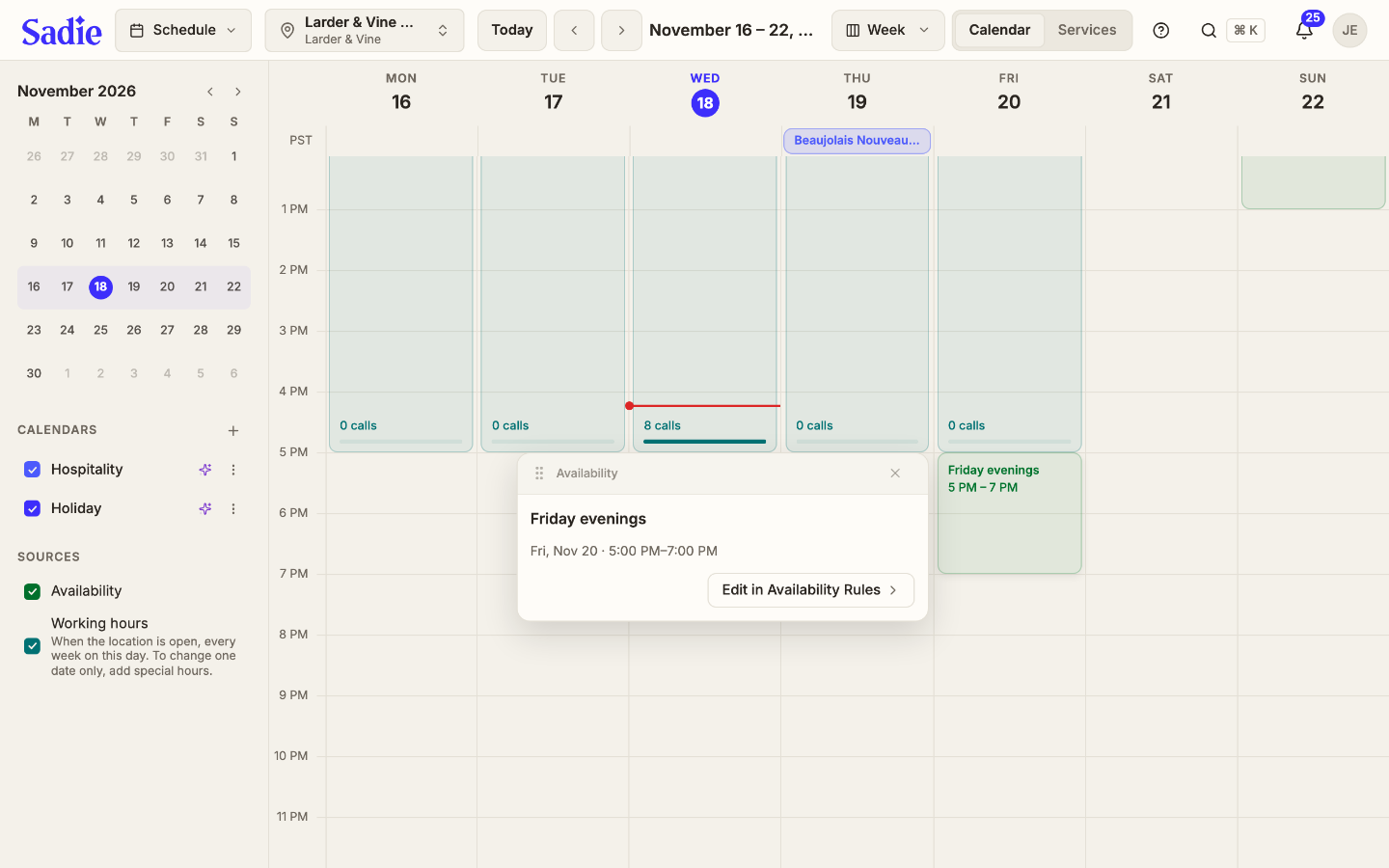
Each kind of window is changed on one page:
| Window | Where to change it |
|---|---|
| Working hours, hours sections, special hours | Working Hours |
| Pauses and voicemail hours | Assistant Settings |
| Transfer pauses | Transfers |
| Availability rules | Availability Rules |
| Special messages | Special Messages |
Dates from an imported calendar, such as a public holiday, have no button. They are there to help you plan.
Working hours repeat every week on the same day. To change a single date, add special hours for that date on Working Hours.
See a day's booking calls
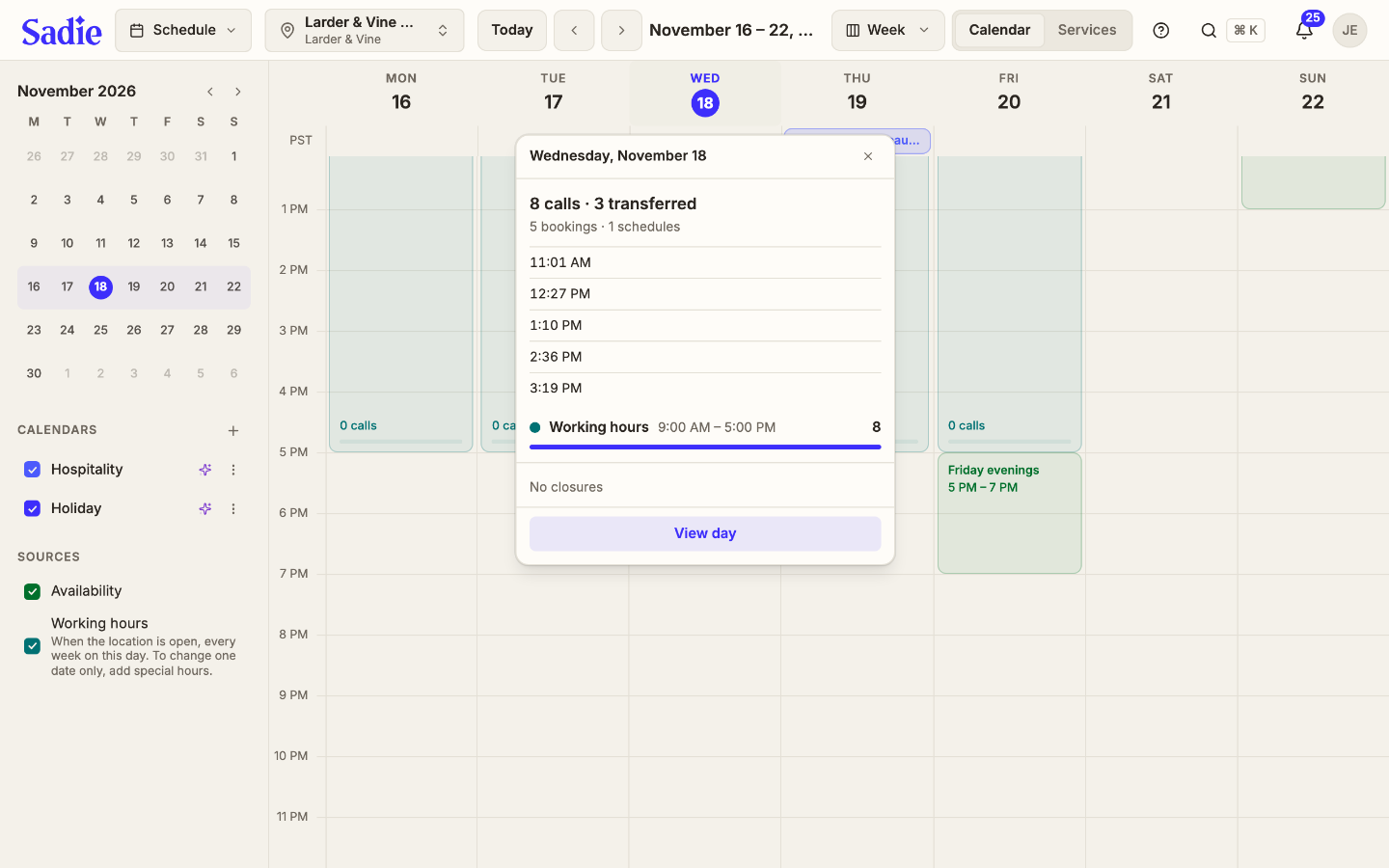
In Week view, click a day's number to open a small window with that day's summary: how many calls it had, how many were transferred, and how many placed a booking. Under that, each booking call is listed by the time it started, marked After hours when it came in after hours. The list stops at 20 calls. The window also says whether the day had a closure, such as No closures. View day opens the day on its own.
In Month view, clicking a day switches to Day view instead.
To close for a day, add special hours for that date on Working Hours and set them to closed. To close on a weekday every week, add a scheduled pause on Assistant Settings.
Read the Services summary
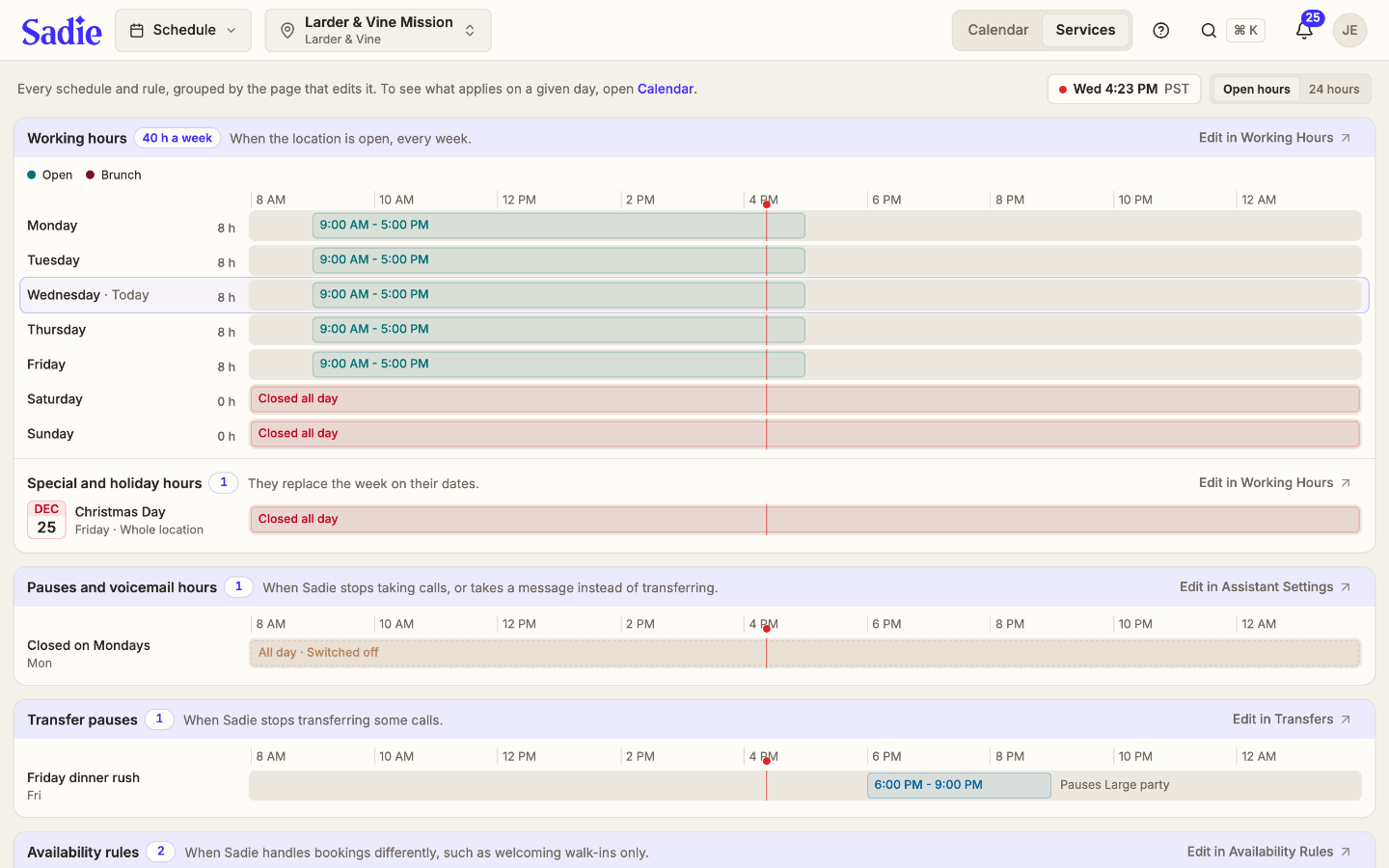
Click Services at the top of the page. Every schedule and rule shows as a card, one per Settings page, on the same time line, so you can compare them straight down the page:
- Working hours shows each day of the week, its open hours, and the hours a week. Special and holiday hours sits inside it and lists the dates coming up.
- Pauses and voicemail hours shows the times Sadie stops taking calls, and the times it takes a message instead of transferring.
- Transfer pauses shows when Sadie stops transferring some calls, and which transfers each one pauses.
- Availability rules shows how Sadie handles bookings at set times. It appears only for a location that books through OpenTable.
- Special Messages shows when Sadie mentions something extra to callers.
Each card's header has a link to the page that changes it, such as Edit in Working Hours. A schedule that is switched off shows Switched off, and an empty card says where to add one.
The chip at the top right shows the time at the location, and a red line marks that time on every card. Hover a card to see a grey line and the time under the pointer. Open hours fits the time line to your opening hours. 24 hours shows the whole day. When the time at the location falls outside the hours shown, such as early in the morning, Outside this view appears next to the time chip and the red line is hidden. Click 24 hours to see it again.
On a phone or a narrow window, each row shows its name above its time line.
Imported calendars
A Holiday calendar for your country and a Hospitality calendar are added for you automatically, and their dates show on the grid as all-day chips. Open a calendar's menu and click Sync now to refresh its dates.
To add another one, click the plus next to Calendars. You can subscribe to a calendar link, import an ICS file, or add country holidays, religious observances, or sporting events. A calendar you added yourself also has Remove in its menu. The two built-in calendars do not.