See what changed in your company
Read who changed your company's settings, team, connections and Sadie, filter the list, and export it.
Before you start
Audit log appears only for company admins, and only when Sadie has turned it on for your company. If Audit log is missing under Company in your Settings sidebar, it is not on for your company yet.
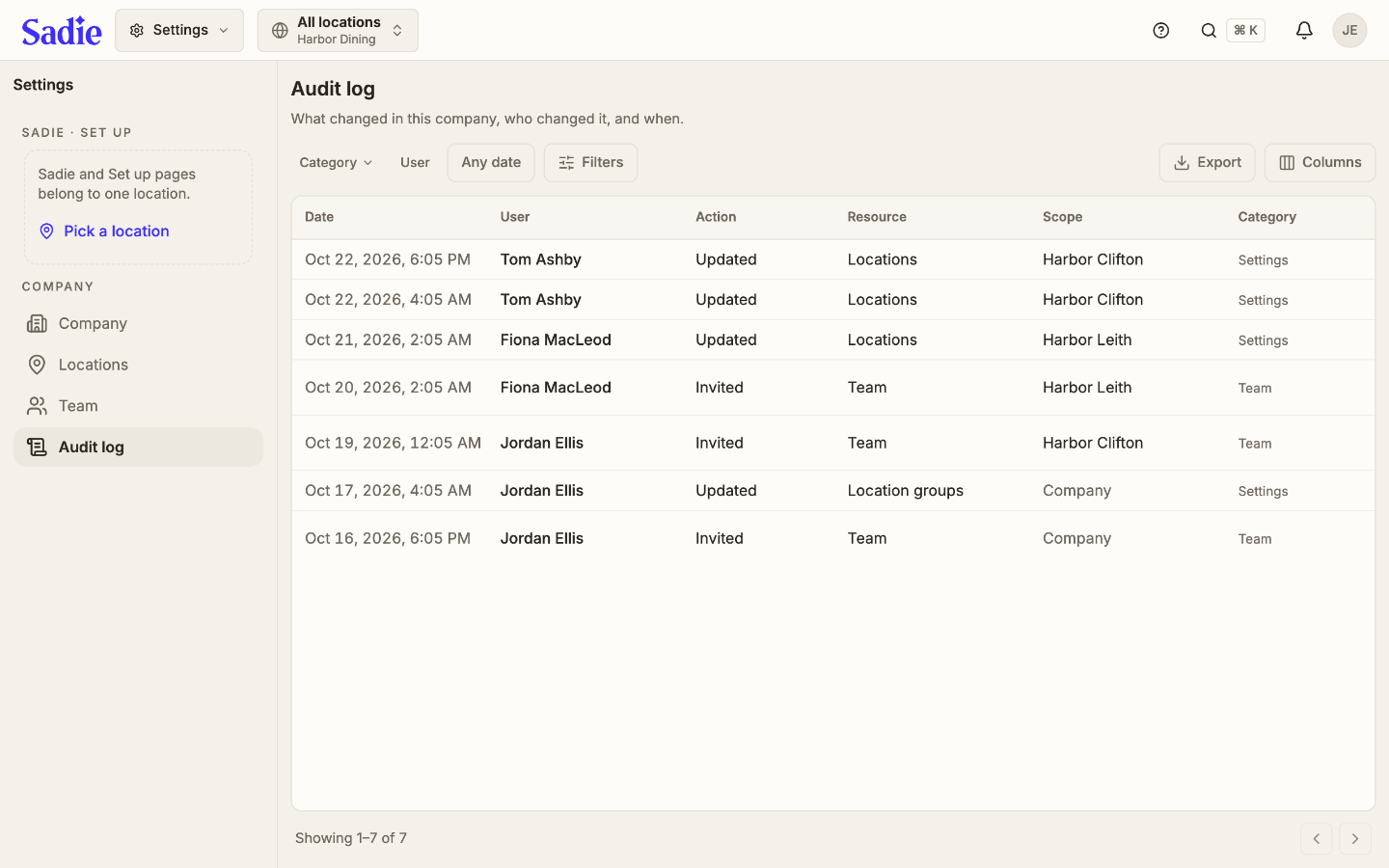
The audit log lists the changes made to your company's settings, team, connections and Sadie in the web portal. Each row says who made the change, what they did, what it touched, where, and which fields they changed. The newest change is at the top. Changes are recorded whether or not the page is on for you.
The log follows the location picker in the top bar. At All locations it shows the whole company. With a group or a single location picked, it shows only the changes filed under those locations. If your company has only one location, the log always shows the whole company, including company-wide changes. See Pick what you are looking at.
Open the audit log
Click the page menu at the top left, then click Settings. Click Audit log under Company in the sidebar.
Narrow the list
The toolbar above the table has these controls:
- Category keeps one kind of change: Settings, Team, Connections or Sadie.
- User keeps the changes one person made. Type in Search users to find them.
- The date button reads Any date. Click it to pick Today, Last 7 days or Last 30 days, or choose your own range on the calendar. The X beside it clears the dates.
- Filters opens a list with Action (for example Updated or Invited), Resource (what was changed, such as Locations or Team), and Changes, where you type the name of a field. At All locations it also has Scope, which keeps changes made at the Company level or at a Location. A number on the button counts the filters you have set; Clear inside it resets them.
- Clear filters resets everything at once.
The filters and the page you are on stay in the address bar, so the browser's Back button and a reload bring you back to the same list.
Choose the columns
Click Columns to show or hide columns. The table has Date, User, Email, Action, Resource, Scope, Category and Changes. Email is hidden until you switch it on.
Export the list
Click Export, just before Columns. The file holds every change the current filters match, not only the page on screen, up to 5,000 changes. If there are more, a message says the file holds only the first 5000 events and asks you to narrow the filters to export the rest.
Reading a row
- Date is the date and time on your device's clock.
- User is who made the change. Sadie means no person did it. Removed user means that person's account no longer exists. API key or Connected app after a name means the change came from that person's API key, or from an app they connected, not from them in the portal.
- Action and Resource say what happened and to what, for example Invited and Team.
- Scope is the location the change belongs to. Company means it belongs to the company as a whole, such as a change to a group.
- Changes lists the fields that were sent. A field shows its value only when the value is safe to show, such as a name, an email or a role. Other fields, like a password, show their name only.