Manage notifications on the web
Read the notification bell, the full notification page, and choose what you hear about.
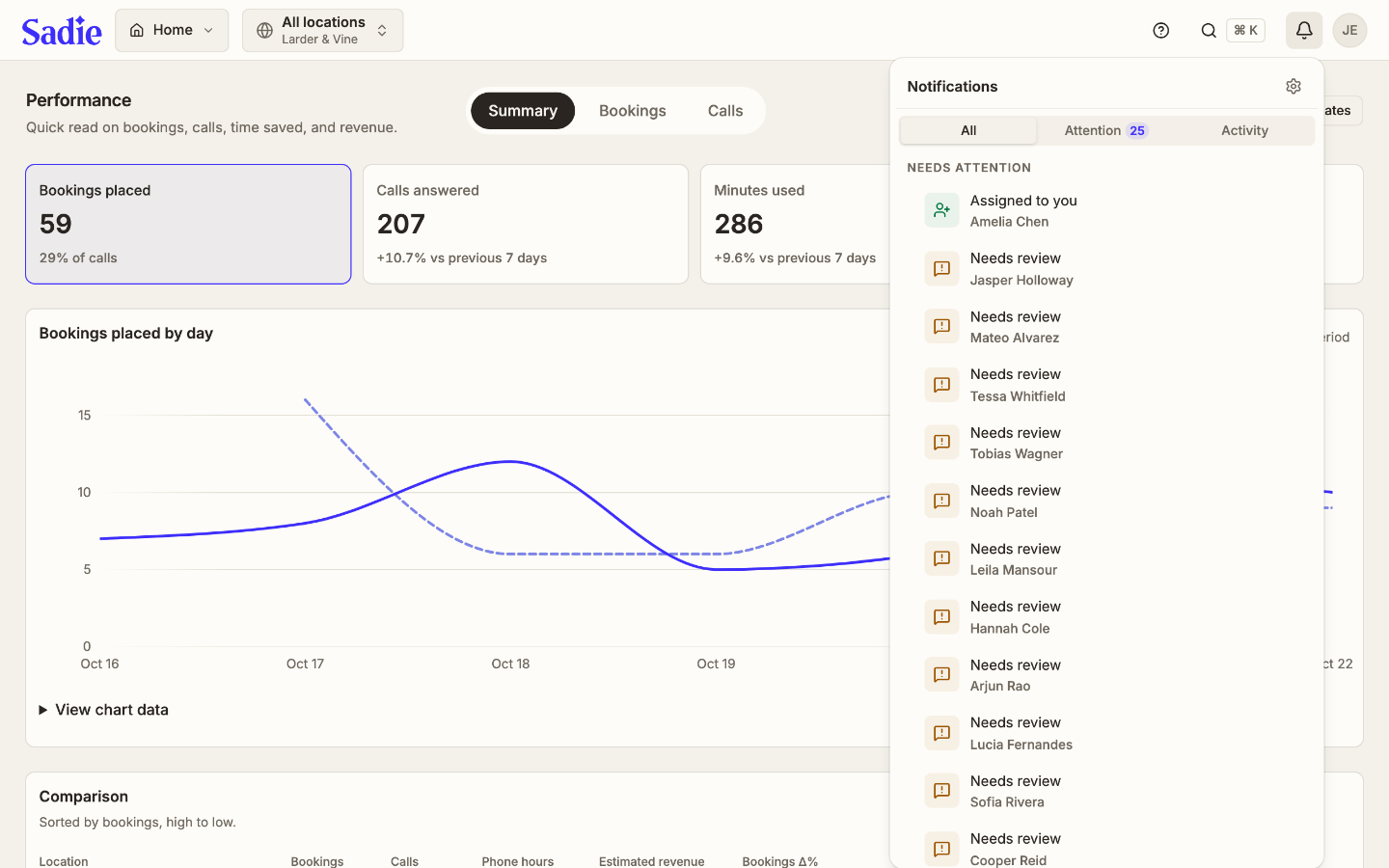
The bell in the top bar collects two kinds of notification: conversations that need a person, such as an escalation, a complaint or a callback request, and conversations assigned to you. Notifications cover the whole company, whatever the location picker shows. This page shows how to read them, clear them, and choose which kinds reach you.
Open the bell
Click the bell in the top bar. The panel has three tabs: All, Attention, and Activity. All splits notifications into Needs attention and Today. Click Older to show the Earlier ones too, and Show less to fold them away again. With nothing to show, the panel says You're all caught up.
At the bottom of the panel, Mark all read clears the unread count, and Clear all hides the notifications from your view. Clearing does not delete them for your teammates. Click the gear at the top of the panel to go straight to your notification settings.
See your full history
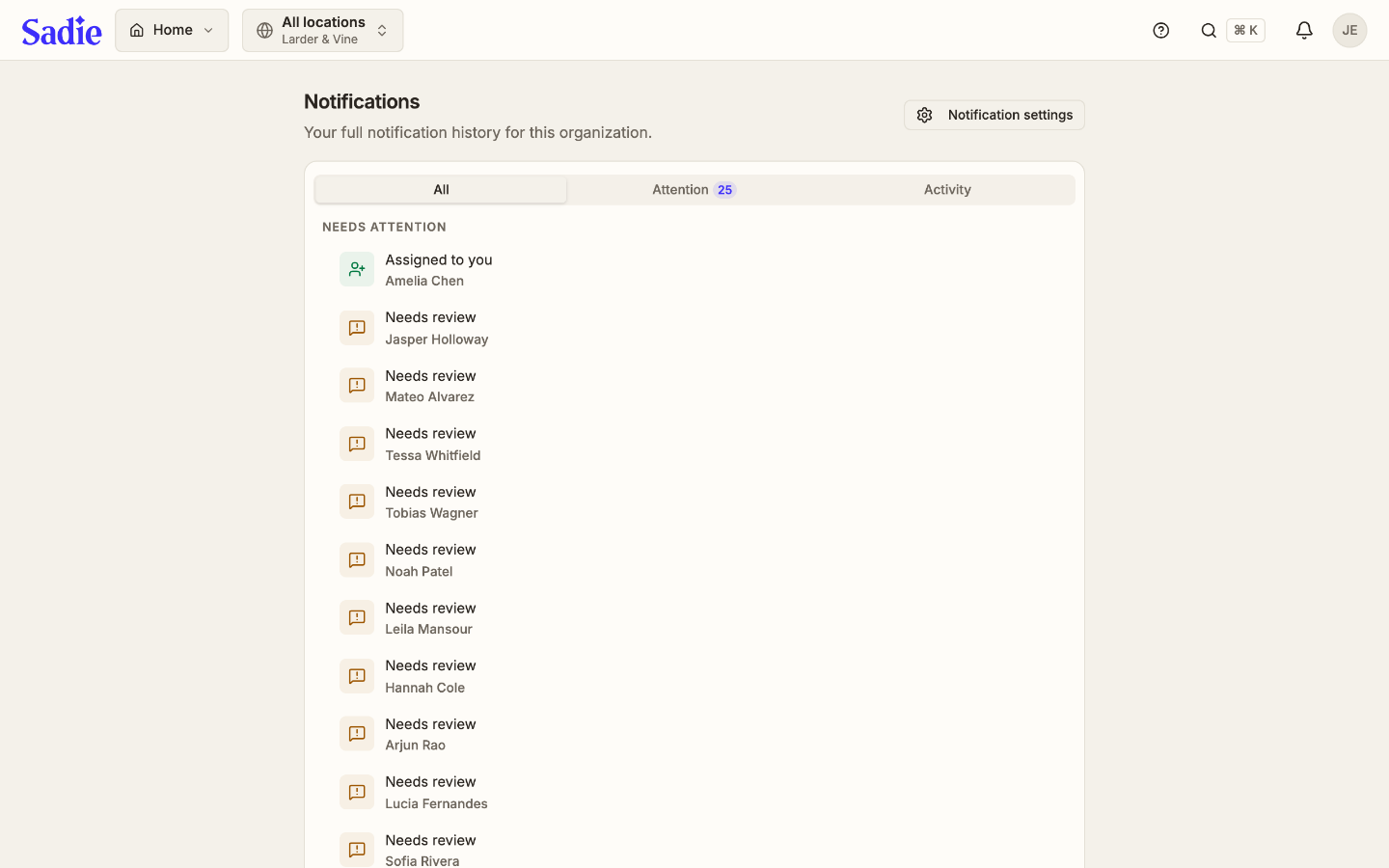
Click View all notifications at the bottom of the bell's panel to open the full Notifications page, your complete notification history for the organization. It has the same All, Attention, and Activity tabs, plus a Notification settings button of its own.
Choose what you hear about
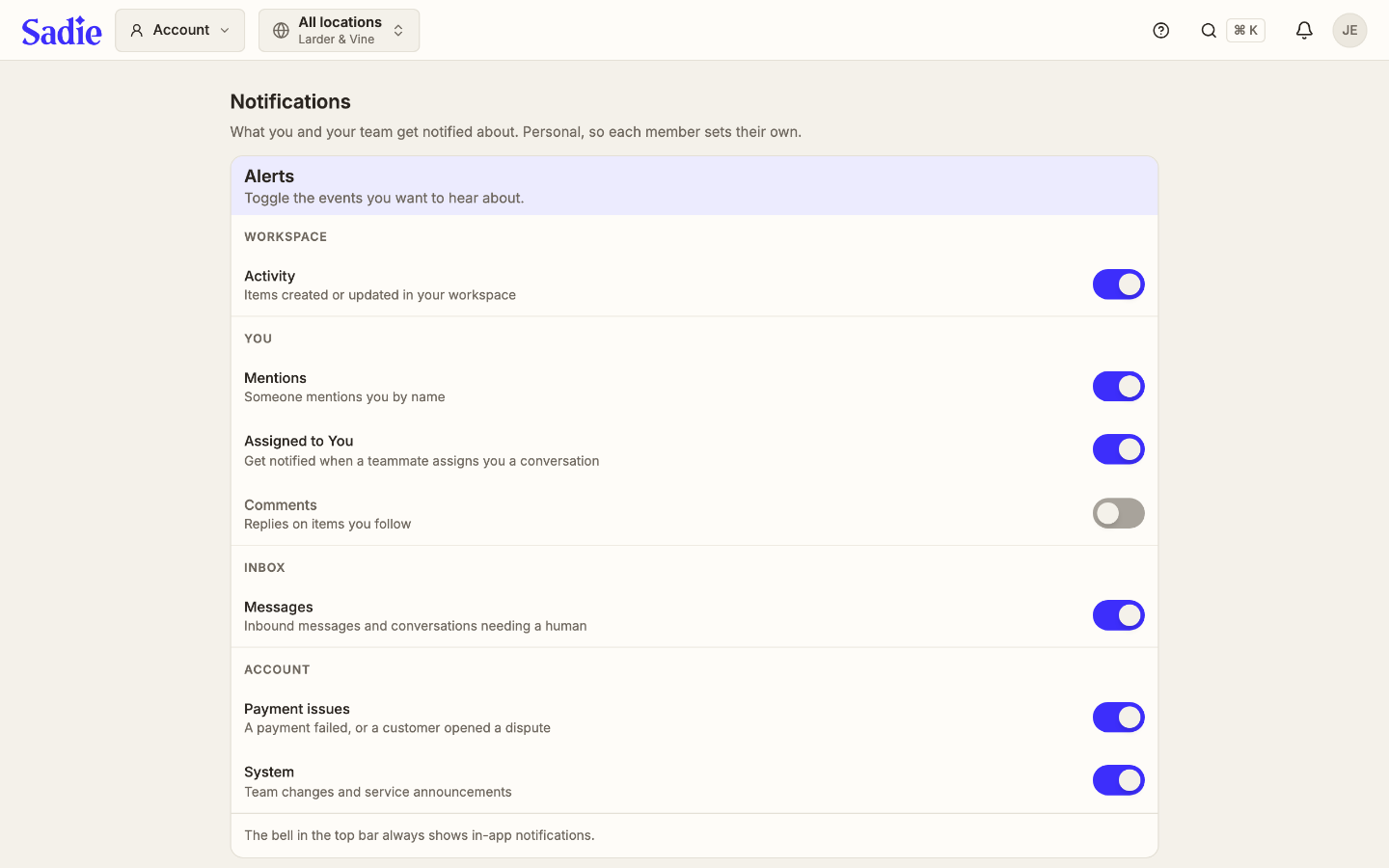
Open Notification settings from either place, or choose Notifications in the account menu (your initials, top right). It opens your account page at the Notifications section. The Alerts card lists every kind of event, grouped under Workspace, You, Inbox, and Account, each with its own switch. These settings are personal: every member of your team sets their own.
Know what the bell always shows
Turning off a category here stops it from adding to your count and from reaching you elsewhere, but the bell in the top bar always shows in-app notifications regardless of these switches.
What's next
Back to the basics: Get around the web portal.