Update your profile
Change your name, picture and password, set up an authenticator app, and choose your language and appearance.
The Profile page holds your own sign-in details. Everyone can open it, whatever their role. It is not part of Settings, so it has no Settings sidebar. This page covers your name, picture, password and authenticator in a few minutes. Your notification switches sit lower on the same page.
Open Profile
Click your initials at the top right. The account menu lists Profile, Notifications, Language, Appearance, Get Help, About and Sign out. Click Profile. The page opens with your name, picture and sign-in email, and the page menu at the top left reads Account.
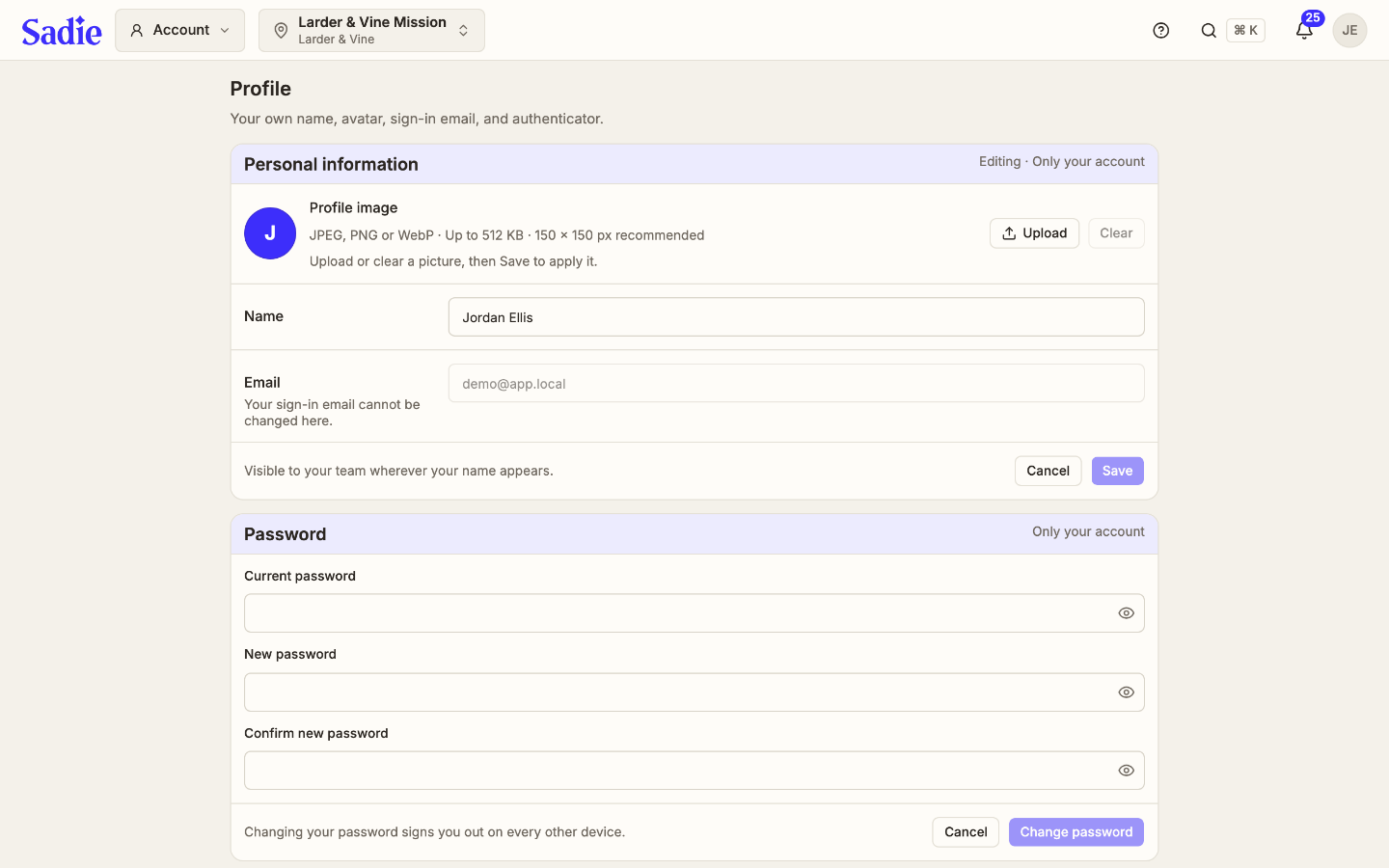
Change your picture
In Personal information, click Upload and choose a JPEG, PNG or WebP image up to 512 KB. 150 by 150 pixels is the recommended size. Crop it to a square, then confirm. To remove your picture instead, click Clear. Neither change is kept until you save.
Change your name
Click the Name field and type the name you want your team to see. The name cannot be empty. Email is read-only, because it is the address you sign in with.
Save your changes
Click Save. A Profile saved message confirms it. Click Cancel instead to put back the saved name and picture. If saving fails, a red panel says Could not save your changes and keeps your edits; click Retry save.
Change your password
The Password card changes the password you sign in with.
Enter your passwords
Type your password into Current password. Type the new one into New password, then again into Confirm new password. The page says so if the new password is too short or too long, or if the two entries do not match.
Change the password
Click Change password. A message confirms Password changed. Your other devices were signed out. You stay signed in on this device only. Click Cancel to clear the three fields without changing anything.
Turn on the authenticator
The Authenticator card is about your own account; nobody else on your team sees it change. An authenticator is an app on your phone, such as Microsoft Authenticator or Google Authenticator, that shows a 6-digit code. Once it is on, you sign in with your password and then that code.

Switch it on and confirm your password
Switch on Ask for a code when I sign in. A window titled Turn on the authenticator opens, with three steps: Confirm password, Scan code and Save codes. Type your password under Password, then click Continue.
Scan the code
Open your authenticator app and tap Add or +, then scan the QR code in the window. If you cannot scan it, click Can't scan? Enter a setup key instead and type the key into the app. Type the 6-digit code the app shows into Authenticator code, then click Confirm code.
Save your backup codes
The window shows your backup codes under Save these backup codes. Each code works once, and this is the only time they are shown. Click Copy codes and keep them somewhere safe, then click I saved these codes. If you lose your phone and your codes, ask your administrator to reset your authenticator.
To turn it off, switch Ask for a code when I sign in off, type your password, and click Turn off authenticator. If your company requires two-factor sign-in and you already have an authenticator, the card is hidden, because there is nothing to change.
Choose your language and appearance
The card after Authenticator has Language and Appearance lists. Pick a language and the portal's text changes right away. Appearance picks System, Light, Dark, Techy or High contrast. Get Help opens this help center in a new tab.
Your notification switches are in the Notifications section lower on the same page. See Notifications.
What's next
A company admin edits the company's own name, logo and contact email on Edit your company.