Get around the web portal
Sign in, pick a company, and learn the top bar you use on every page.
Sign in
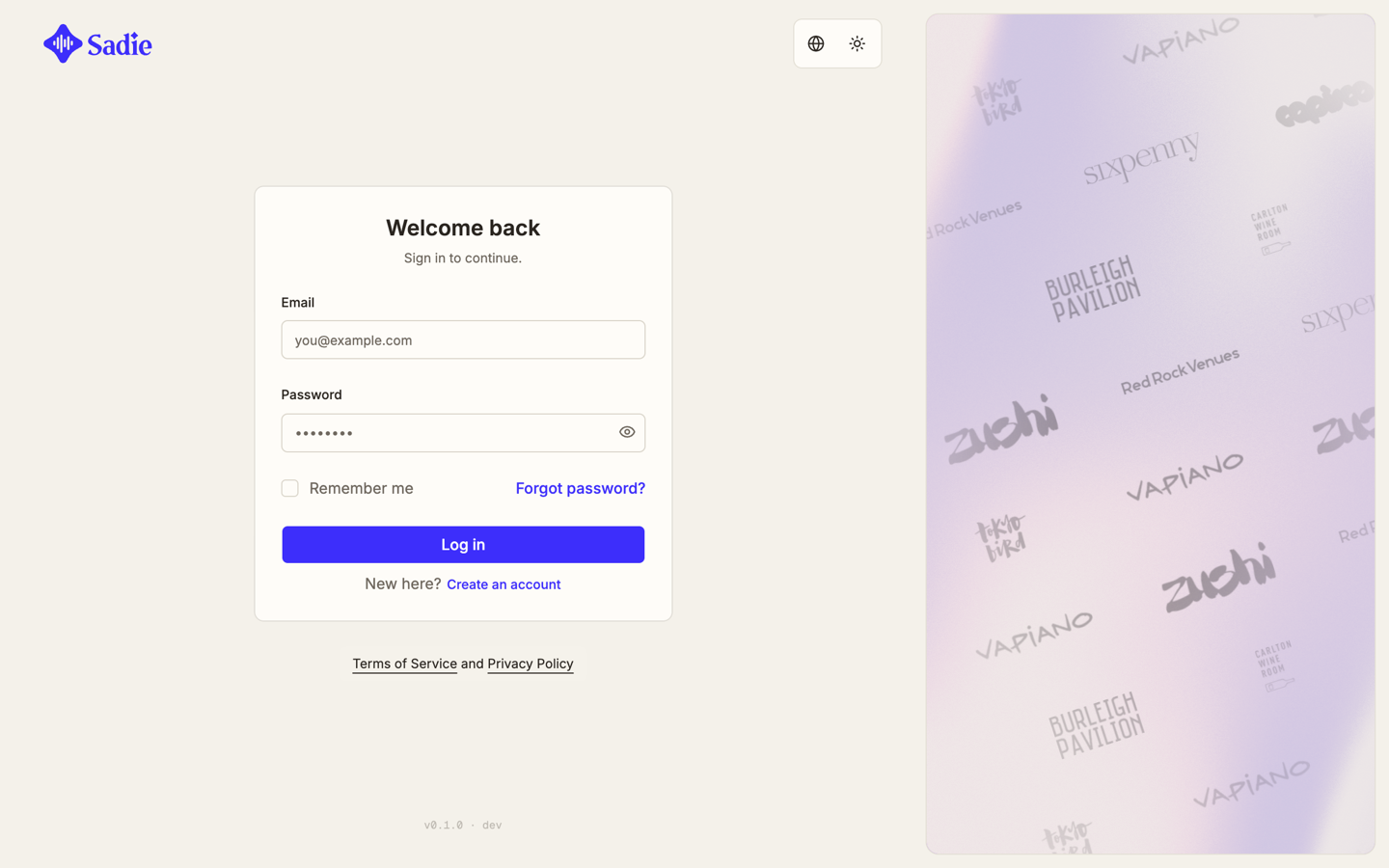
Go to the sign-in page. The card reads Welcome back, with Sign in to continue. underneath. Enter your email and password, then click Log in. Check Remember me to stay signed in on this computer, or click Forgot password? if you need a reset link.
Choose your company
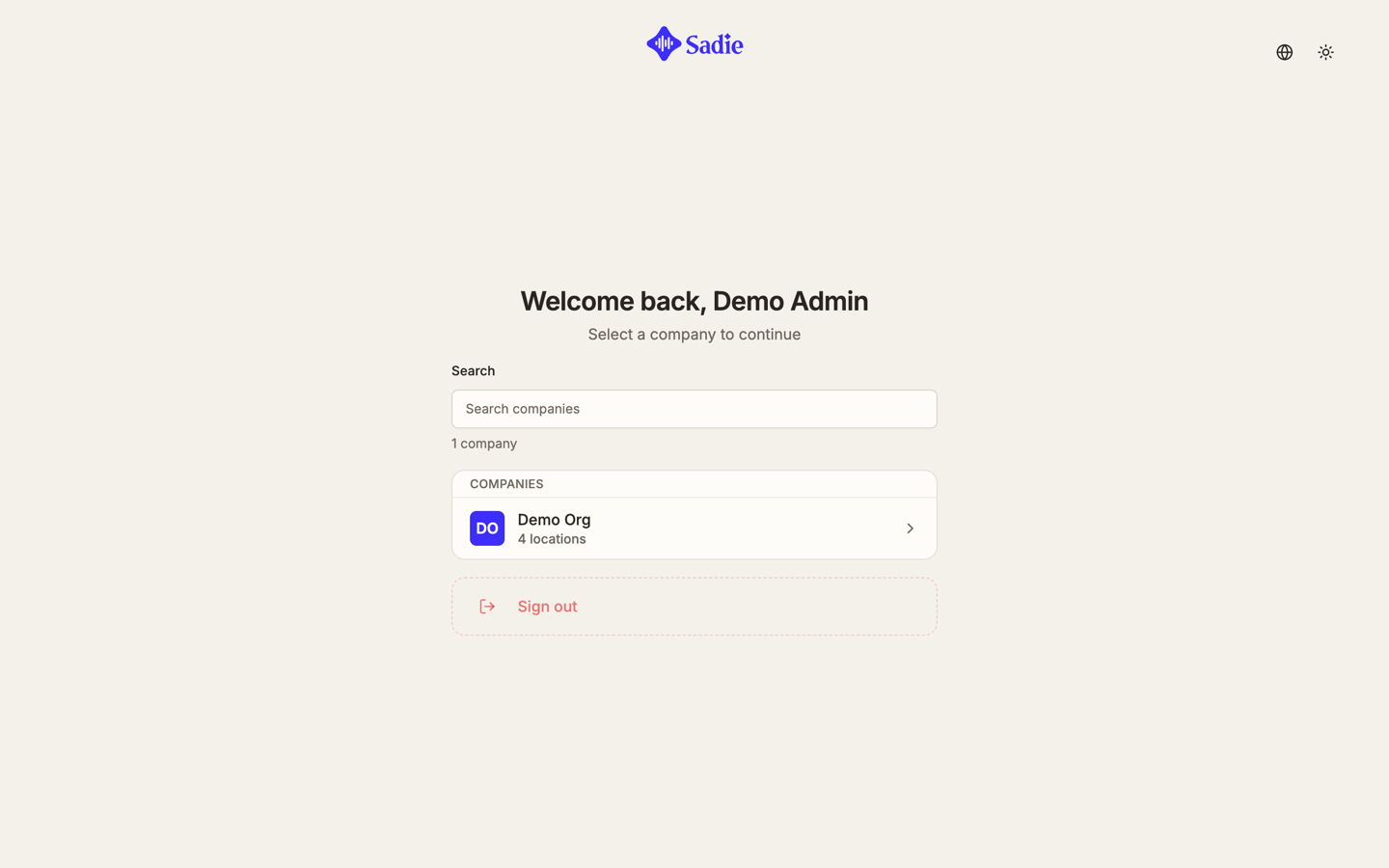
If your account has more than one company, you land on Select a company to continue next. Search by name or click a company in the list to open it. Signing out is a separate button below the list.
With only one company, the portal skips this screen and takes you straight in.
Read the top bar
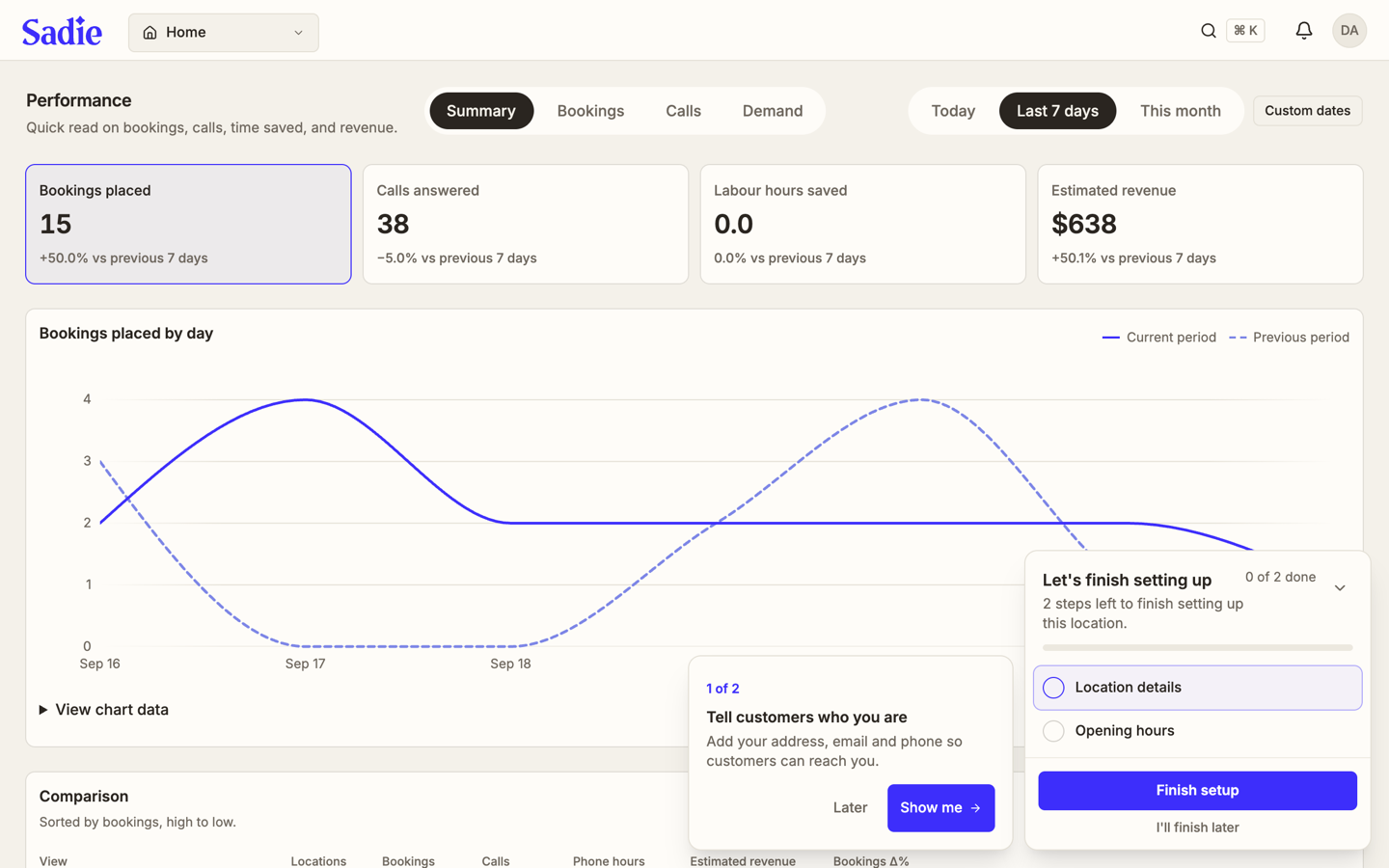
Every page in the portal shares the same header band.
- On the left, a dropdown names the page you are on (Home, Forms, Inbox, Guests, or Settings). Click it to jump to another page. The bottom of that same menu switches the active location.
- The search icon opens Search pages, where you type a page name to jump to it. Ctrl K, or Cmd K on a Mac, opens it from the keyboard.
- A question mark icon opens the help article for the page you are on, in a new tab.
- The bell opens your recent notifications.
- Your initials, at the far right, open your account menu: your role in the company, language, theme, Get help, and Sign out.
Finish the setup checklist
A new location shows a Let's finish setting up panel in the bottom corner of Home, with the steps left to go. Click it to expand the list, or the arrow to collapse it. Click a step to work on it, Finish setup once every step is done, or I'll finish later to dismiss the panel for now.
What's next
Start on the dashboard: Read the Home dashboard.