Set up the call widget
Choose what the widget on your website says, style its look, and install it so visitors can call Sadie.
Before you start
The Widget page works on one location. If the location picker in the top bar says All locations or a group with several locations, the sidebar shows Sadie and Set up pages belong to one location. with a Pick a location link, and the page says Choose a location to set up its widget. Pick a location first. See Pick what you are looking at. Staff, location managers, group managers and company admins can change the page.
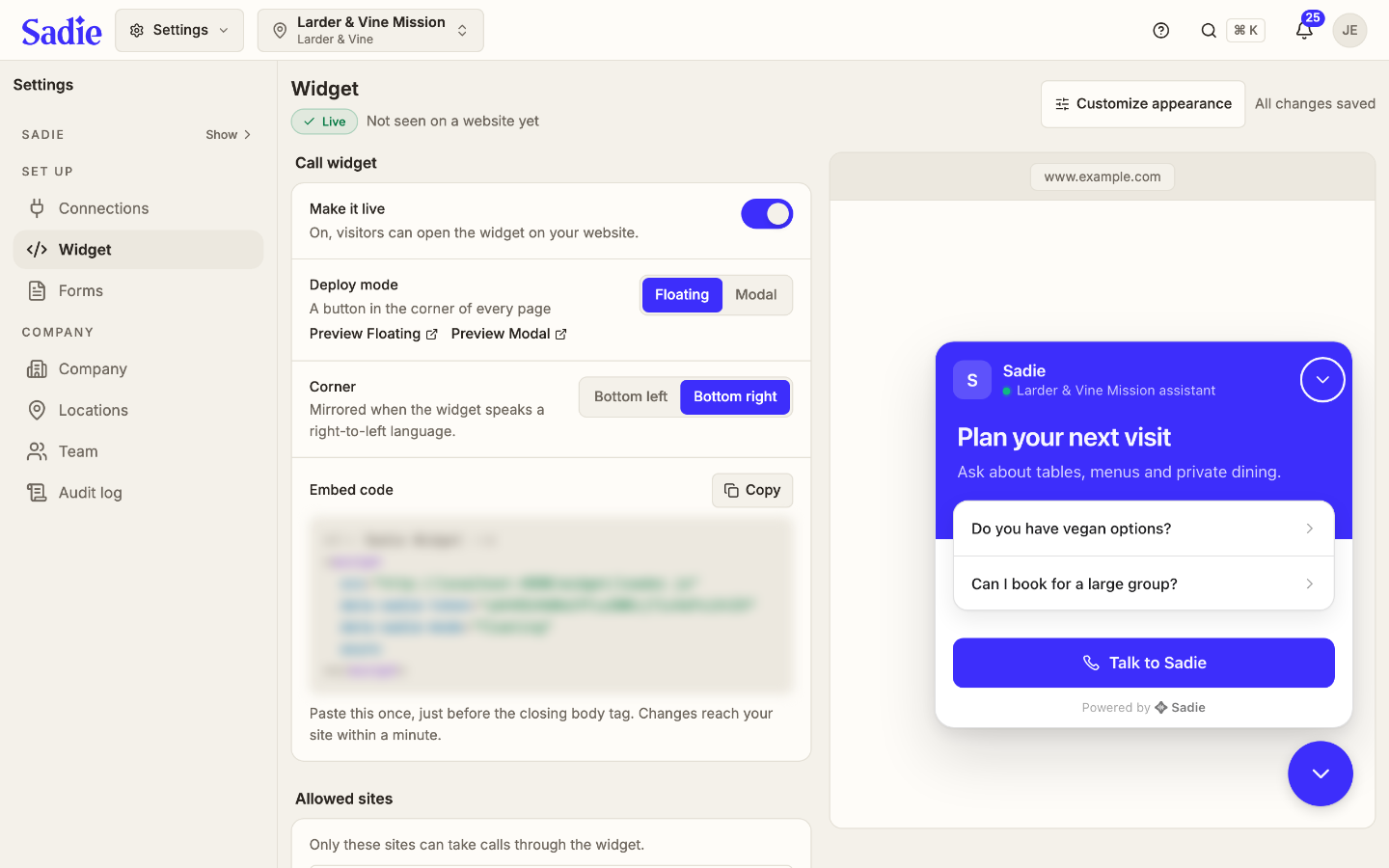
The Widget page covers the content, opening behavior and installation of the widget guests use to call Sadie from your website. It also holds the address of your Sadie page. Changes on this page save as you make them, and the top right reads Saving..., Unsaved changes or All changes saved. A live preview of the widget sits on the right. Appearance, color and type live on a separate screen called Widget Studio.
Open Widget
Click the page menu at the top left, then click Settings. Click Widget under Set up in the sidebar. The cards run down the left in this order: Call widget, Allowed sites, Sadie page, Language and opening and Content.
Write the welcome content
In the Content card, set the Welcome title and Welcome message shown when the widget opens, and the Assistant name. Button text sits next to the launcher button; leave it empty to show only the icon.
Add suggested questions
Click Add a question to offer up to four phrases. A tap on one starts a call with that phrase. Click Remove next to a question to take it off.
Set the language
In the Language and opening card, choose the widget's language from the Language list, or leave it on Auto to follow the visitor's browser. Auto uses English when the visitor's language is not supported. This is the language the widget's own text appears in, separate from your own portal language.
Style the widget
Click Customize appearance, at the top right, to open Widget Studio. Simple offers a Preset with its Accent, your logo and its frame, and Motion. Advanced adds the background, text and button colors, the font, corners and button style. Changes preview live on the right. Click Apply appearance to save them to the live widget, or Discard to drop them. If you leave Widget Studio with changes not applied, it asks Leave without saving? first.
Click Try it live in the studio's preview to open the widget in the same state a visitor would see. Click Back to preview to return to editing.
Choose how the widget opens
The Language and opening card controls what a visitor sees when they land on your page.
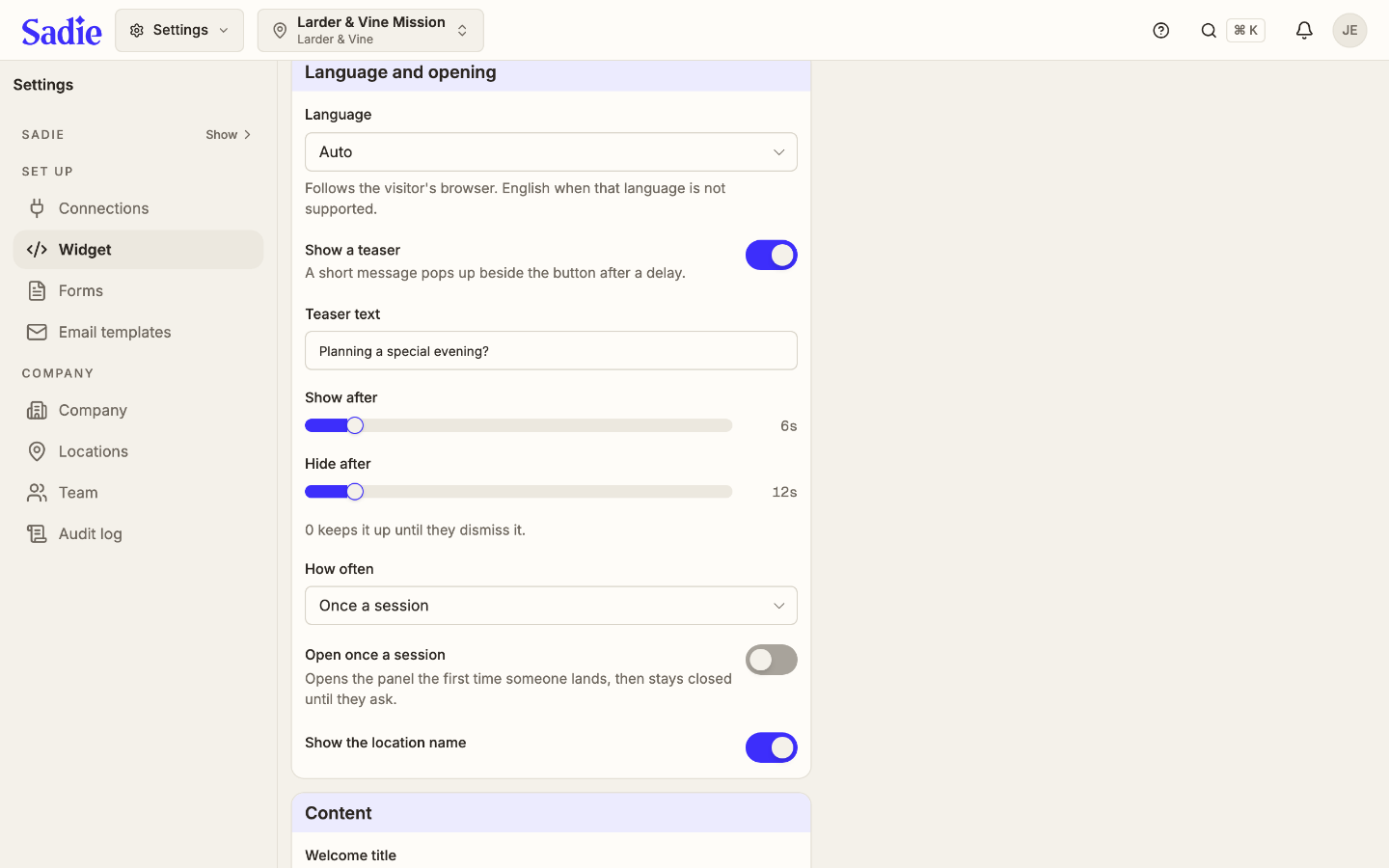
Show a teaser pops a short message beside the button after a delay. Set the message under Teaser text, then use Show after, Hide after and How often (Every visit, Once a session or Once only). Setting Hide after to 0 keeps the teaser up until the visitor dismisses it. Open once a session opens the panel itself the first time someone lands, then leaves it closed until they ask. The teaser and auto-open only apply when Deploy mode is Floating; the values are kept if you switch away. Show the location name controls whether the widget shows the location's name.
Go live
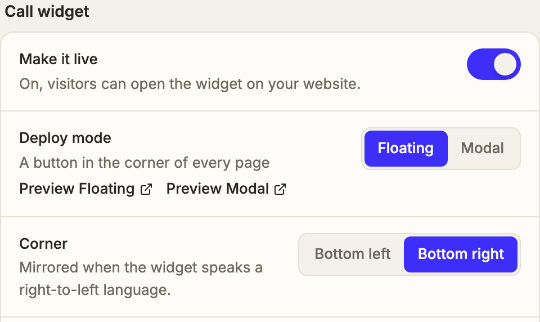
The Call widget card controls whether visitors can use the widget at all. Make it live switches it on. While it is off, nothing is public and the preview is where you try a visit.
Deploy mode sets how the widget appears: Floating, a button in the corner of every page, or Modal, which opens from your own button. Click Preview Floating or Preview Modal, under the choice, to see either one on a sample page. Corner picks Bottom right or Bottom left for the floating button, and shows only when Deploy mode is Floating. The corner mirrors when the widget speaks a right-to-left language. Changes publish to your website within a minute.
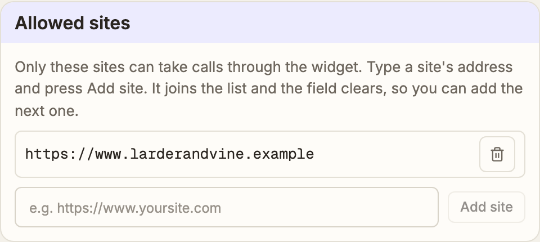
In the Allowed sites card, type the full address of every site that carries
the snippet, such as https://www.yoursite.com, then click Add site. A site
needs a full http or https address. Only the listed sites can take calls through
the widget; the widget can still appear anywhere the snippet is pasted. To take a
site off the list, click the bin button beside it. Removing the last allowed
site stops the widget taking calls on your websites until you add one back.
Install the widget on your site
The Call widget card also gives you the Embed code, a snippet of HTML. Click Copy to copy it, then paste it once into your website, just before the closing body tag. Under the page title, a badge says Live or Off. Once your site loads the widget, the line beside it reads Last seen on and your site's address. Until then it reads Not seen on a website yet.
Share your Sadie page
The Sadie page card, under Allowed sites, gives the location a page of its own where visitors talk to Sadie, with no website needed. Type the Page address you want, using 2 to 60 lowercase letters, numbers and hyphens, then click Save. If another page already uses that address, the card says so. Once it is saved, click Copy link to share it, or Open page to see it in a new tab.
What's next
Connect the tools your location runs on next, on Connect your other tools.