Finish setting up a location
Work through the checklist that confirms a location's details and opening hours.
Before you start
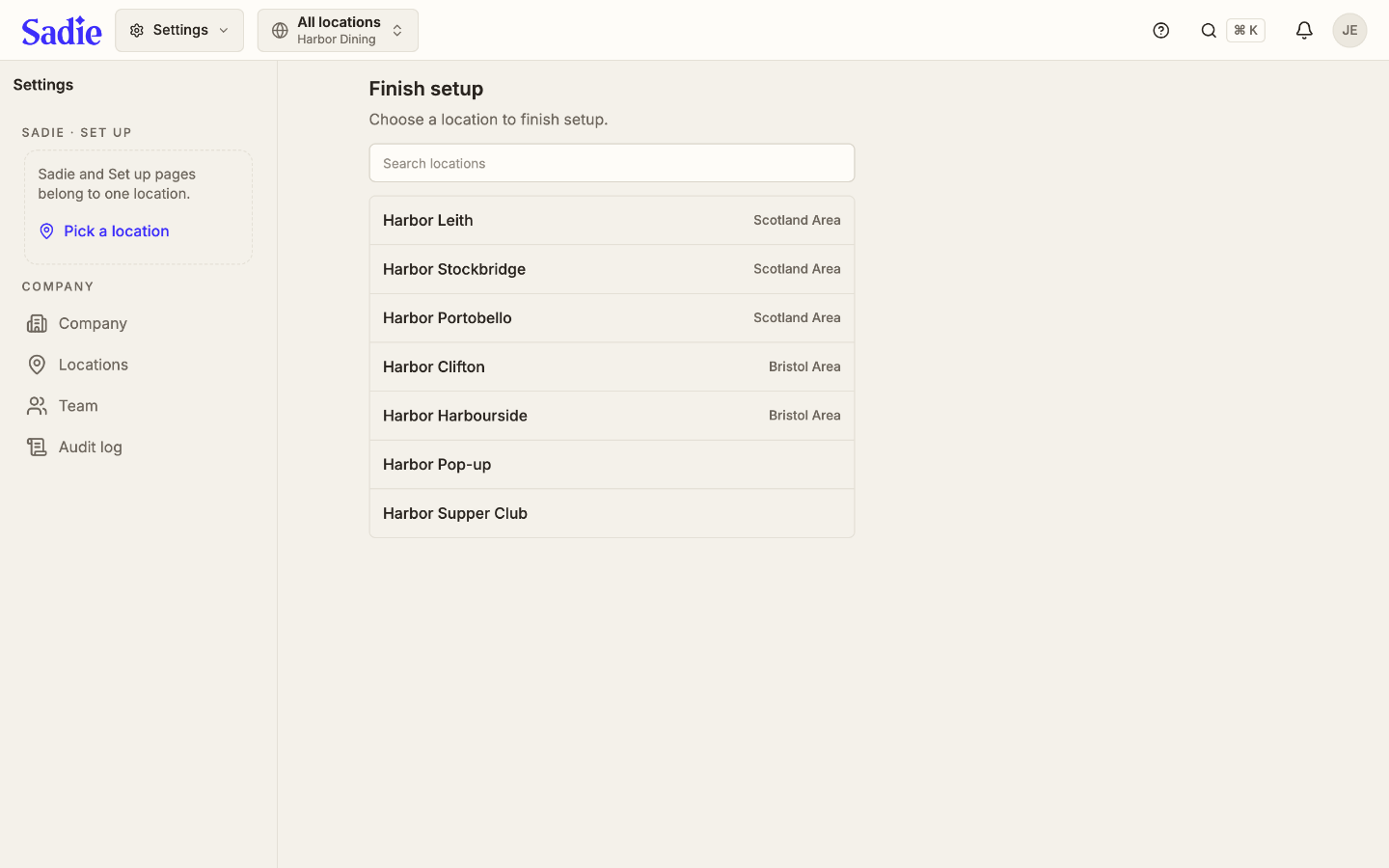
Finish setup works on one location at a time, so pick a location first. If the location picker in the top bar says All locations or a group with several locations, the page shows Choose a location to finish setup. above a list of locations. Click one. Company admins, group managers and location managers can open it. Staff and viewers have no Settings.
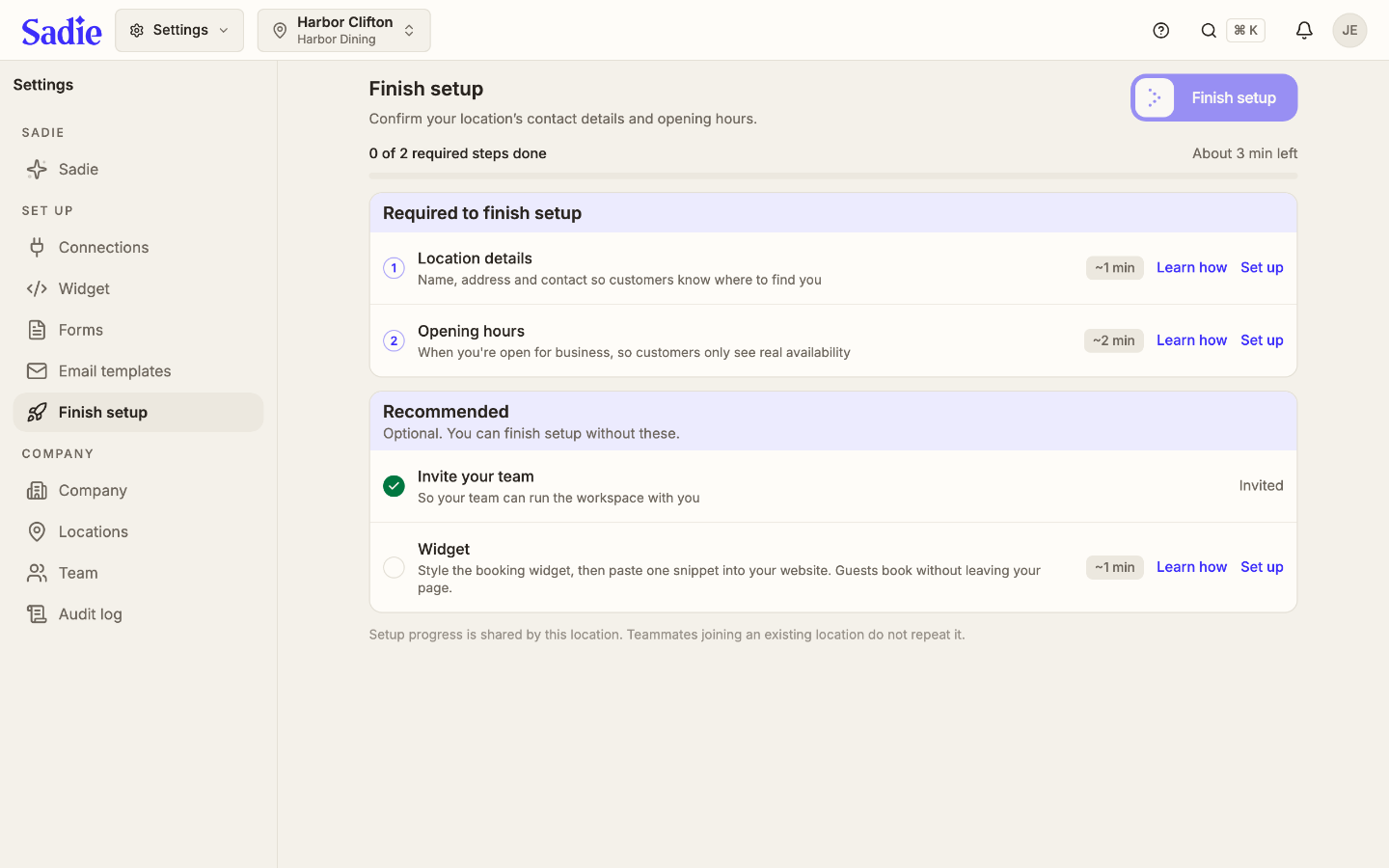
Finish setup is a checklist for one location. It tells you which steps are required, which are recommended, and roughly how long each step takes. Setup progress is shared by the whole location, so a teammate who joins it later does not repeat it.
Open Finish setup
Click the page menu at the top left, then click Settings. Click Finish setup under Set up in the sidebar. At All locations or a group with several locations, the sidebar shows Sadie and Set up pages belong to one location. and a Pick a location link instead; click it, or use the location picker, to choose one. See Pick what you are looking at.
The line near the top shows how many required steps are done, for example 0 of 2 required steps done, and about how many minutes are left.
Complete a required step
Under Required to finish setup, each step has a small time chip such as ~1 min. Click Set up next to a step to open the page where you finish it. Learn how opens the help article for that page in a new tab.
Location details opens the location's details page and asks for a name, address and contact so customers know where to find you. See Edit a location's details. Opening hours opens Working Hours and asks when you are open, so customers only see real availability. A step shows a green check once you save it.
Complete a recommended step
Under Recommended, Invite your team and Widget are optional: you can finish setup without them. Invite your team opens Team. Widget opens the Widget page, where you style the widget and copy one snippet to paste into your website. Copying the snippet marks the step done.
Finish setup
The Finish setup button, at the top right, stays off until every required step is done. Click it. A Location setup complete. message appears and the portal takes you to Home. Finishing setup clears the checklist only. Booking, messaging and phone assistant settings are managed on their own pages.
Once a location has finished setup, Finish setup leaves the sidebar. To open the checklist again, search for Finish setup with the search icon in the top bar. The page then reads Location setup is complete. with a Back to setup button.
Not the same button
The window for adding a new location also ends with a Finish setup button. That one creates the location. See Add a location.
What's next
Locations that share a group can offer each other's availability. Set that up on Edit a location's details. To see every location with its setup state, open Manage your locations.