Update your profile
Change your name and profile picture. Your sign-in email stays fixed.
This is the one settings page about you rather than your organization, so every role can open it. Update the name and picture your team sees next to you, in under a minute.
Open Profile
Click Settings in the top bar, then click Profile under You in the sidebar. The page shows your current name, picture and sign-in email.
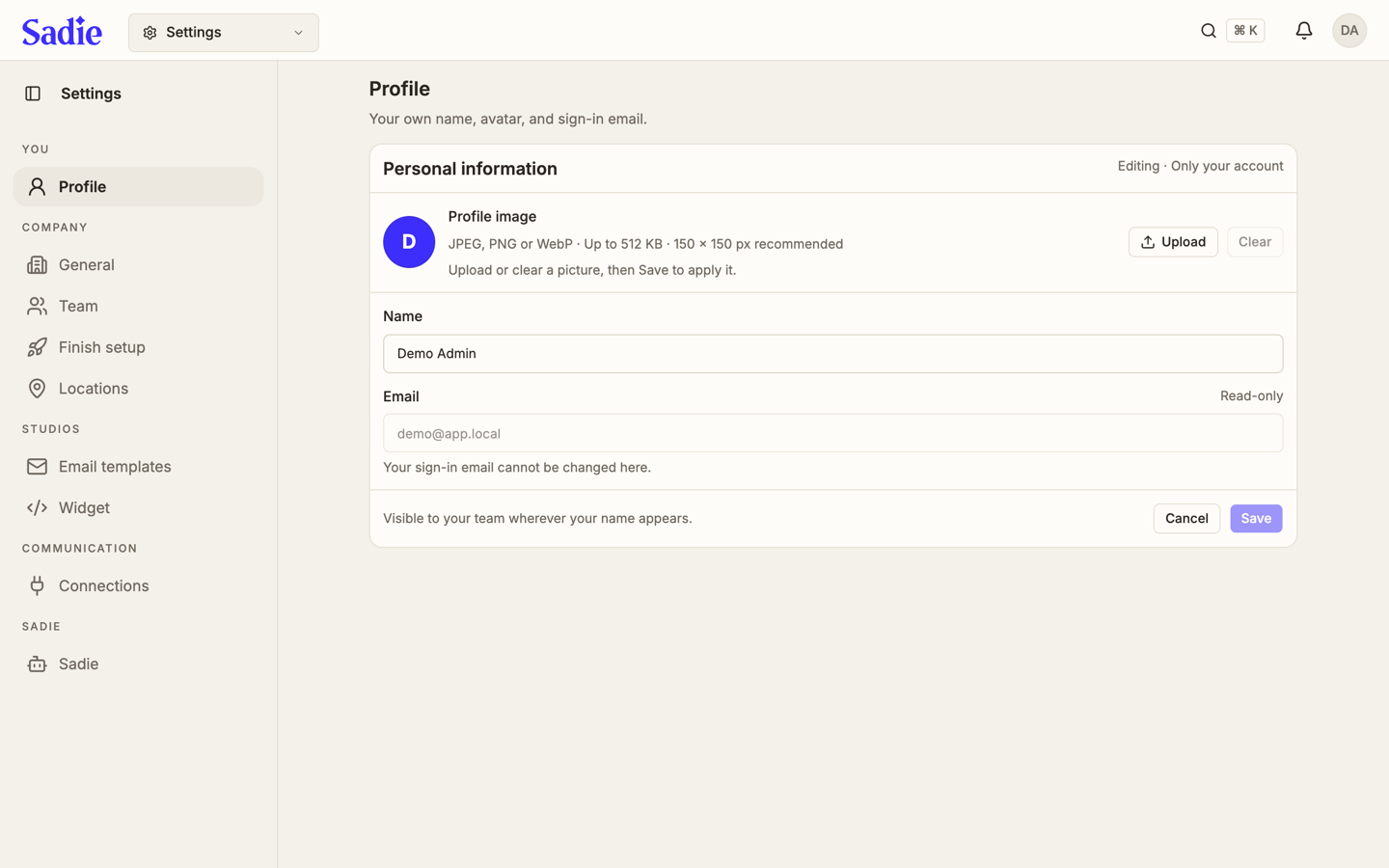
Change your picture
Click Upload and choose a JPEG, PNG or WebP image up to 512 KB. Crop it to a square, then confirm. To remove your picture instead, click Clear.
Change your name
Click the Name field and type the name you want your team to see.
Save your changes
Click Save. Your email address stays read-only on this page: it is the address you sign in with, and it does not change here.
Turn on the authenticator
The Authenticator card is only your account; no one else on your team sees it change. Toggle Ask for a code when I sign in, confirm your password, scan the QR code with an authenticator app, then enter the code it shows. Save the backup codes it gives you; each one works once, and this is the only time they are shown.

To turn it back off, toggle it off and confirm your password. If a company you belong to requires an authenticator, the toggle is locked on and cannot be turned off from here.
What's next
A company admin edits the company's own name, logo and billing details on Edit your company.