Manage notifications on the web
Read the notification bell, the full notification page, and choose what you hear about.
Open the bell
Click the bell in the top bar to see your recent notifications, split into Needs attention, Today, and Earlier. Click Mark all read or Clear all from the panel, or click the gear to jump straight to your notification settings.
See your full history
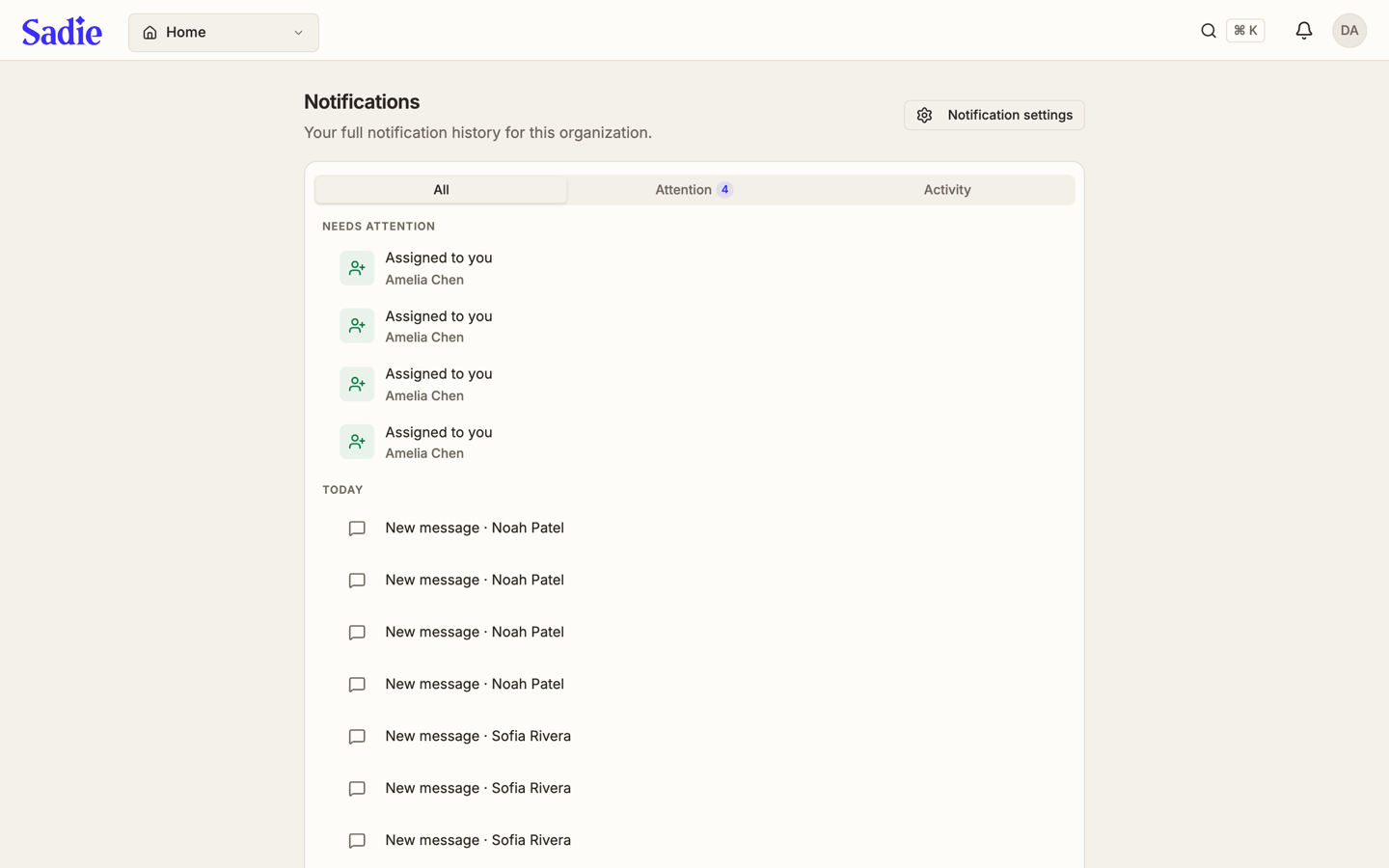
Click View all notifications at the bottom of the bell's panel to open the full Notifications page, your complete notification history for the organization. It has the same All, Attention, and Activity tabs, plus a Notification settings button of its own.
Choose what you hear about
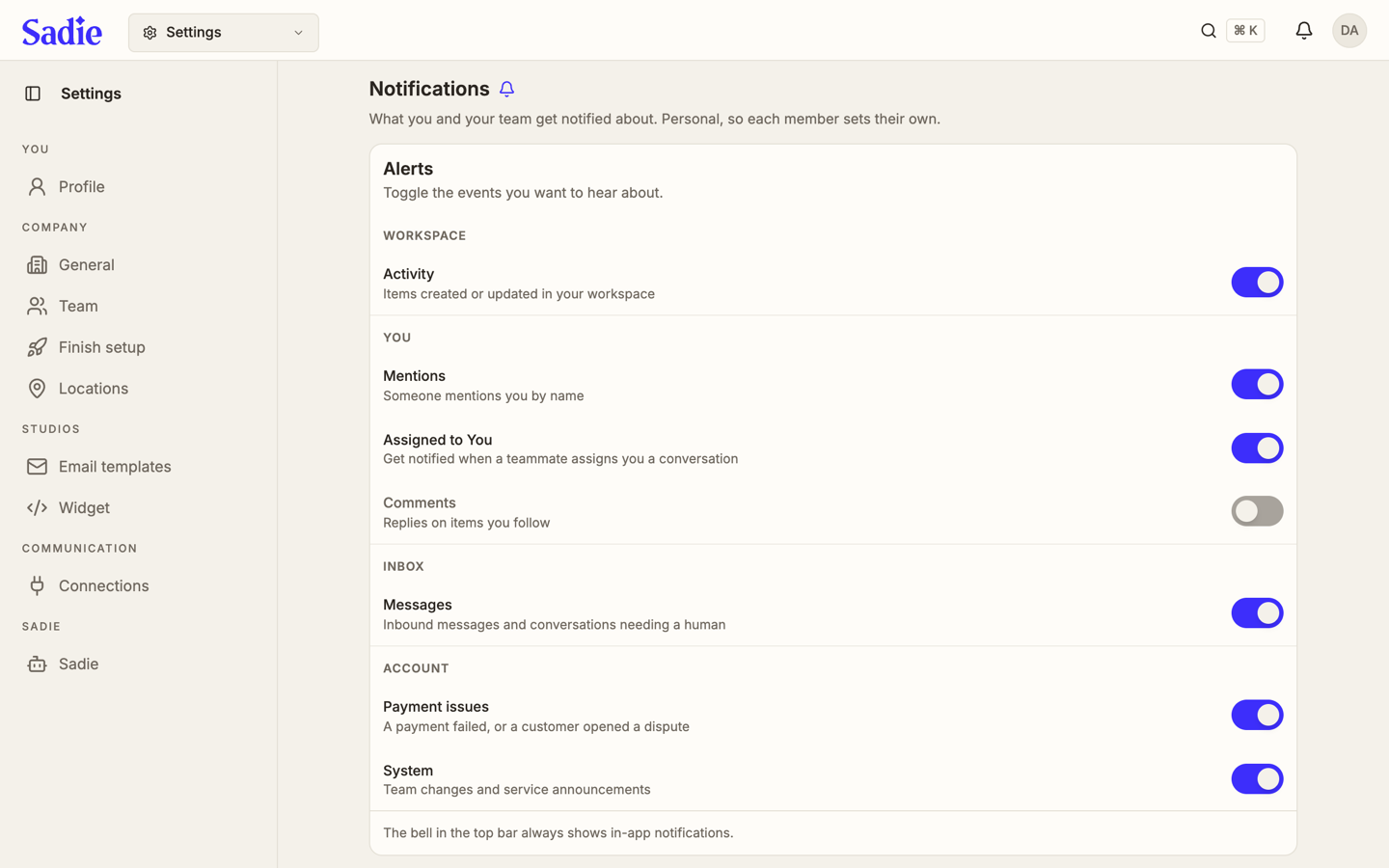
Open Notification settings from either place, or go to it from Settings. The Alerts card lists every kind of event, grouped under Workspace, You, Inbox, and Account, each with its own switch. These settings are personal: every member of your team sets their own.
Know what the bell always shows
Turning off a category here stops it from adding to your count and from reaching you elsewhere, but the bell in the top bar always shows in-app notifications regardless of these switches.
What's next
Back to the basics: Get around the web portal.