Invite and manage your team
Invite people to your organization, set what each of them can do, and manage pending invitations.
Before you start
Only a company admin or a group manager can open Team. Changing a role or removing someone stays company-admin only.
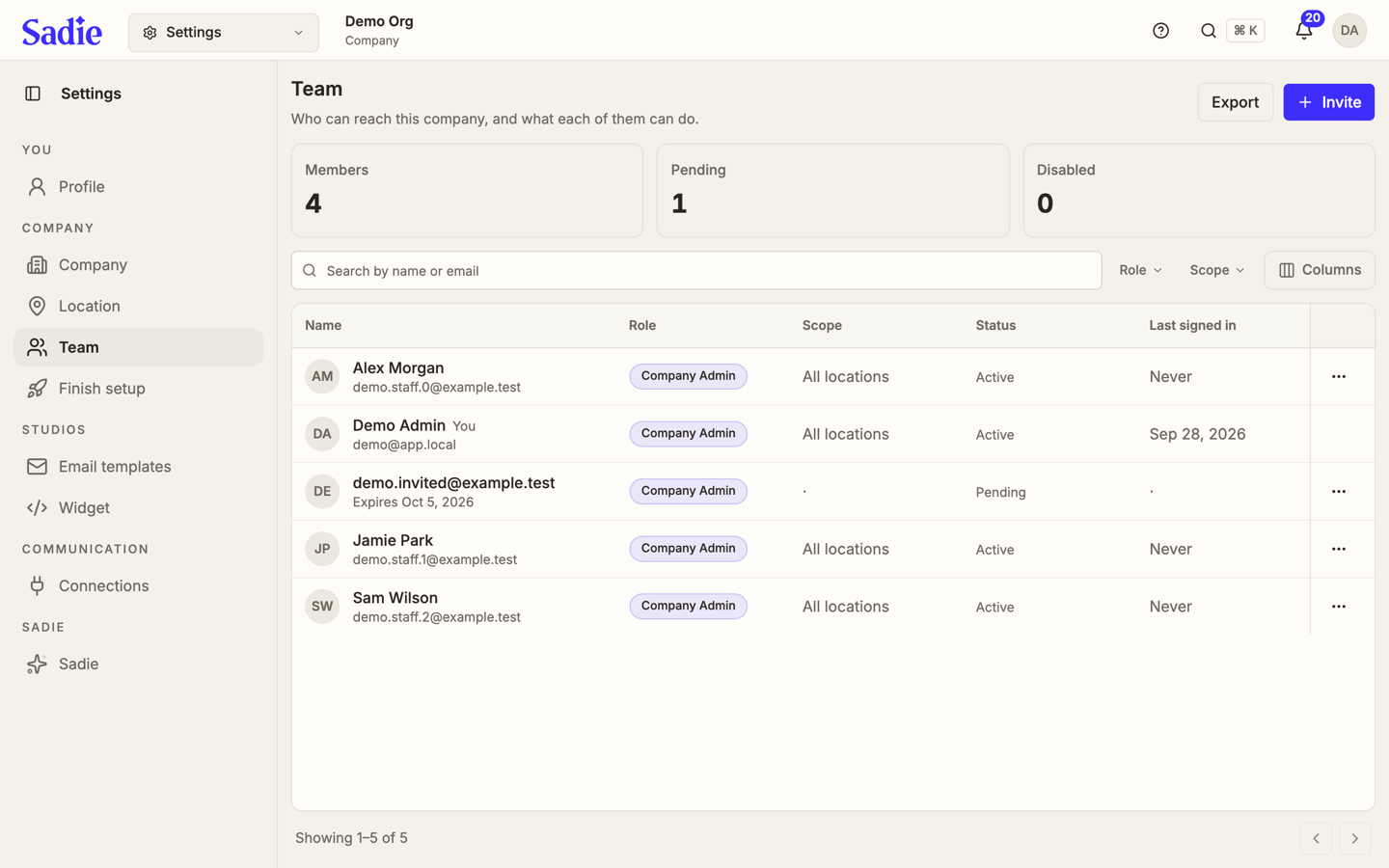
Team shows who can reach your organization and what each of them can do: a table of members, the invitations still waiting, and the roles the app offers.
Open Team
Click Settings in the top bar, then click Team under Company in the sidebar. The Members, Pending, and Disabled tiles at the top count each group.
Invite a teammate
Click Invite, at the top right. Type their email and pick a role. Click Send invitation. They get an email with a link that joins them to your organization.
Find someone in the list
Type a name or email into Search by name or email, above the table. The table narrows as you type. Click Columns to choose which columns show.
What each role can do
Every member holds exactly one role, shown in the What the roles mean card at the bottom of the page.
- Company Admin runs the whole organization, every location, and the team itself.
- Group Manager runs one group of locations.
- Location Manager runs one location.
Change or remove someone
Click Member actions at the end of a member's row. Change role opens a dialog where you pick a new role and, if it needs one, a new location or group.
Under Access, Set password sets their password directly and Email reset link sends them a reset email instead. Under Account, Disable turns off their access without deleting them, and Enable turns it back on. Remove from team takes their access away for good; their account itself is untouched.
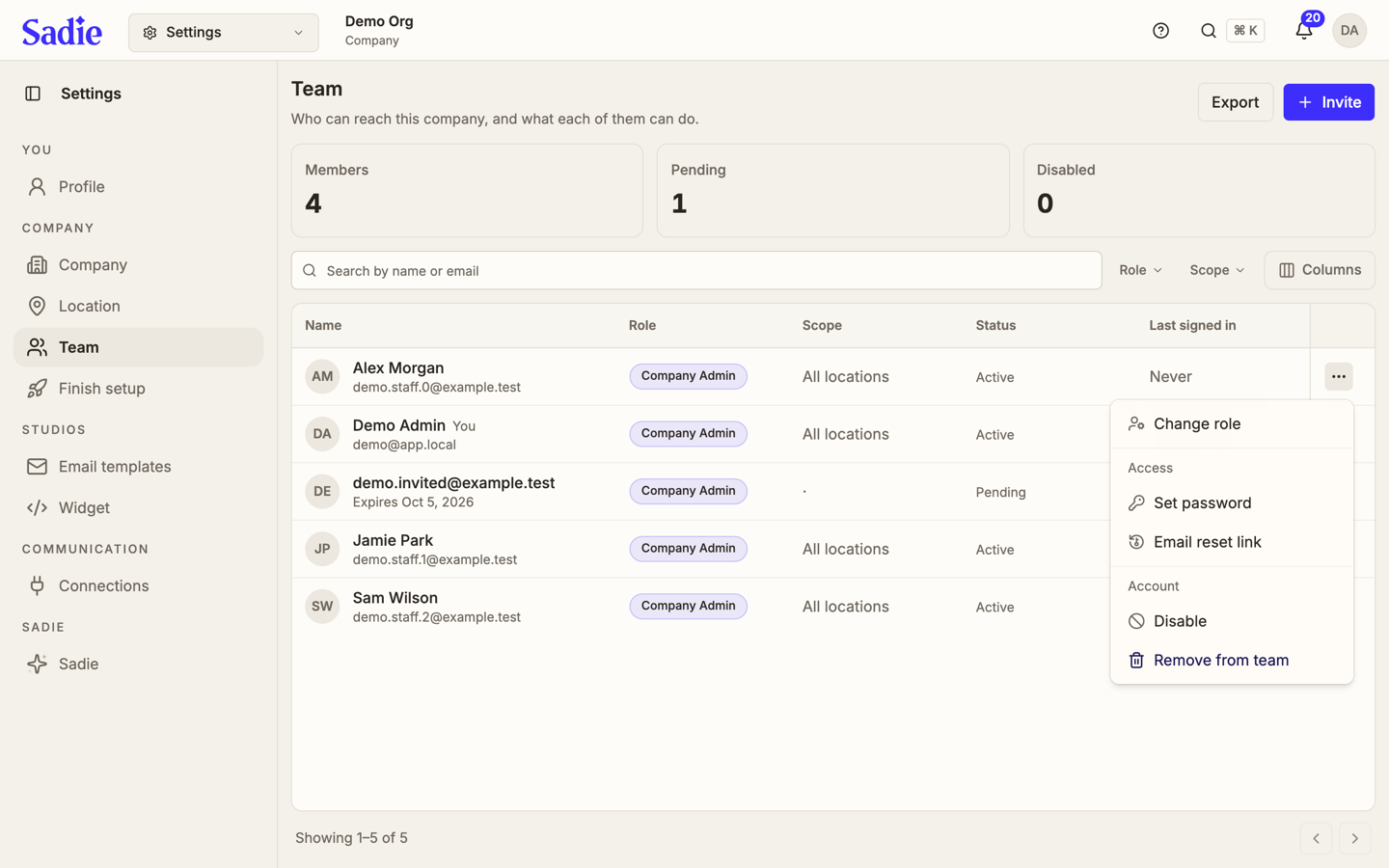
You cannot change your own role or remove yourself from this page: those actions are hidden on your own row.
Manage a pending invitation
An invitation not yet accepted shows Pending under Status. Open its Member actions menu to click Resend invitation or Cancel invitation. Canceling stops that link from working; the person needs a new invitation to join.
What's next
Once your team is in place, finish the location's own setup checklist on Finish setting up a location.