Act on a form response
Read the answers, note the delivery result, leave a note for the team, and change its state.
A form response does not sit in the Inbox. Tap its push notification, or open New response: [form name] from the notification center, to open it. The screen is titled Form response.
What the screen shows
The state chip, the guest's name (or Unknown caller), how long ago it came in, and the form's name.
The next step: the one thing to do about it.
Answers. What the guest filled in.
Delivery, followed by Sent, Partly sent, or Delivery failed.
View the call record, when the response came from a call, linking to that call's own record. If it did not come from a call, the page says This response did not come from a call.
Internal notes, where you can leave a line for the team.
Who it is assigned to, or Nobody assigned. Tap the row to reassign it.
Activity, the list of what happened to this item and who did it, only when there is any. Anything Sadie did herself is marked by Sadie.
Leave a note for the team
Tap the box under Internal notes. It reads Add a note for the team. Type, then save. Saved notes are listed with the name of whoever wrote them and when. Before anybody writes one it says No notes yet.
Change the state by hand
The chip near the top shows where the item is: New, Seen, Handled, or Dismissed.
Tap the chip. A panel opens headed Change state.
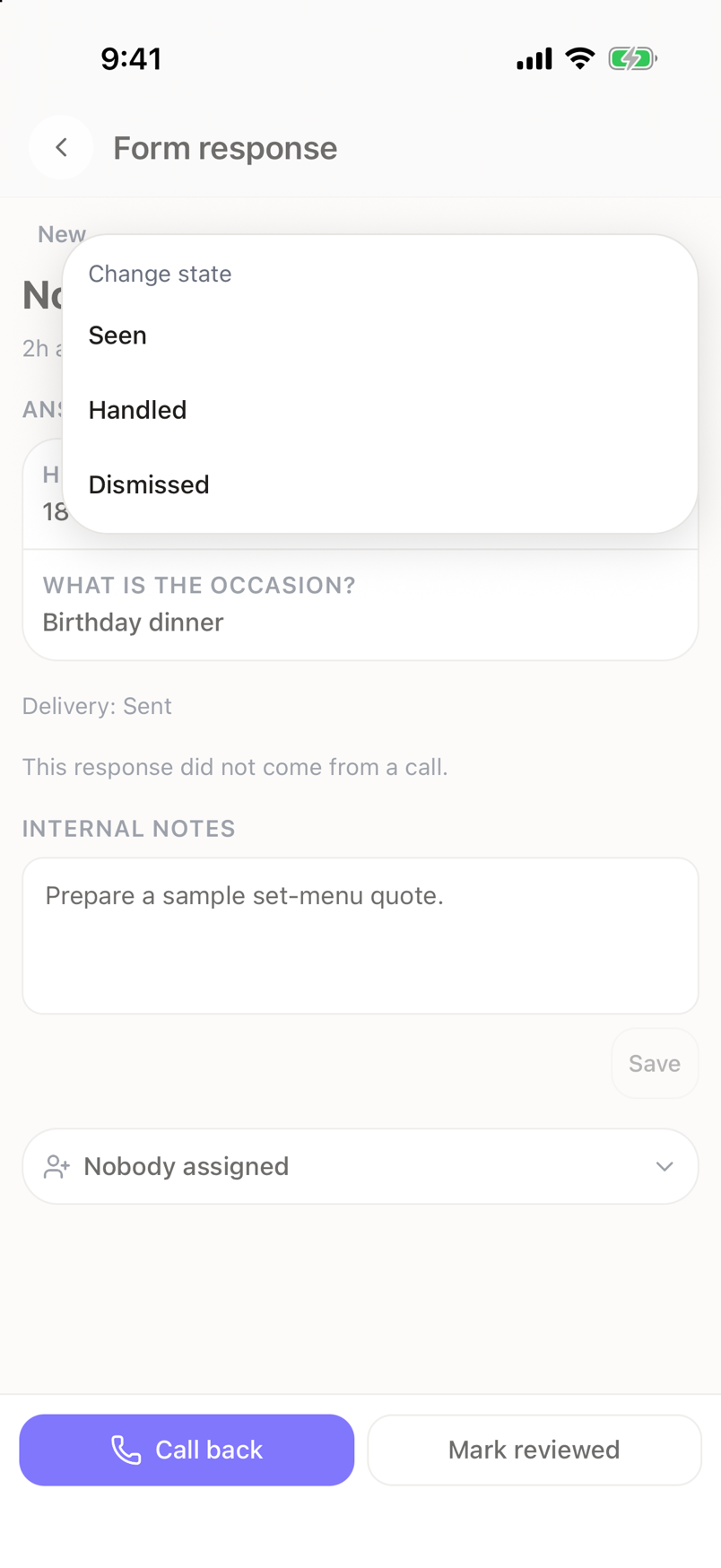
Tap the state you want. The panel only offers the moves that are allowed from where the item is now.
A New or Seen item can go to Handled or Dismissed. A Handled or Dismissed item can only go back to Seen, never to New, so reopening something does not send everyone a fresh notification.
The bar at the bottom
Two controls stay pinned at the bottom of the screen: a call-back action for the guest's number, and Mark reviewed, which reads Reopen on an item that is already done.