What lands in the Inbox
Calls and text threads in one list, newest first, with a dot on the ones that need you.
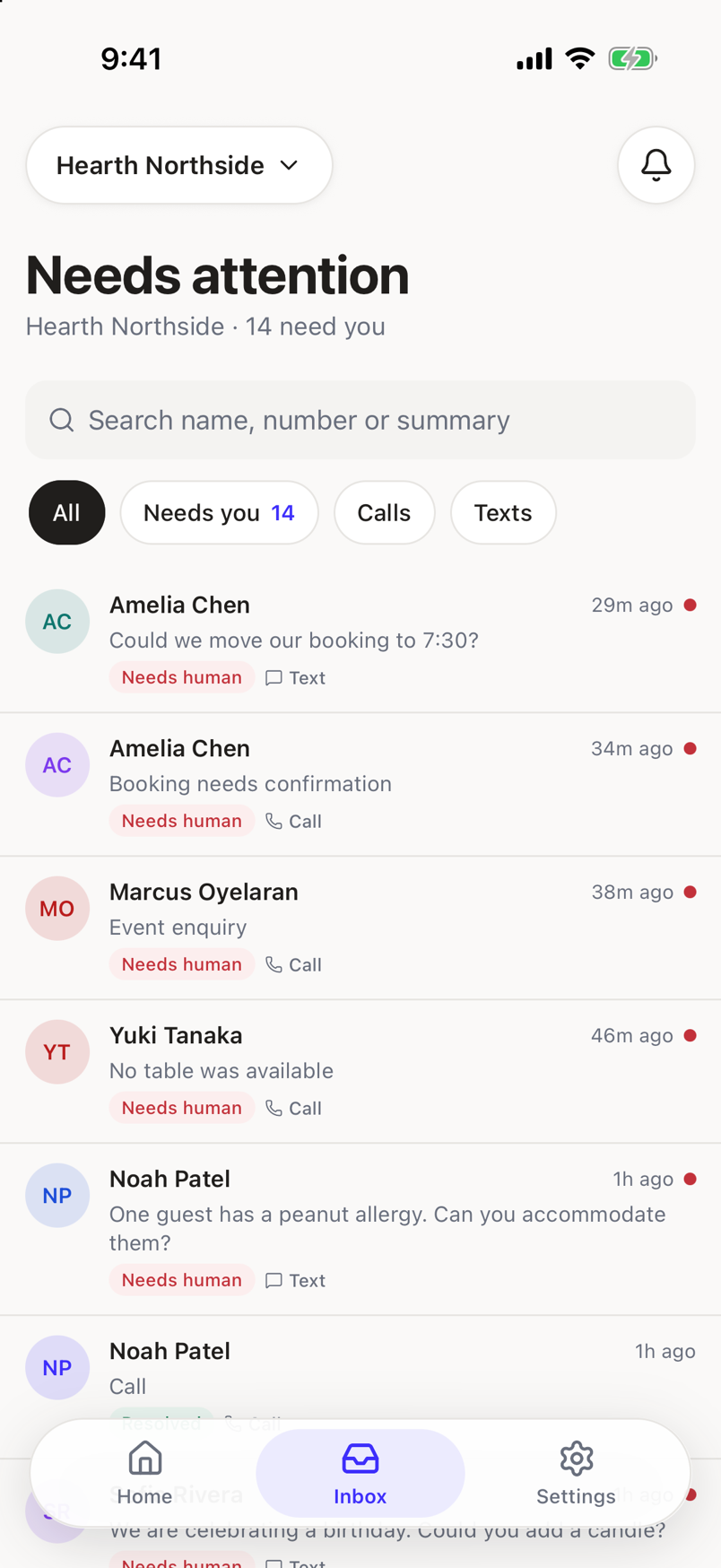
The Inbox is the middle tab. It holds every phone conversation and every text thread for the venue you have selected, in one list. The screen is headed Needs attention.
What sits above the list
At the top, the venue button and the bell. The venue button shows which venue you are looking at and opens the venue picker. The bell opens the notification center.
Under the title, a line reads {venue} · {count} need you, so the number of open items is visible before you touch anything. Below that, a search field: type a name, a phone number, or a word from a summary to narrow the list.
The filter chips
Four chips sit under the search field: All, Needs you, Calls, Texts. All is where the Inbox opens. Needs you shows only the items still waiting on a person. Calls and Texts split the list by channel. Tap a chip to switch; tap it again by tapping another to switch back. Only one chip is active at a time.
What each row shows
- An avatar. Initials in a colored circle when the caller or contact has a name, a plain person icon when they do not. The color is tied to that person, so the same caller looks the same the next time.
- A title and a time. The caller or contact's name, or their phone number when there is no name, with how long ago the item last moved.
- A dot beside the time. It appears when the item still needs a person, or when it is simply unread. It carries no label of its own; the badge below does that.
- A preview line. Up to two lines, drawn from the latest message or the call summary.
- A badge. Needs human, Resolved, Sadie, or A colleague, depending on what state the item is in and who is handling it. When it reads Resolved, the name of whoever resolved it sits beside it.
- A channel line. A phone icon and Call, or a message icon and Text.
Tap a row to open it. A call opens its own screen; a text thread opens the conversation. See A call and A text thread.
When the list is empty
On All with nothing in it, the screen says Nothing here yet, then: Calls and texts land here as they come in. Sadie answers first, and anything needing you moves to the top.
On any other chip with nothing matching, it says Nothing matches that, then Clear the filter to see everything in the inbox.
When something goes wrong
If the list cannot load, you get Could not load the inbox and Check your connection and try again., with a retry.
If your account has no venue to work from yet, the screen says No access yet: Ask an admin to give you a venue before the inbox can show anything.
The list follows your venue
Choosing a venue narrows the Inbox to that venue's calls and texts. On All venues, every venue's work shows together. See What changes per venue.