Set up Sadie, your phone assistant
Configure the assistant that answers your phone, takes bookings, and texts callers.
Sadie answers the phone, takes bookings, and texts callers when you're busy. This page covers first-time setup and every tab in the Sadie section of Settings, for one location at a time.
Before you start
Setting up Sadie for a location needs a plan that includes it. If the location isn't entitled, you see a locked screen instead of the setup steps.
Getting Sadie set up
A location that hasn't finished setup sees a guided setup flow instead of the tabs below: pick a phone number, fill in a short identity step and a booking step, then a final screen to go live. Once setup is complete, the tabs open.
If Sadie's number is ever released, the location goes back to a focused screen asking you to attach a new number. Everything else you configured stays in place; only the phone number is missing.
Greetings & Messages
Greetings & Messages controls how Sadie sounds and what it knows about your business.
The Voice section picks the voice Sadie uses when answering calls. A change applies from the next call; a call already in progress keeps the voice it started with.
Greeting variants controls what callers hear when Sadie picks up. The default greeting is read-only and built from your business name. Switch Active to the welcome greeting to use your own custom message instead, up to 700 characters. Save the active choice and the custom greeting together.
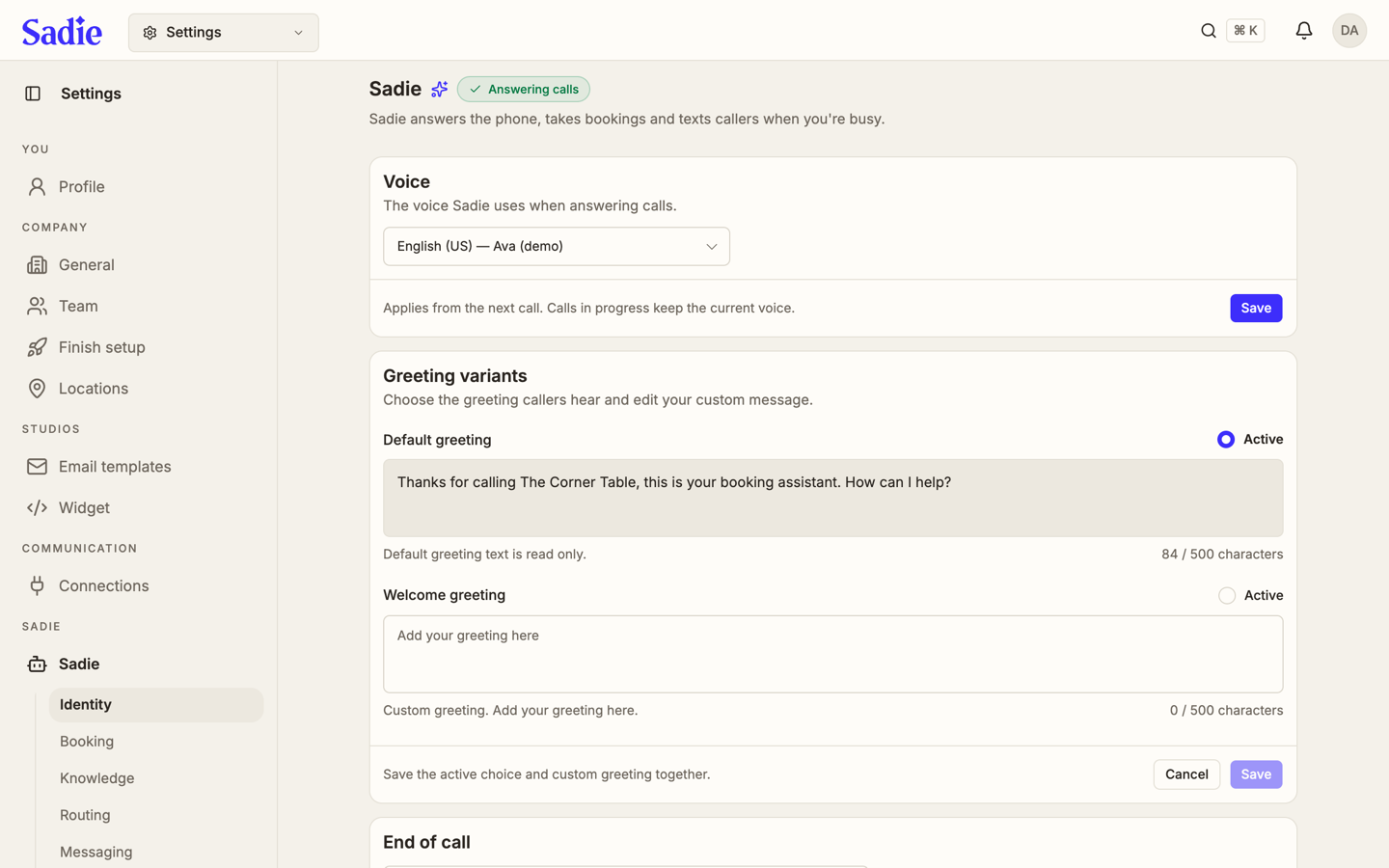
Below that, End of call sets the message callers hear when the call ends.
Bookings
Bookings controls how Sadie offers times and what it asks callers for.
Availability has two settings: Section selection lets callers choose a specific seating section, and Flexible time range sets how far from the requested time Sadie can suggest alternatives, in minutes. Both apply to new calls immediately.
The closing question Sadie asks before confirming a booking has a preset picker; choose one of the built-in questions or pick Custom and type your own.
Guest information sets what Sadie collects when booking: Require email asks callers for their email address, Require payment to book asks for a card before confirming, and Use caller phone, marked Recommended, uses the caller's own number for the reservation.
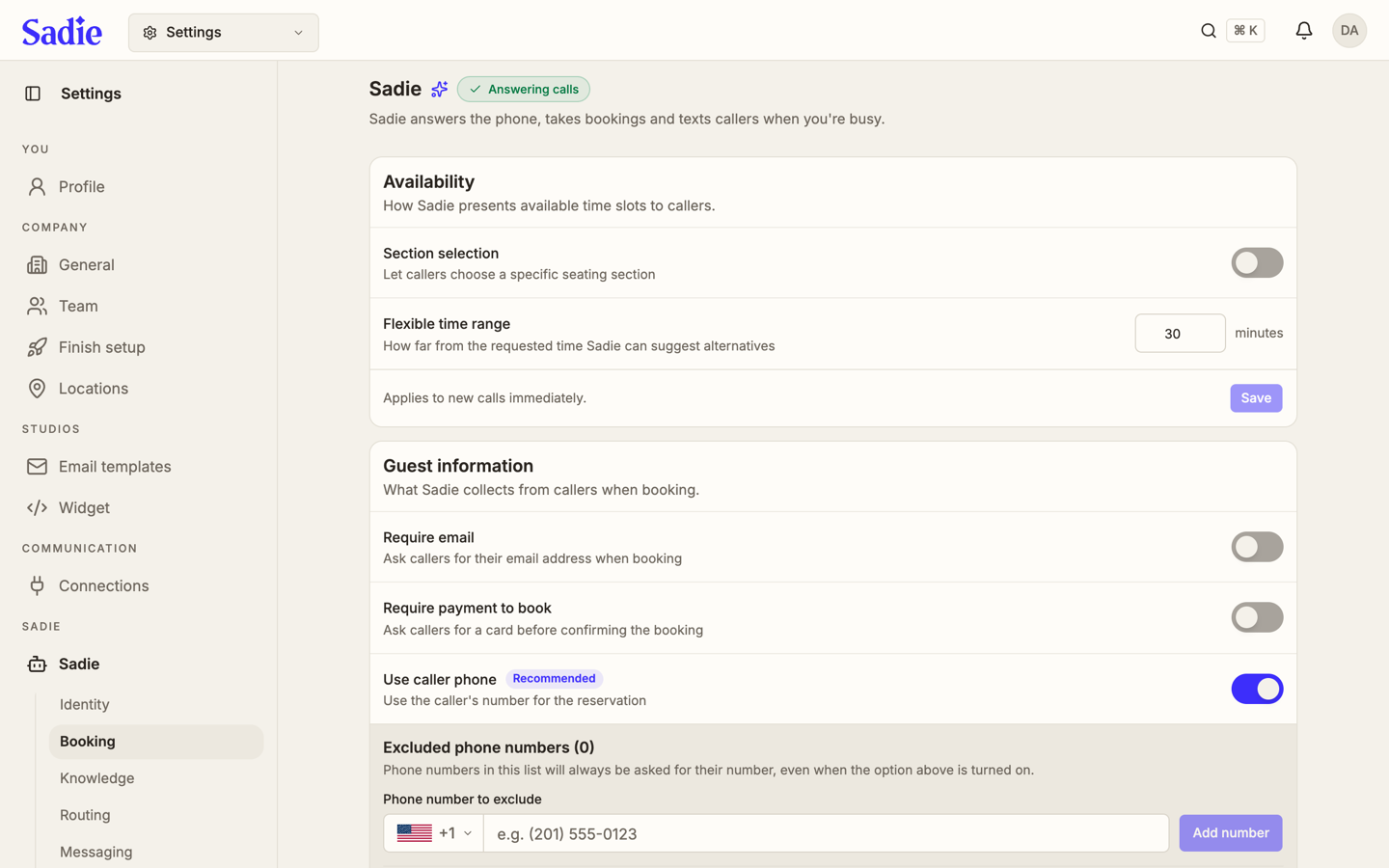
Below Guest information, Excluded phone numbers lists numbers Sadie always asks for directly, even with Use caller phone turned on. Add a number with the country picker and the Add number button.
Knowledge Base
Knowledge Base holds what Sadie can reference on a call.
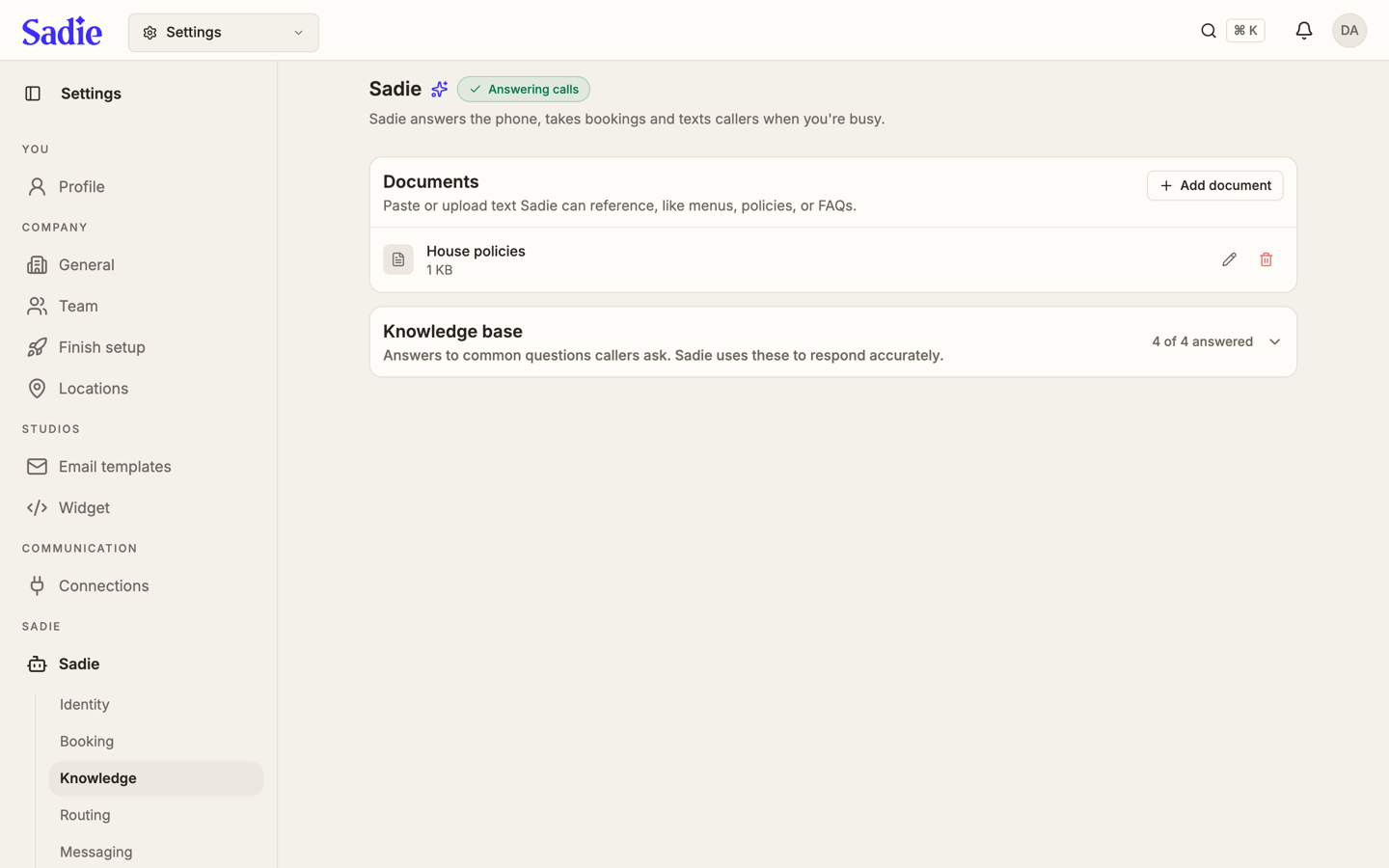
Documents stores text Sadie can reference, like menus, policies, or FAQs. Paste or upload a document with Add document.
Business knowledge holds what Sadie knows beyond the basics: opening hours, parking, policies, and current promotions. Sadie answers from this text, so keep it current.
Turn a document's switch off to keep it without deleting it; Sadie stops reading it on calls until you turn it back on.
Knowledge base holds answers to common questions callers ask. Sadie uses these to respond accurately, and the count in the corner shows how many questions are answered. The guided setup walks through each unanswered question one at a time, with Save and Skip, before Sadie goes live.
Transfers
Transfers controls how Sadie hands off calls to your team.
Transfer & failover sets Transfer mode (cold transfer connects the caller immediately; warm transfer briefs the recipient first), Dial timeout (how many seconds Sadie rings the transfer number before giving up, between 1 and 60 seconds), and a Backup number that calls ring through to while Sadie is paused or unavailable. Transfers ring the location's main line by default. A backup number is required before you can pause Sadie; without one, all incoming calls would have nowhere to go.
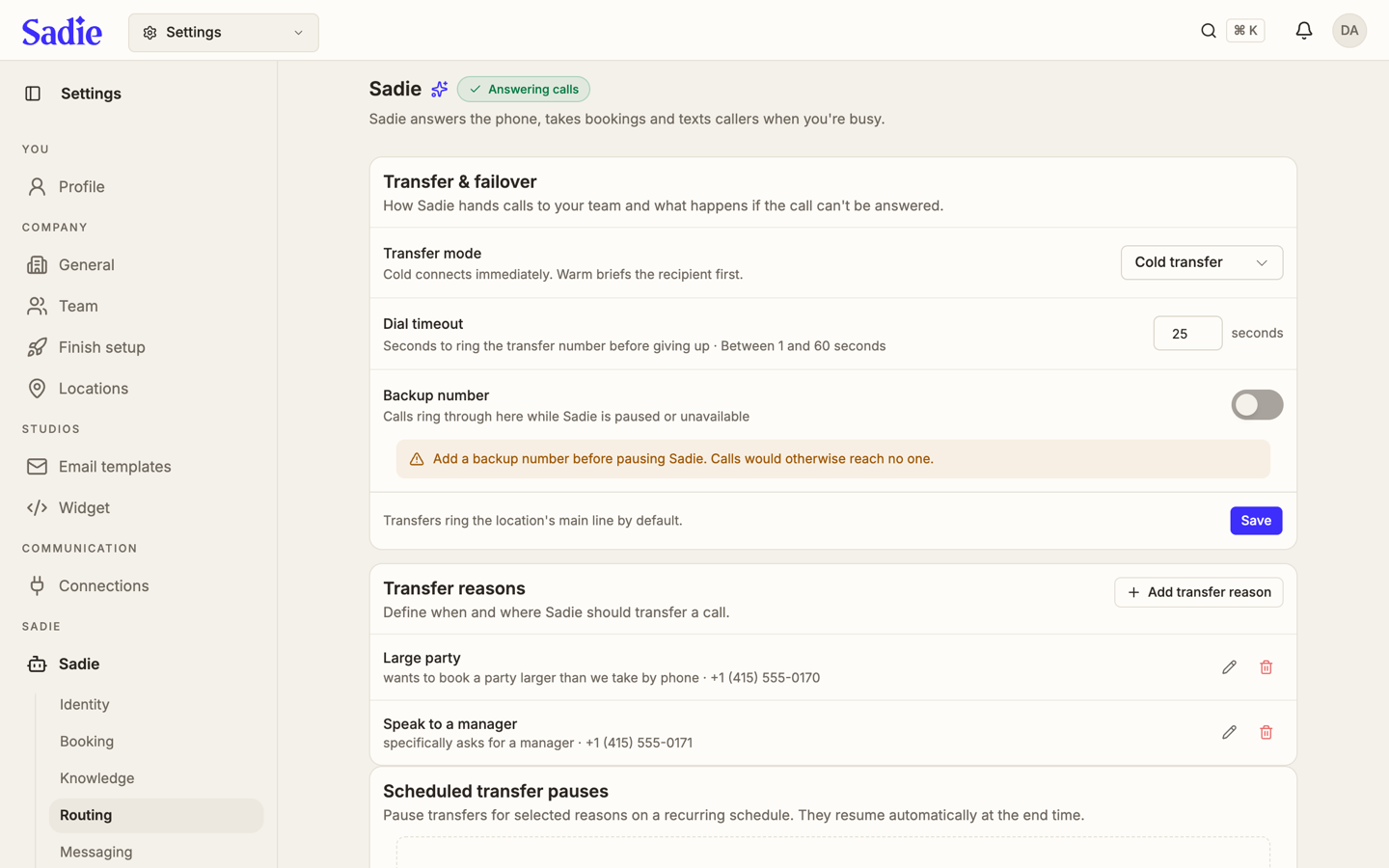
Transfer reasons defines when and where Sadie should transfer a call, each with its own destination number. API Error, No Availability, and General Inquiry are built in and cannot be deleted, though you can still change their destination number.
Scheduled transfer pauses pauses transfers for selected reasons on a recurring schedule; they resume automatically at the end time. When you set the days, the quick presets (like Weekdays or Weekend) highlight whenever the days you picked match one exactly. Click Resume all to end every active pause for this location right away, instead of waiting for each one's schedule.
SMS Reasons
SMS Reasons controls the texts Sadie sends during and after calls.
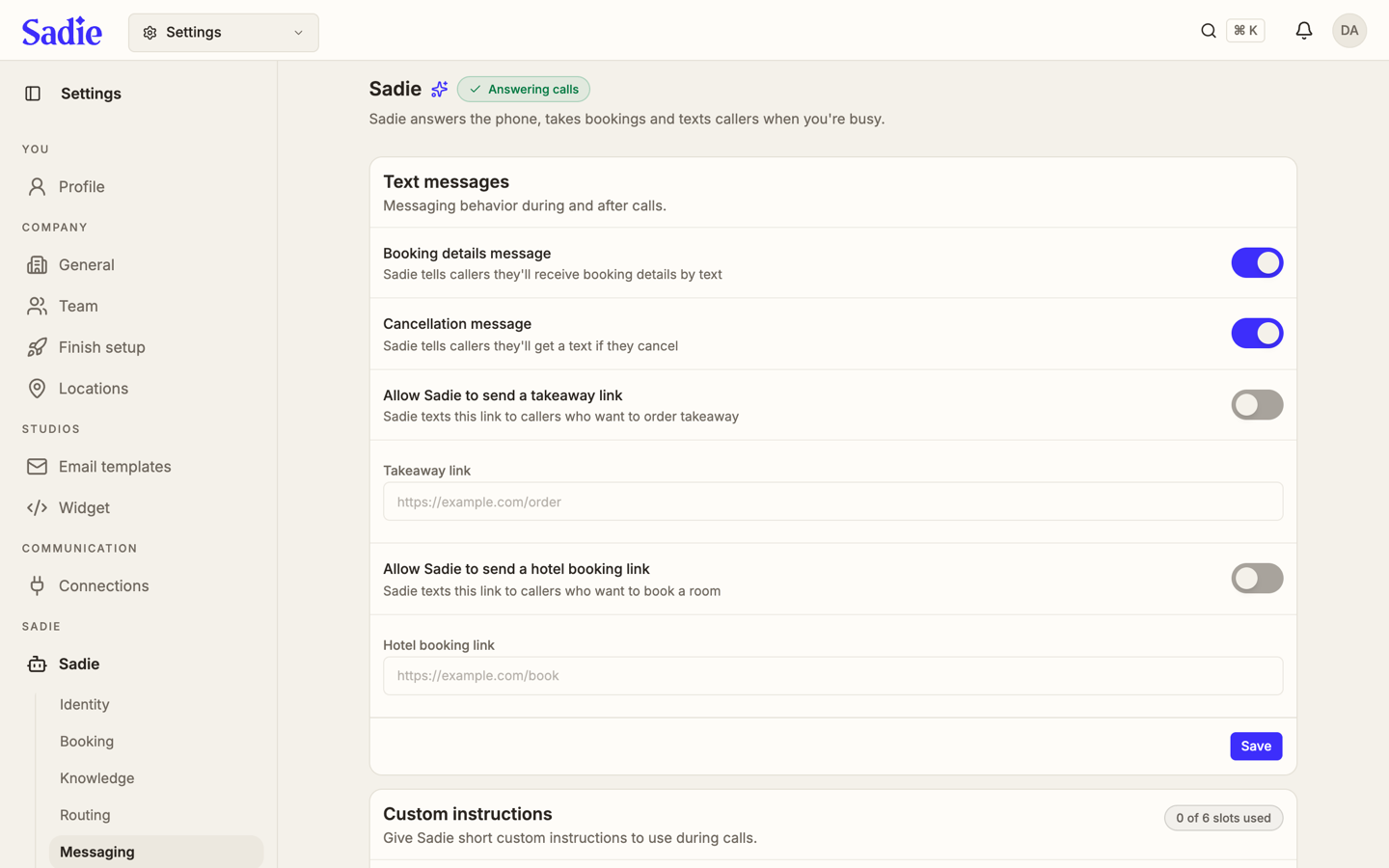
Text messages has two always-on notices, Booking details message and Cancellation message, that tell callers they'll get a text with those details. Two more switches are optional: Allow Sadie to send a takeaway link and Allow Sadie to send a hotel booking link, each with its own link field that appears once the switch is on.
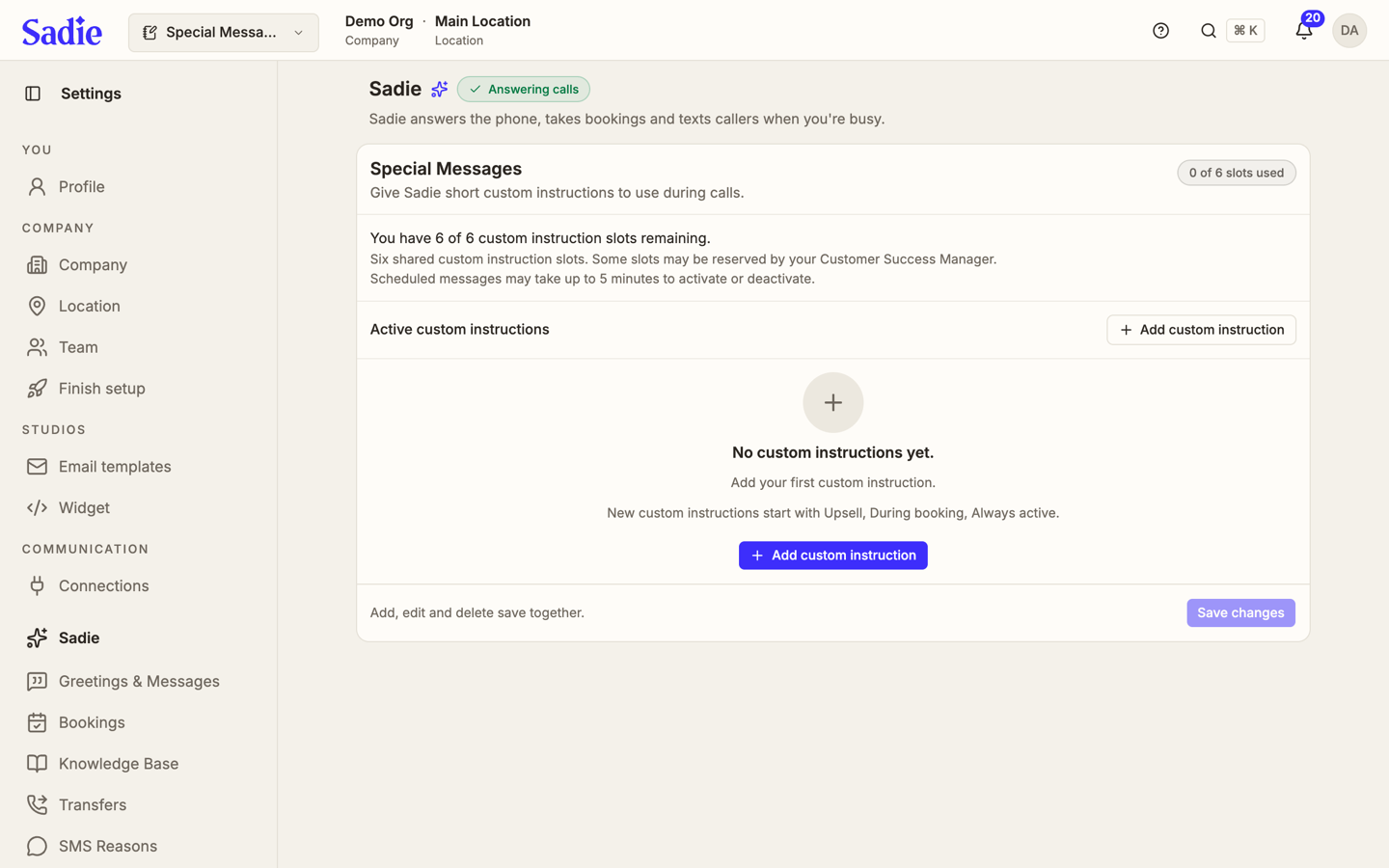
Special Messages
Special Messages lets you give Sadie short custom instructions to use during calls, up to a fixed number of slots shown in the corner. It has its own tab now, separate from SMS Reasons, so it doesn't get missed during a weekly review.
Working Hours
Working Hours shows whether Sadie is answering calls right now, with a link to where the hours themselves are set.
At the top, a banner shows Sadie is active and answering calls, with a Pause button. If no backup number is set, a warning tells you to add one before pausing, since calls would otherwise reach no one; the warning links straight to Transfers.
Edit times on Schedulers opens the Schedulers page. That's where you set working hours, named stretches of the day like Happy Hour, holiday and special-date hours, and when Sadie can transfer a call, all on one calendar. See Schedulers.
Recent activity lists the pauses and resumes for this location: status, name, type, who changed it, and when.
Availability Rules
Availability Rules change how Sadie responds during specific hours or dates, on top of your regular working hours.
Click Add rule to create a repeating rule or a one-off date rule. Each rule you add appears in the Availability Rules list with its own status. Test rules lets you pick a date and time and see which rule would apply, without saving anything.
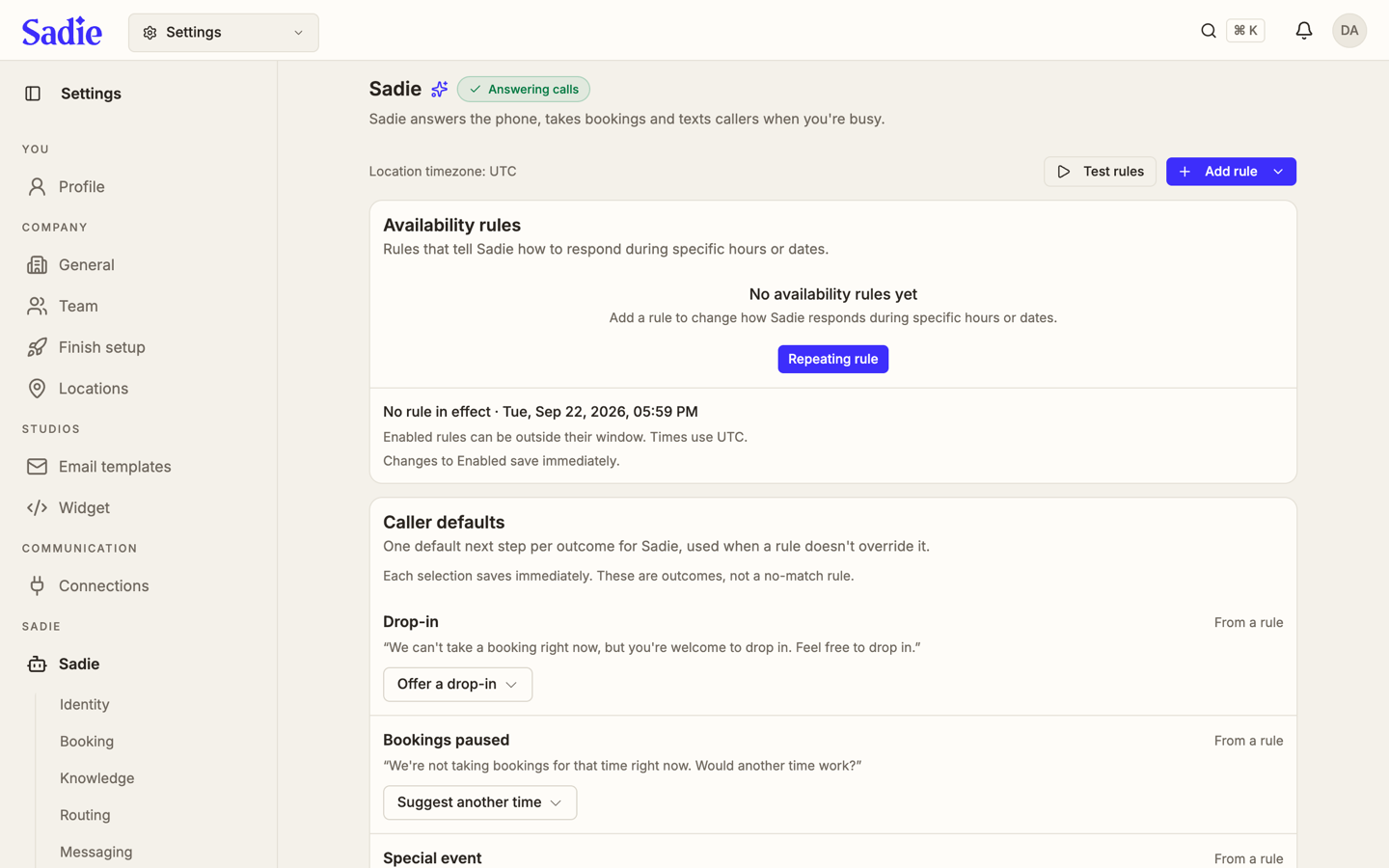
Caller defaults sets one default next step per outcome, used whenever a rule doesn't override it: what Sadie says for a drop-in request, when bookings are paused, and for a special event. Each selection saves immediately.
Assistant Settings
Assistant Settings holds call behavior and idle handling.
Call settings sets the Call time limit in minutes (calls past this limit end automatically), switches for Call recording, Background sound, and Satisfaction survey, and Caller ID forwarding, which forwards the caller's number for automatic guest recognition. Recordings are kept for 30 days.
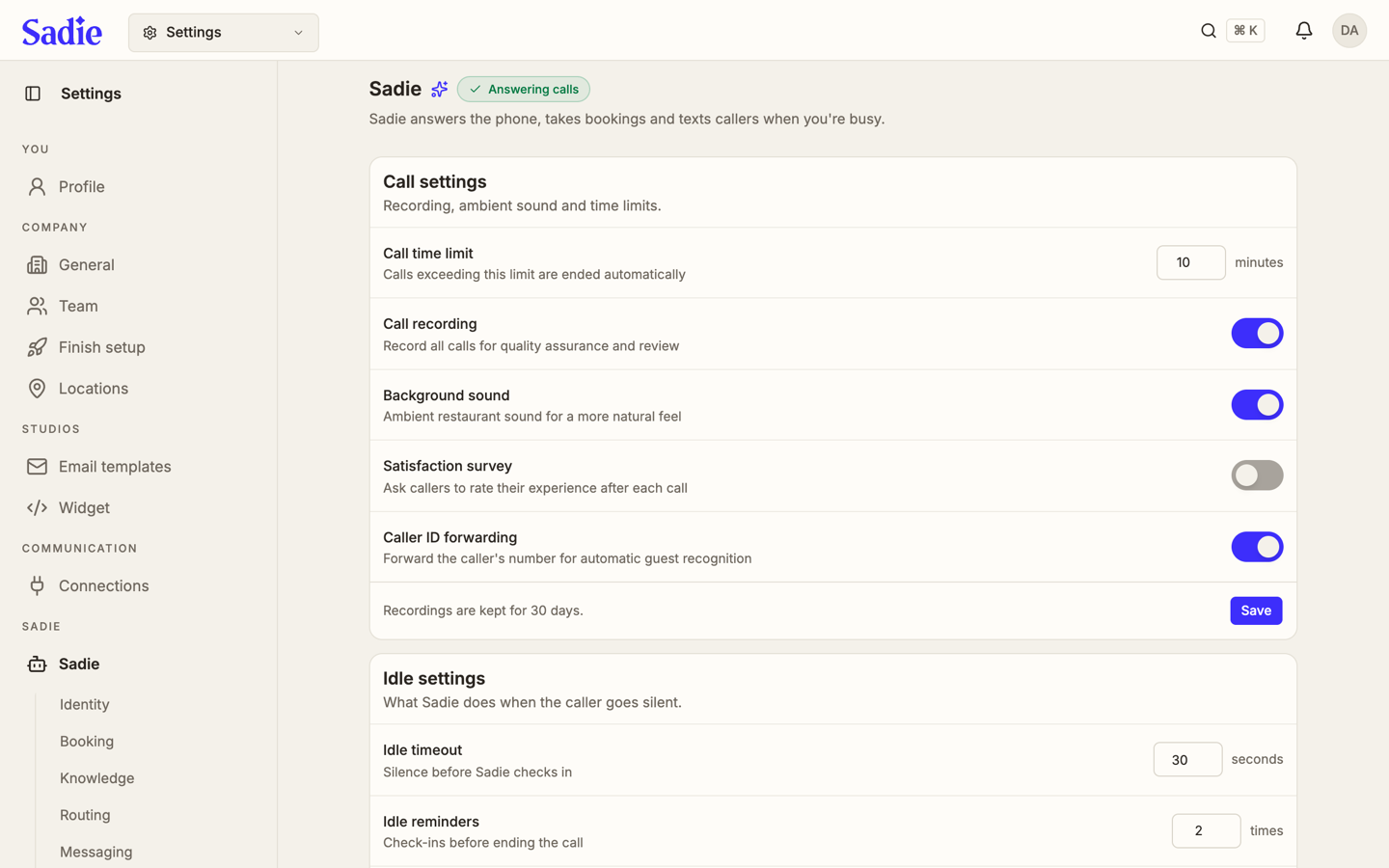
Idle settings sets the Idle timeout in seconds before Sadie checks in on a silent caller, and Idle reminders, the number of check-ins before Sadie ends the call. Below Idle settings, releasing Sadie's phone number lives in its own danger zone on this tab.
What's next
With Sadie configured, go to the Inbox to see the calls it answers and the bookings it takes. See the Inbox.