See your hours on one calendar
Open Schedulers to view pauses, working hours, and the other timed windows for the active location.
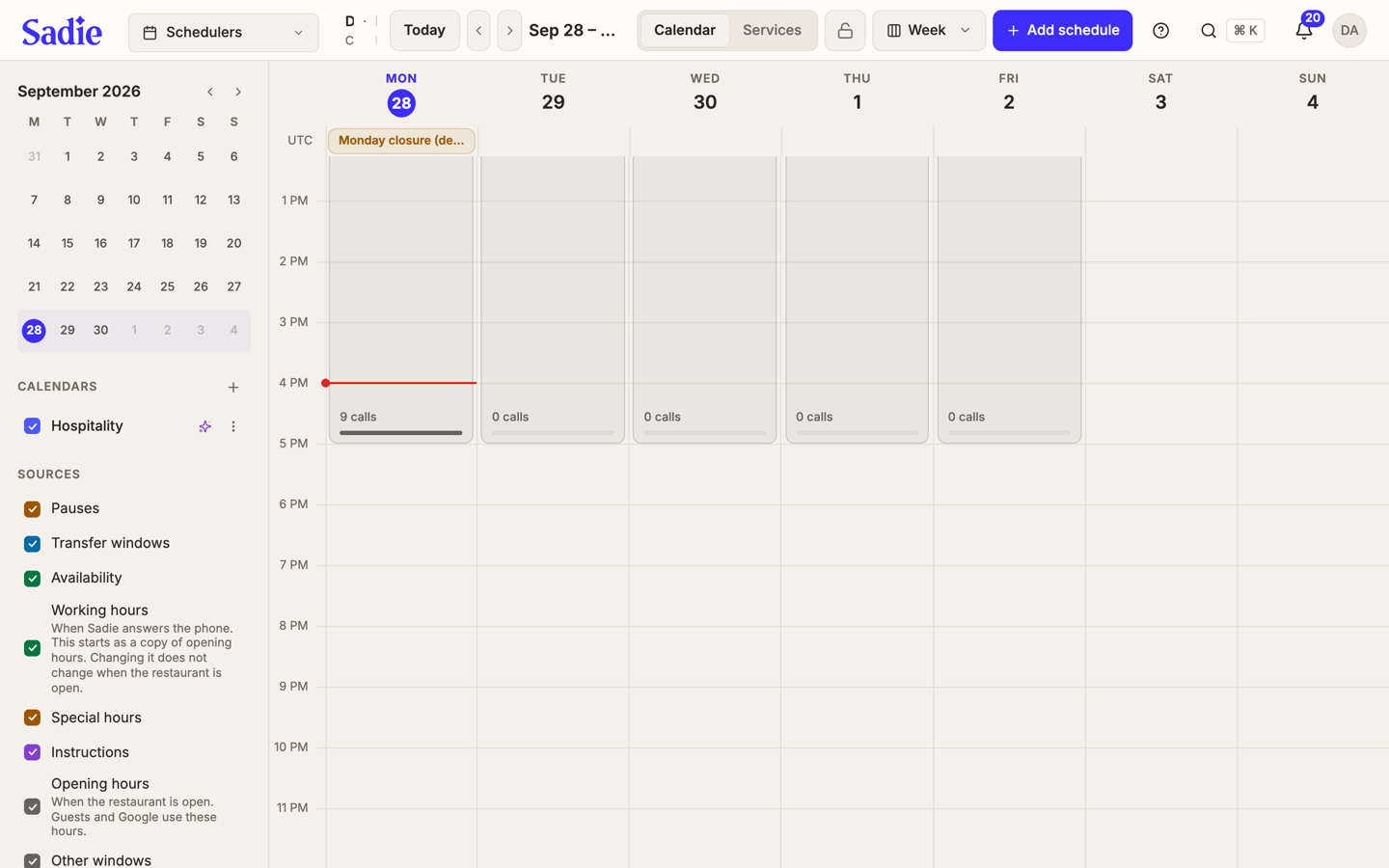
Schedulers puts the timed windows for the active location on one calendar. Open it from the page menu, after Inbox.
Open Schedulers
In the page menu, click Schedulers. The week grid opens for the location you have selected.
If you have not chosen a location, the page asks you to choose one.
Change the view
Week, Day, and Month sit beside the page title. Today jumps back to the current day. Previous and Next move the range.
Sources lists each kind of window, including any calendar you imported. Click one to hide it. Click it again to show it.
Move a window
Drag a pause, a transfer window, working hours, or an hours section to a new time on a day it already includes. The previous time stays if the save fails, or if the new end is not after the start.
Location hours and the other stored windows can be seen here, and you can edit them here too: open a block to change it, or switch to the Services board.
See a day's booking calls
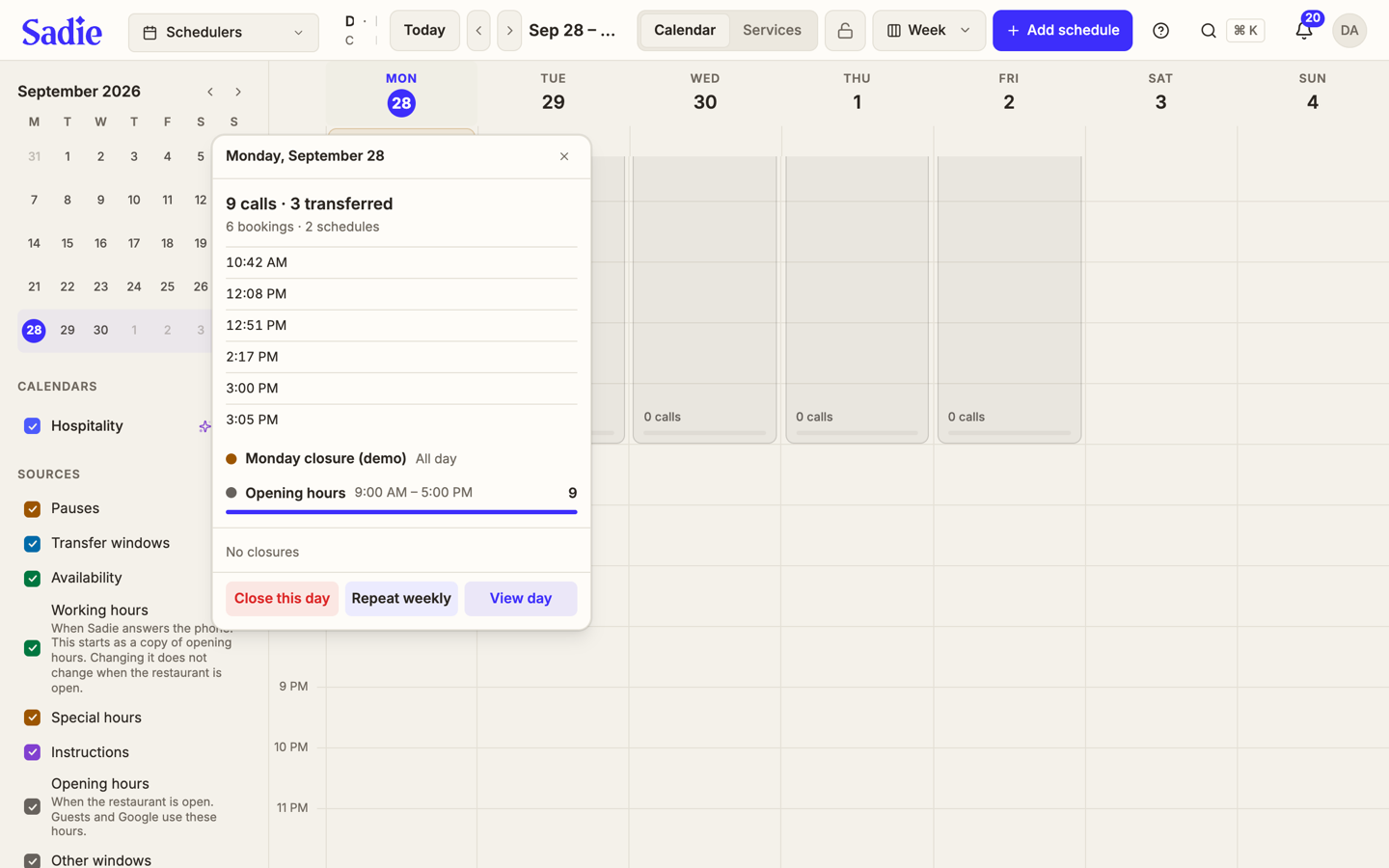
In Week view, click a day to open a popover with that day's summary: how many booking calls it had, how many were transfers, and whether the day ran after hours. The list caps at 20 calls; open the day's own view for the rest. In Month view, clicking a day switches to Day view instead of opening the popover.
Add a schedule
Click Add schedule to create a new one, or switch to the Services board to see every schedule grouped by kind, such as pauses or transfer reasons, instead of by service. Click Edit on a row to open or preview it.
Imported calendars
A Holiday or Hospitality calendar is created for you automatically. Click Sync now on it to refresh its dates. A calendar you added yourself also gets a Remove option; a built-in one does not.