Your settings
Your account, your company, how the app looks, and how to sign out.
Settings is the last tab. It is short on purpose.
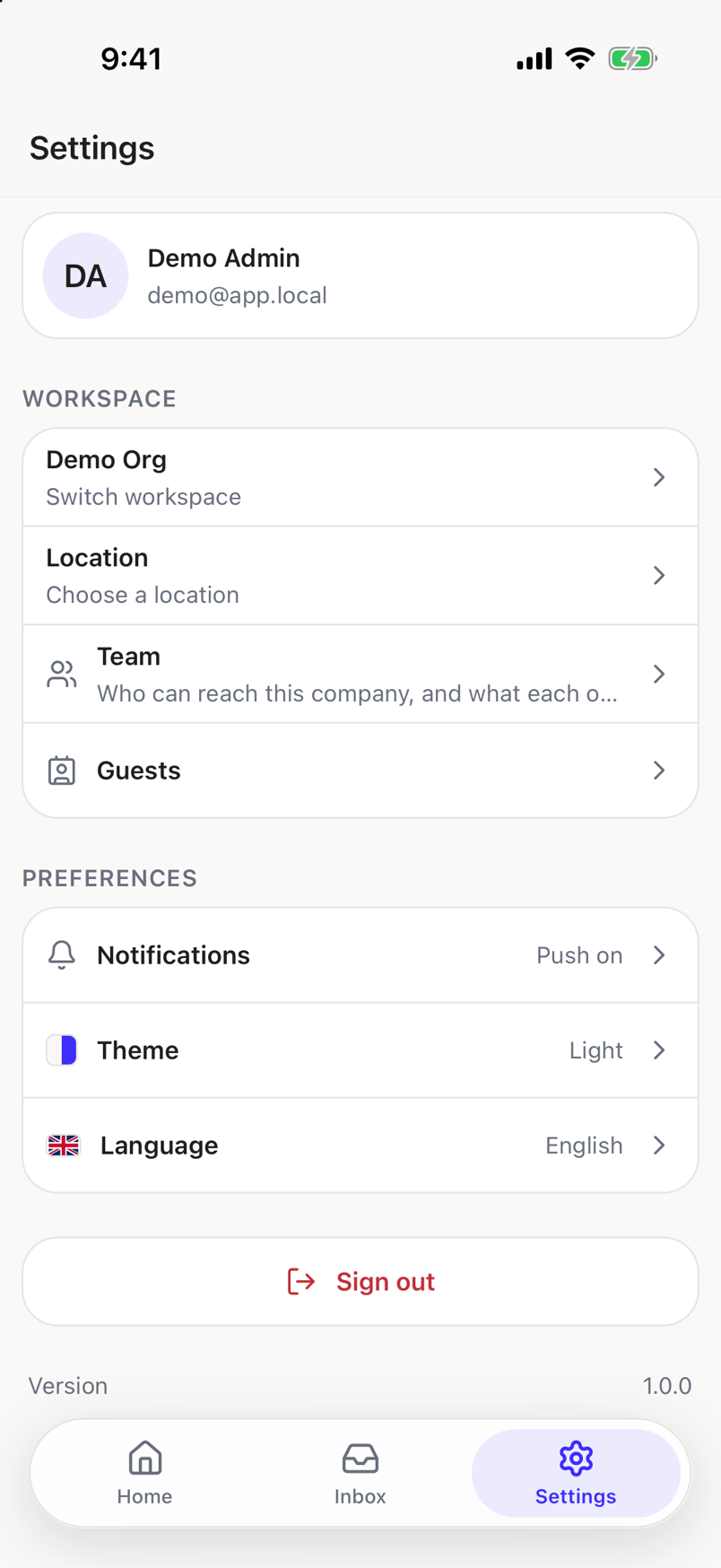
Who you are signed in as
At the top is your name and the email you signed in with. It is a label, not a form. To change your name or email, ask an administrator to change it in the web app.
Workspace
- Workspace. Shows the company you are working in, with Switch workspace under it. Tap it to open the list and pick another, even when you only belong to one. See Choose your company.
- Location. Shows which location you are looking at, with Switch location or Choose a location under it, depending on whether one is already set.
- Team. Who can reach this company, and what each of them can do.
- Guests. Opens the guest list.
Preferences
- Notifications. Shows Push on or Push off, so you can tell at a glance whether the app can buzz you. Tap it for the full set of controls. See Notification settings.
- Theme. Shows the theme you are on. Tap it to pick another. See Choose a theme.
- Language. Shows your current language. Tap it to pick another.
Team and Guests are their own areas
This article covers Settings itself. Team and Guests each open a full screen of their own, which this guide does not walk through yet.
Sign out
The last row signs you out and returns you to the sign-in screen. Signing out clears this workspace's data from the phone and stops notifications reaching this device.
If your phone cannot reach the server, you get Can't reach the server. Check your internet connection and try again. and you stay signed in. That is deliberate: a half-finished sign-out would leave data on the phone.
Version
The number at the very bottom is the version of the app you are running. Quote it when you report a problem.