Switch venue
Choose the venue you are looking at, or look at all of them at once.
The venue button sits at the top of the Inbox and Home. It shows which venue you are looking at, and it is the same choice on both screens. If your company has one venue, the button is a label rather than a decision.
Change venue
Tap the venue button at the top of the Inbox or Home. The screen that opens is headed Venues.
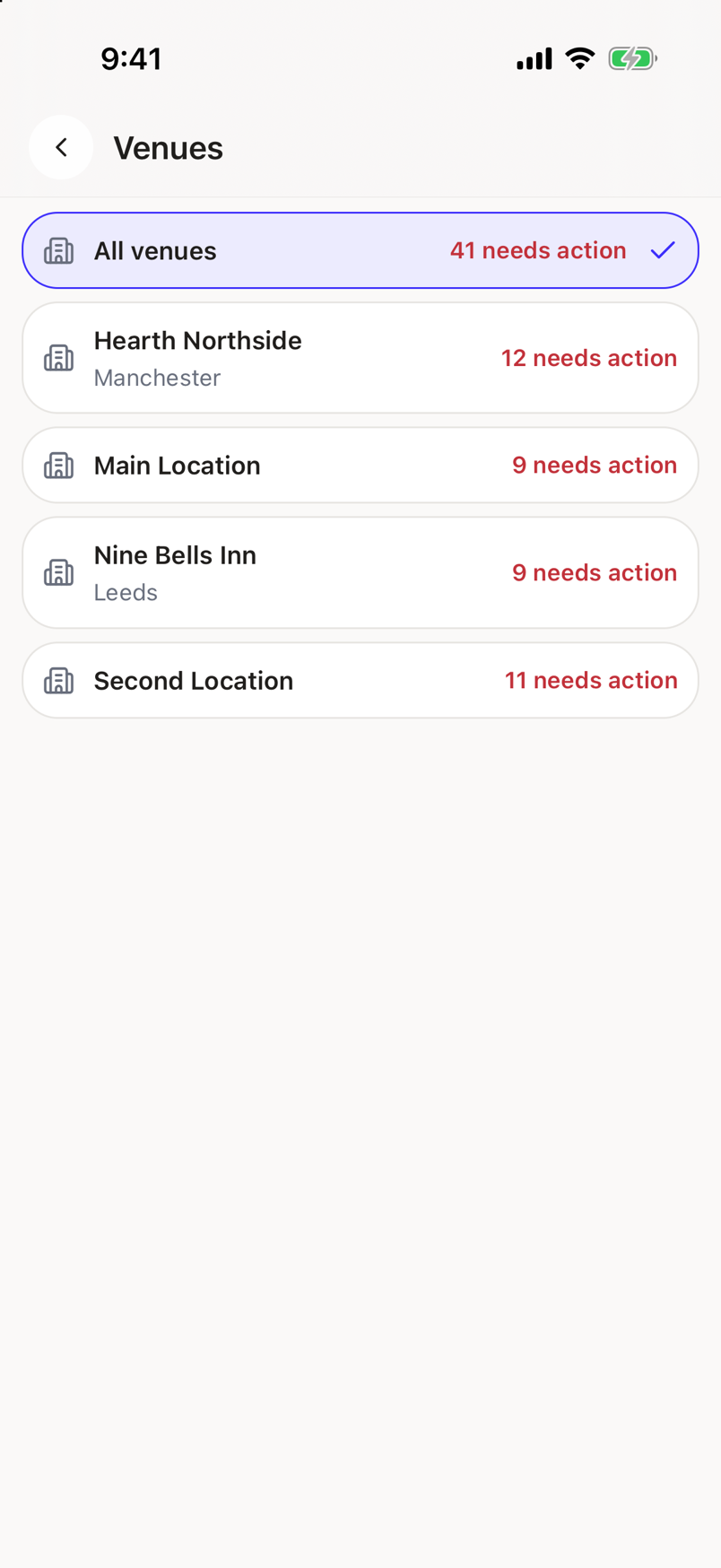
Tap the venue you want. All venues is the first row, above the individual ones.
The picker closes and you are back where you were, on the new venue.
What the rows tell you
Each row carries the venue name, the city under it, and how much work is waiting there, written as a count followed by needs action. The All venues row adds up the rest.
A venue that is not yet wired to Sadie is marked Not connected yet. You can still select it, but there will be nothing in it.
If the company has no venues at all, the screen says No venues in this workspace yet. An administrator adds venues in the web app.
What you get on first open
You do not have to choose anything to start.
| Your company | The app opens on |
|---|---|
| One venue | That venue. |
| More than one venue | All venues, so nobody's work is hidden behind a filter you never set. |
| No connected venues | All venues, so the empty message can explain why. |
The app remembers your choice
Your venue is remembered per company. Switch workspace and come back, and you are on the venue you were last looking at there.
If the venue you had chosen is removed, or you leave the company it belonged to, the app falls back to the default above rather than filtering by something that no longer exists.